
To point a domain to hosting, you either change the nameservers at your domain registrar or update an A record in your current DNS zone. Both methods connect your domain name to your web hosting server, but they leave you in control of DNS in very different ways. Choosing the wrong one can take your website or email offline.
This guide explains how to point a domain to hosting with nameservers vs A record, shows when to use each method, and walks through setup steps. You will also learn how to check DNS propagation, protect your MX records, and fix common errors, so your website goes live without lost email.
Table of Contents
- What Is Pointing a Domain to Hosting and Why Is It Important?
- Nameservers vs A Record: What Is the Difference?
- When Should You Change Nameservers?
- When Should You Update an A Record Instead?
- How to Point a Domain to Hosting Using Nameservers
- How to Point a Domain to Hosting Using an A Record
- After You Point a Domain to Hosting: WWW, Email, and SSL Setup
- How to Check That You Point a Domain to Hosting Correctly
- Common Problems When You Point a Domain to Hosting and How to Fix Them
- Frequently Asked Questions
- Summary:
What Is Pointing a Domain to Hosting and Why Is It Important?
When you point a domain to hosting, you set up DNS so that your domain name leads visitors to the server that stores your website. Two roles are involved. Your domain registrar holds the registration, while your DNS provider holds the DNS records that send traffic to your website, email, and other services. One company often does both jobs, but they can be different providers.
When someone types your domain into a browser, DNS tells their device which server should answer. If the records are missing, outdated, or wrong, the site fails to load, shows an old version, or sends email to the wrong place. Getting this right matters most when you launch a new website, move to a new web hosting provider, or keep email running during a migration. A free website migration from your new host can help here, because files, databases, email, and DNS records are moved together while your old site stays live.
Nameservers vs A Record: What Is the Difference?
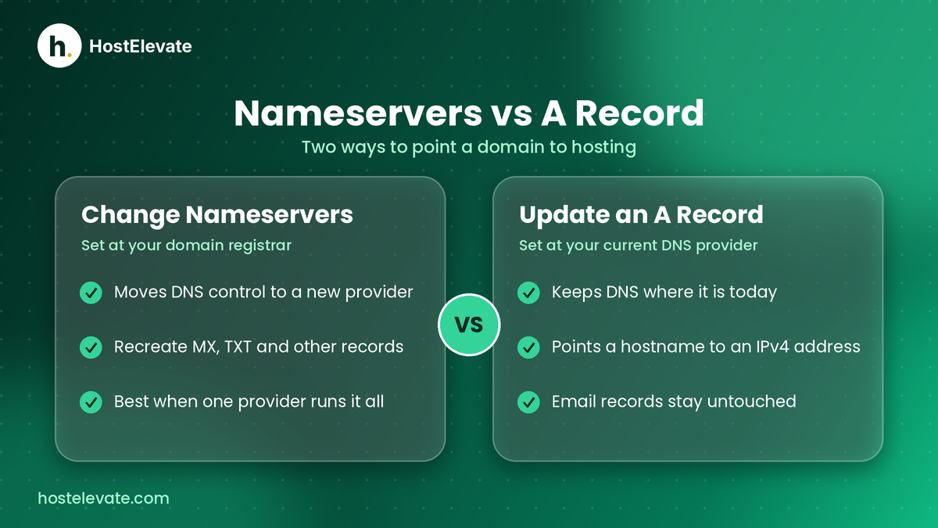
Nameservers and A records both let you point a domain to hosting, but they do different jobs. Nameservers tell the internet which DNS servers are in charge of your domain. An A record is a single DNS record that maps a hostname, such as example.com, to an IPv4 address.
| Feature | Change nameservers | Update an A record |
| What changes? | Which provider is authoritative for your DNS zone | The IPv4 destination for a specific hostname |
| Where do you make the change? | Usually at your domain registrar | At your current authoritative DNS provider |
| Who manages DNS afterward? | The provider whose nameservers you select | Your existing DNS provider |
| Best suited for | Moving DNS management to your hosting provider | Pointing the website to a new server while keeping DNS elsewhere |
| Main consideration | Recreate or verify your existing DNS records at the new provider | Update every relevant hostname and keep other required records |
Choose nameservers when you want your hosting provider to manage the DNS records and you have confirmed that the website, email, and verification records will exist in the new DNS zone.
Choose an A record when you want to keep DNS where it is and only need to send the website hostname to the hosting server’s IPv4 address. Depending on your setup, you may also need a CNAME or a second A record for www.
Neither way to point a domain to hosting is better in every case. The right choice depends on your hosting provider’s instructions and on which services already use your domain.
When Should You Change Nameservers?
Changing nameservers is a good way to point a domain to hosting when you want one provider to manage your DNS records. If your domain and web hosting sit with different companies, you can switch to the nameservers your host supplies and manage everything from one place. Plans such as HostElevate’s web hosting come with cPanel and free SSL, so your website, email, and certificate can live in a single account.
Keep in mind that changing nameservers does not copy your old records. Whatever is missing from the new DNS zone stops working once the change takes effect.
Before you point a domain to hosting with new nameservers:
- Record your existing A, AAAA, CNAME, MX, TXT, and other DNS entries.
- Get the exact nameservers from your hosting provider.
- Confirm that the new DNS zone contains every record your website and email need.
- Check whether you use third-party email, verification services, or custom subdomains.
- Review your DNSSEC settings if the domain uses DNSSEC, and follow both providers’ instructions.
After you change the nameservers at your registrar, confirm that the new provider returns the correct records. Do not delete the old DNS zone until the new setup is working.
When Should You Update an A Record Instead?
Updating an A record is usually the better way to point a domain to hosting when you want to keep your current DNS provider but send your website to a different server. It is common when DNS is handled by a dedicated DNS service, by your registrar, or by another platform that is separate from your web host.
An A record links a hostname to an IPv4 address. For example, your host may ask you to point example.com to a specific server IP. In many DNS dashboards, the root domain is entered as @, although the interface differs between providers.
Before you point a domain to hosting with an A record, confirm the destination IP with your hosting provider, and never copy an example address from a tutorial into a live website. You may also need to set up www.example.com, either as a CNAME that points to the root domain or as its own A record. Check for conflicting records before you save.
An A record change does not affect who manages the rest of your DNS. Your MX and TXT records stay in place as long as you do not edit or remove them.
How to Point a Domain to Hosting Using Nameservers
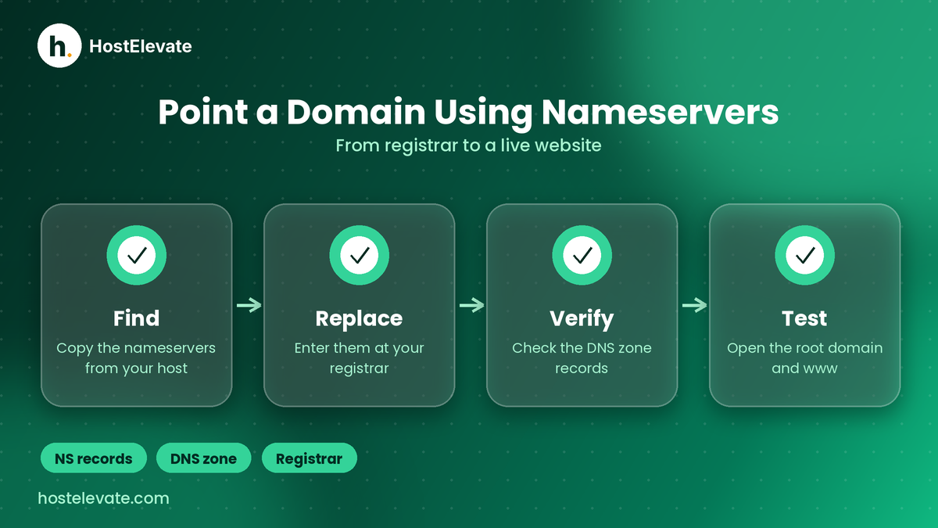
Follow these steps to point a domain to hosting when you want your host, or another DNS provider, to manage the domain’s DNS zone.
Find the nameservers supplied by your host
Sign in to your hosting account or open the welcome instructions, then copy the exact nameserver hostnames for your account. Hosting companies do not all use the same nameservers, so never guess them.
Open your domain registrar
Log in to the company where the domain is registered and find the setting for nameservers, DNS delegation, or custom nameservers. If you do not own a domain yet, you can register a domain and manage it in the same account as your hosting.
Replace the current nameservers
Enter the new nameservers exactly as your provider gave them, and read them over before you save. If the registrar shows several fields, fill in the number of entries your host requires.
Check the DNS zone at the new provider
Make sure the new DNS provider has your website records plus your MX records and any other email, verification, and subdomain records you rely on. Add anything that is missing using the values given by the relevant service.
Wait for the update and test the domain
Nameserver changes are not visible everywhere at once because of DNS propagation. Check the domain’s delegation, then query the new authoritative nameservers to confirm they return the records you expect. Registrar screens differ, so see Cloudflare’s nameserver update documentation for an example of how a domain with another registrar is handled.
How to Point a Domain to Hosting Using an A Record
Use this method to point a domain to hosting when your current DNS provider will keep managing the domain and your web hosting company has given you a server IP address.
Get the correct hosting IP address
Find the server IP in your hosting dashboard, welcome email, or the provider’s documentation. If you are unsure which address to use, ask your host before you edit any DNS record.
Open your DNS management panel
Sign in to the provider that holds your authoritative DNS zone. That could be your registrar, a DNS platform, or your hosting company if it already manages the zone.
Find the A record for the root domain
Look for the A record on the root domain, often shown as @. If an existing record points to the old server, confirm that it is the one you mean to change.
Update the destination IP
Enter the new IPv4 address from your host and save the record. If the same hostname has several A records, find out whether they are intentional before you remove or change any of them.
Configure the www hostname
Check the existing www record. If your provider recommends a CNAME to the root domain, add it only after you have confirmed that no conflicting record exists. Otherwise, use the exact A record settings your host supplied.
Verify the website
Test the root domain and the www hostname separately. Both should reach the intended website, and the correct SSL certificate should load.
Some platforms give you a hostname target instead of an IPv4 address. In that case, a CNAME or another supported record is needed rather than an A record, so follow the instructions for your hosting platform.
After You Point a Domain to Hosting: WWW, Email, and SSL Setup
To point a domain to hosting properly, you need more than a root domain record. Other hostnames and services depend on their own DNS records, so review the whole configuration before you call the domain ready.
Set up the www hostname
Decide whether visitors should use example.com, www.example.com, or both. Create the DNS records for the version you want, and add a redirect if only one should be the main address. DNS alone does not create an HTTP redirect.
Protect your email delivery
If your domain already uses email hosting, check its MX records and related TXT records before you change nameservers or edit DNS. SPF, DKIM, and DMARC records may also be needed for authenticated delivery. Removing them by accident can stop mail or cause authentication failures.
Enable SSL and HTTPS
Once DNS resolves to the right hosting environment, set up an SSL/TLS certificate for every hostname you use. Some hosts issue it automatically after the DNS checks pass, and HostElevate issues a free SSL certificate on every domain, with extra SSL certificates available when you need them. Other setups need manual configuration.
How to Check That You Point a Domain to Hosting Correctly

After you point a domain to hosting, check the records themselves instead of relying on whether the site opens on your own device.
Use a DNS lookup tool
A service such as DNSChecker compares DNS answers from several locations. Pick the record type you changed, such as A or NS, and match the results against your intended setup.
Check the authoritative nameservers
Query your authoritative DNS provider to confirm the record has been published. If that answer is correct but a public resolver still returns an older value, caching is the likely cause.
Use command-line tools
On Windows, run nslookup example.com. On systems with dig, run dig example.com A. Replace example.com with your own domain. A query sent to a recursive resolver may return cached data, so treat the result as a snapshot.
Test the live website
Open the root domain and the www version in a browser. Confirm that the right site loads, HTTPS works, and no unexpected redirect or certificate warning appears.
DNS propagation can look uneven for a while because of caching and TTL values. If the record is correct at the authoritative source, give the caches time to refresh before you change anything else.
Common Problems When You Point a Domain to Hosting and How to Fix Them
If the domain does not show the website you expect after you point a domain to hosting, work through the DNS setup one layer at a time.
| Problem | What to check |
| Domain shows the old website | Verify the A or AAAA record and look for cached DNS responses. |
| Domain does not resolve | Confirm nameserver delegation and that the required DNS records exist. |
| Root domain works but www fails | Check the www A or CNAME record for conflicts with another record. |
| Email stops after a nameserver change | Verify that MX, SPF, DKIM, and other required records exist in the new DNS zone. |
| Website shows an SSL warning | Confirm the certificate covers the hostname and the domain resolves to the intended server. |
| DNS changes are not visible everywhere | Allow time for DNS propagation, compare authoritative answers with several public resolvers, and check the record TTL. |
| Domain reaches the wrong hosting account | Make sure the domain is added to the correct hosting account and the server is set up for it. |
Avoid repeated DNS edits without checking the current records first. Note each change and verify the result. If you cannot confirm the right nameservers or IP address, contact the HostElevate team or your registrar for the exact values.
Frequently Asked Questions
How do I point a domain to hosting?
Change the domain’s nameservers to your host’s values, or update the A record to your hosting server’s IP address.
Is it better to change nameservers or an A record?
Use nameservers to let another provider run your whole DNS zone, and an A record to keep DNS where it is.
Will changing nameservers affect my business email?
Yes, it can, if the new DNS zone lacks your MX and email authentication records.
How long does it take to point a domain to hosting?
It can take minutes or longer, depending on caching, TTL values, and nameserver delegation.
Do I need to transfer my domain to my hosting provider?
No, you can keep your current registrar and use DNS, or transfer a domain later.
Summary: Choose the Right Way to Point a Domain to Hosting
To point a domain to hosting, you send DNS queries to the right server or DNS provider. Changing nameservers hands DNS control to another provider, while updating an A record changes the IPv4 destination of a single hostname. The right method depends on how you want to manage DNS and which services already rely on your domain.
Before you change anything, record your current DNS settings, confirm the values supplied by your host, and protect your email and verification records. Afterward, test the root domain and www, check that free SSL or another certificate is active, and compare DNS answers. Once you point a domain to hosting and every service responds correctly, the migration is complete.