
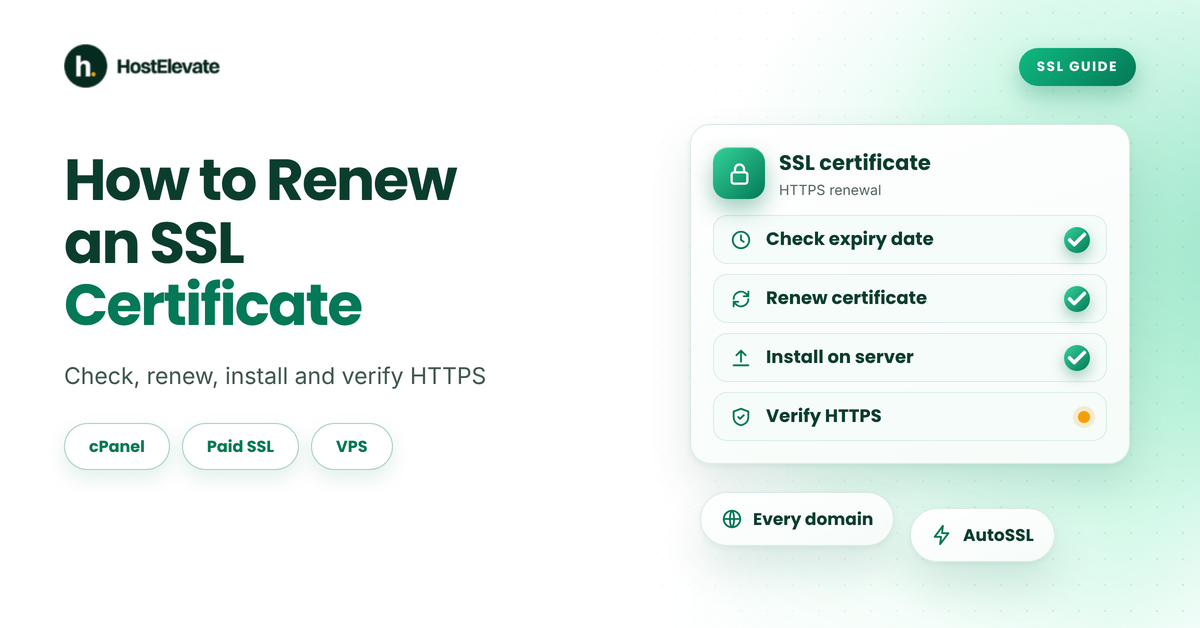
How to renew an SSL certificate? Check its expiry date, renew or reissue it with your provider, install the new certificate and test your HTTPS connection. On cPanel hosting with AutoSSL, the certificate can renew by itself, so you only confirm its status. Paid and VPS certificates need a few manual steps.
This guide is for website owners and administrators whose certificate is close to expiring or has already expired. You will learn how to renew an SSL certificate in cPanel, with a paid provider and on a VPS, and how to fix the most common errors.
Key takeaways
- The first step in how to renew an SSL certificate is to check the expiry date in your browser or in cPanel’s SSL/TLS Status.
- On cPanel hosting, AutoSSL can renew free certificates automatically when your host has it enabled.
- Paid certificates need a renewal, domain validation and a new installation.
- After you renew, test every domain and subdomain for a valid HTTPS connection.
- Set a reminder or auto-renewal so you never miss the next date.
Before You Start
Before you learn how to renew an SSL certificate, find out how your current certificate was issued, because that decides the steps you follow. Have your hosting login and domain access ready, and keep a backup of your site.
You will need:
- Access to your cPanel account, your server or your SSL provider’s dashboard.
- The domains and subdomains the certificate covers, for example example.com and www.example.com.
- Access to your domain’s DNS or email, in case the provider asks you to validate ownership.
- The type of certificate: a free AutoSSL certificate, a paid certificate or one issued on a VPS.
Public SSL certificates now have shorter maximum lifetimes than they used to, and the limit is scheduled to shrink further. That means renewals come around more often, so automation matters more every year.
Here is how to renew an SSL certificate in five steps: check the expiry date, choose your method, renew, install and verify.
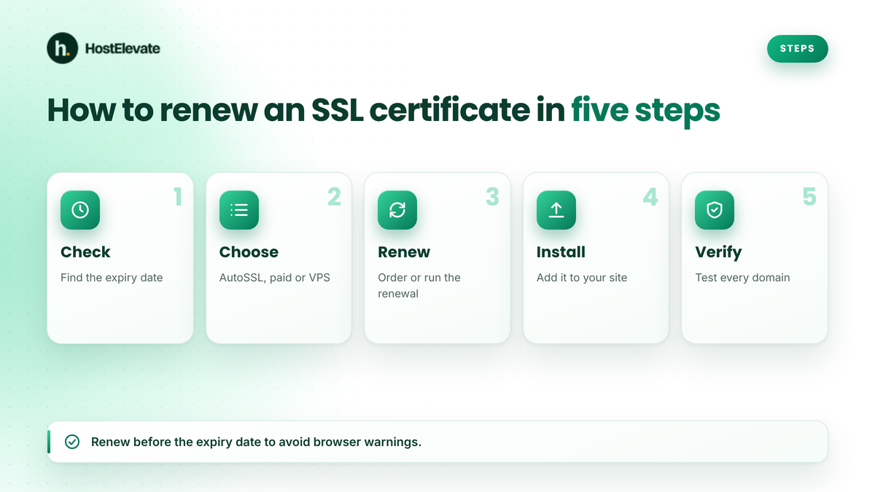
How to renew an SSL certificate: five steps from check to verify
Based on: the current cPanel & WHM documentation for the SSL/TLS Status interface. Menu names can differ slightly by cPanel theme and version.
How Do You Check When Your SSL Certificate Expires?
The first step in how to renew an SSL certificate is to check the expiry date in your browser or in cPanel. Do this first, because a certificate that is still valid gives you time to renew without any downtime.
In your browser:
- Open your site over HTTPS.
- Click the padlock or site information icon in the address bar.
- Open the certificate details and read the “valid to” date.
In cPanel:
- Log in to cPanel.
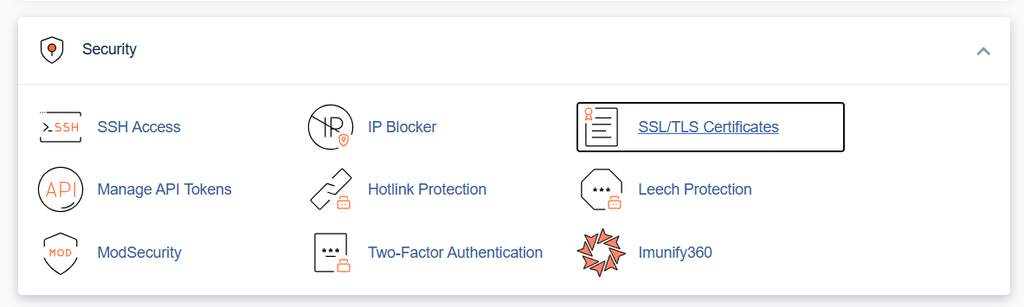
- Go to Home » Security » SSL/TLS Status.
- Check the status of each domain. You can filter by Expiring Soon or Expired.
The Certificate Status column also shows when AutoSSL last ran for each domain, and any AutoSSL problems.
How to Renew an SSL Certificate in cPanel With AutoSSL
To renew an SSL certificate in cPanel with AutoSSL, open SSL/TLS Status and confirm that each domain shows an active certificate. When AutoSSL is on, cPanel checks your certificates and replaces the ones that are about to expire, so there is usually nothing to buy.
- Log in to cPanel.
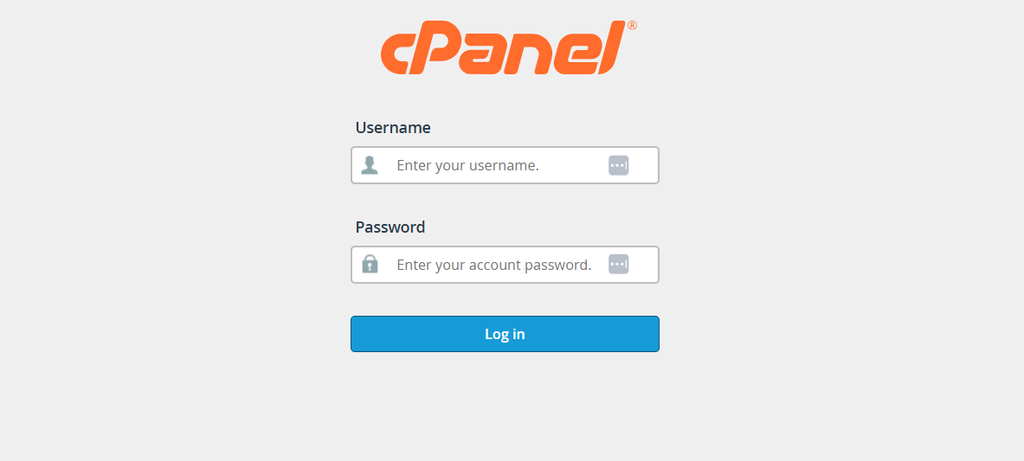
- Go to Home » Security » SSL/TLS Status.
- Find your domains in the list and check the certificate type and status.
- If a domain shows an AutoSSL problem or is unsecured, select it and click Run AutoSSL.
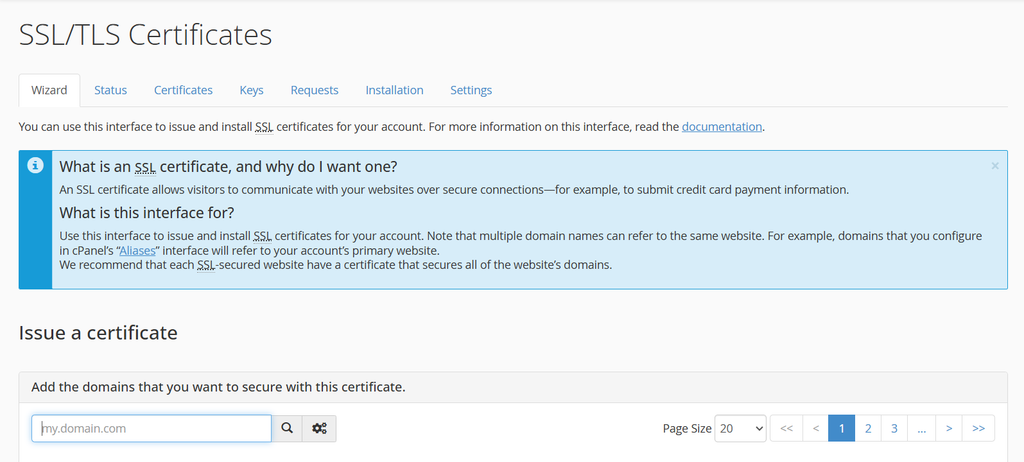
- Wait for the run to finish, then refresh the page and check that the status is active.
AutoSSL needs your domain to point to the server, so it fails when the DNS is wrong. You can confirm this with our DNS checker. The AutoSSL interface depends on your host’s settings, and your host can enable or disable it in WHM. See the cPanel guide to SSL/TLS Status for each column and filter.
HostElevate hosting plans include free SSL, and you can compare certificate options on the SSL certificates page.
How to Renew an SSL Certificate From a Paid Provider
To renew a paid SSL certificate, order the renewal, validate your domain and install the new certificate on your server. A paid certificate does not usually replace itself, so you do these steps before the old one expires.
- Order the renewal. Log in to your SSL provider and renew the certificate for the same domains, or buy a new one.
- Generate a CSR. A certificate signing request (CSR) is the file your provider uses to issue the certificate. In cPanel, use Home » Security » SSL/TLS Wizard or your provider’s tool. Many providers recommend a new CSR and private key for each renewal.
- Validate the domain. Your provider asks you to prove you control the domain, usually with a DNS record, an email link or a file upload.
- Download the certificate. You receive the certificate and, in most cases, a CA bundle with the intermediate certificates.
- Install it. Go to Home » Security » SSL/TLS and open Install and Manage SSL for your site (HTTPS). Select the domain, paste the certificate, private key and CA bundle, and click Install Certificate.
If you used the SSL/TLS Wizard, it can also help you purchase and install the certificate from inside cPanel. After installing, test the site before you close the old order.
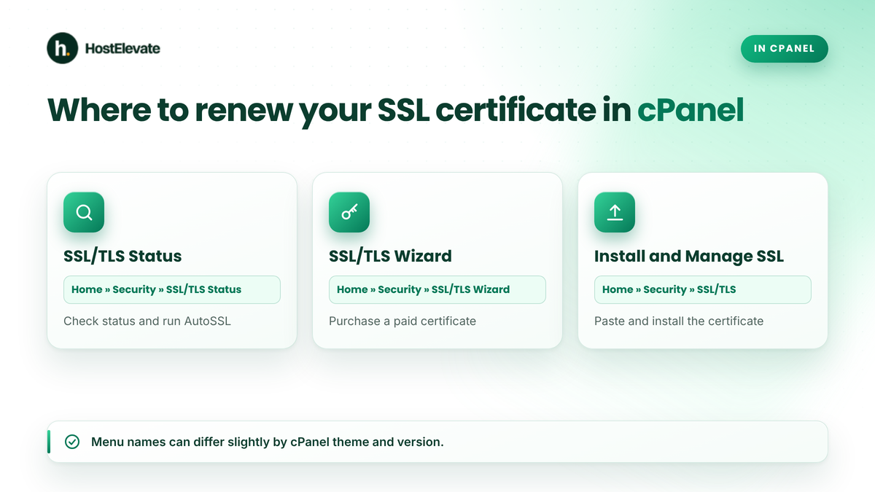
Where to renew your SSL certificate in cPanel
How to Renew an SSL Certificate on a VPS
On a VPS, you renew a certificate with the tool that issued it, most often Certbot for free Let’s Encrypt certificates. You have full control, so you also own the renewal job. These commands assume Ubuntu with Certbot installed.
First, check the certificates and their expiry dates:
sudo certbot certificates
Then test the renewal without changing anything:
sudo certbot renew –dry-run
If the test passes, renew and reload your web server:
sudo certbot renew
sudo systemctl reload nginx
Use apache2 instead of nginx if you run Apache. Certbot is usually set up with an automatic renewal job, so check that it is running before you rely on it. HostElevate VPS hosting gives you full root access, so you can set up and monitor renewals yourself.

How Do You Verify That the Renewal Worked?
The last step in how to renew an SSL certificate is to check the new expiry date and test every domain over HTTPS. Do not assume the install worked just because no error appeared.
- Open your site and check the certificate’s new “valid to” date.
- Test the main domain, the www version and any subdomains.
- Check that there is no browser warning on the home page and on a few inner pages.
- In cPanel, confirm the status in SSL/TLS Status.
- Look for mixed content, where images or scripts still load over HTTP. If you use WordPress, see our guide to installing WordPress on cPanel for the basics of a clean setup.
How Do You Fix SSL Renewal Problems?
Most problems with how to renew an SSL certificate come from DNS, validation or the certificate chain, so match the error to its cause. Use this table as a starting point.
| Problem | Likely cause | Fix |
| AutoSSL fails for a domain | Domain does not point to the server, or DNS is wrong | Check DNS and wait for it to update, then run AutoSSL again |
| Domain validation fails | The DNS record, email or file is missing or wrong | Recreate the validation item and retry |
| Old certificate still shows | New certificate was not installed on the right domain, or the web server was not reloaded | Install it on the correct domain and reload the server |
| Name mismatch warning | Certificate does not cover the www version or a subdomain | Reissue the certificate with all the names you use |
| Browser says the chain is incomplete | CA bundle is missing | Install the intermediate certificates from your provider |
| Site still shows “not secure” | Mixed content on the page | Change HTTP links to HTTPS |
If your domain does not load at all after a change, read our guide to pointing a domain to hosting.
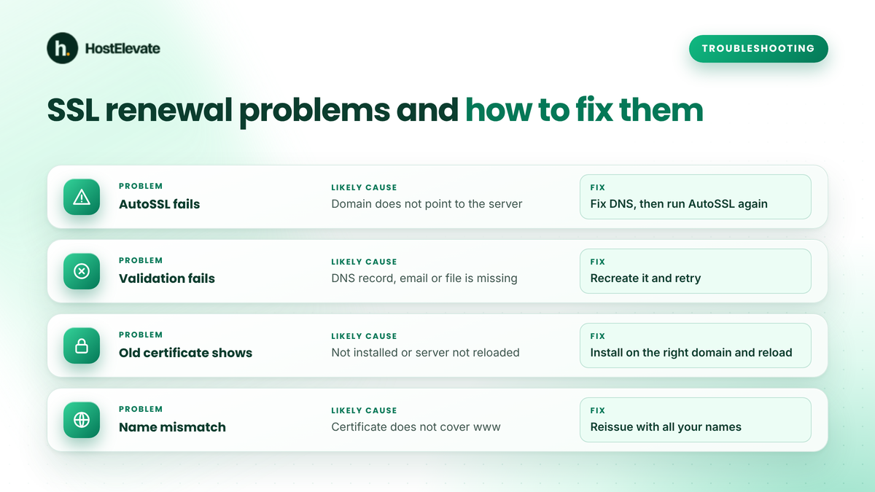
Common SSL renewal problems and how to fix them
What Happens If an SSL Certificate Expires?
When an SSL certificate expires, browsers show a security warning and many visitors leave instead of continuing. Your site may still work for people who click through, but trust drops quickly, and forms and checkout pages are at risk.
The fix follows the same steps as how to renew an SSL certificate before it expires: renew, install and verify. Do it as soon as you notice, and check your DNS and validation settings first, because an expired certificate often means a failed automatic renewal.
How Can You Avoid Missing the Next Renewal?
You avoid missing the next renewal by automating it and by watching the expiry date. Use this checklist:
- Keep AutoSSL enabled on cPanel hosting, and check SSL/TLS Status regularly.
- Turn on auto-renewal with your paid provider, and keep your payment details current.
- Add a calendar reminder well before each expiry date.
- Keep your contact email current so renewal notices reach you.
- Monitor your certificate with an uptime or certificate monitoring tool.
Frequently Asked Questions
How long does it take to renew an SSL certificate?
It depends on the type. AutoSSL can finish within minutes after it runs, while paid certificates need validation first. Start before the expiry date to leave time for validation problems.
Can I renew an SSL certificate before it expires?
Yes, and you should. Renewing early gives you time to fix validation or installation problems without a browser warning. Check your provider’s terms for how early you can renew.
Do I need a new CSR to renew my SSL certificate?
Often yes. Many providers recommend a new CSR and private key for each renewal. Some tools reuse the old key, so follow your provider’s instructions and keep the private key safe.
Is renewing an SSL certificate the same as buying a new one?
For most providers it works like a new order for the same domains. The difference is that you keep your site and settings, but you must still install the new certificate on your server.
Will renewing my SSL certificate affect my website?
Not if you install it correctly. Your content stays the same. If the site shows a warning afterward, check that the certificate covers all your domain names and that the chain is complete.
Summary
How to renew an SSL certificate comes down to this: check the expiry date, renew it through AutoSSL, your paid provider or Certbot, install it and test every domain. Fix problems by checking DNS, validation and the certificate chain.
Automate renewals where you can and keep a reminder for the rest. When you are ready to secure your site, see HostElevate SSL certificates.