WordPress lets you build a website without coding every page, and cPanel gives you the tools to manage your files, databases, and domains. If your hosting plan includes cPanel, you can install WordPress on cPanel with an automatic installer or set it up manually. The right method depends on which tools your host provides and how much control you want.
This guide shows you how to install WordPress on cPanel using both methods, from checking your domain to finishing the setup. You will also learn how to choose a method, fix common errors, and secure your new site before you publish.
Table of Content:
- What Is WordPress on cPanel and Why Does It Matter?
- What to Check Before You Install WordPress on cPanel
- Method 1: Install WordPress on cPanel with Softaculous or WP Toolkit
- Method 2: Install WordPress Manually on cPanel
- Which WordPress Installation Method Should You Choose?
- What to Do After You Install WordPress
- Common WordPress Installation Problems and How to Fix Them
- How to Keep Your WordPress Website Secure and Fast
- Frequently Asked Questions
- Summary:
What Is WordPress on cPanel and Why Does It Matter?
WordPress is a content management system (CMS) for creating and managing pages, blog posts, media, themes, and plugins. cPanel is a hosting control panel for managing website files, databases, email, and other hosting features.
When you install WordPress on cPanel, you connect the WordPress application to your hosting account and to the domain where visitors will find your site. After that, you manage your content from the WordPress dashboard instead of editing website files every time you publish.
This setup suits blogs, business websites, portfolios, documentation sites, and many online stores. Before you pick a plan, review HostElevate web hosting to see whether it meets your website’s needs. If you are still comparing providers, our guide on how to choose web hosting for your business explains what to look at. Learning how to install WordPress on cPanel is the first step toward running your own site.
What to Check Before You Install WordPress on cPanel
A few minutes of preparation before you install WordPress on cPanel prevents most errors and saves you from repeating the setup.
A domain connected to your hosting account: Confirm the domain is added to the correct hosting account and that its DNS settings point to the right server. DNS changes can take time to propagate.
An active hosting plan: Make sure your plan supports WordPress and provides the PHP and database environment it needs. Check the current WordPress requirements against what your host offers.
HTTPS and an SSL certificate: Check that SSL is available for your domain. If the certificate is not active yet, fix that before you set the final HTTPS address.
An available installation directory: Decide whether WordPress should load at the root of your domain, such as https://example.com/, or in a subdirectory, such as https://example.com/blog/.
A secure administrator account: Prepare a unique username and a strong, unique password. Avoid predictable usernames such as “admin”, and never reuse a password from another service.
A backup, if the domain already hosts a website: Do not overwrite existing files or databases without checking what they contain. Back up the site first.
If you have not chosen a host yet, compare HostElevate’s hosting plans and confirm that the plan supports your domain, PHP version, database needs, and installer tools. Our article on web hosting renewal prices also helps you compare the real long-term cost of each plan.
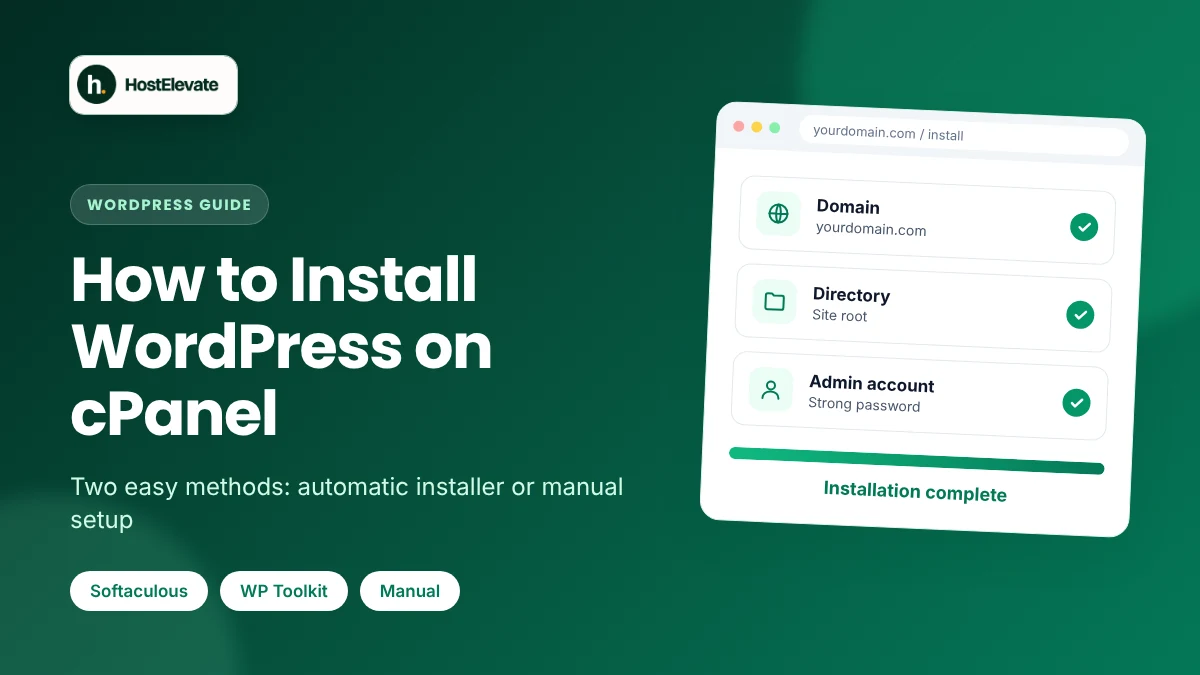
Method 1: Install WordPress with Softaculous or WP Toolkit

An automatic installer is usually the simplest way to install WordPress on cPanel. Depending on your host, cPanel may offer Softaculous, WP Toolkit, or another one-click installer. Not every account includes them.
How to Install WordPress on cPanel Using Softaculous
- Open cPanel. Sign in to your hosting account and open cPanel with the login details from your host.
- Find Softaculous. Look for Softaculous Apps Installer, or search for “WordPress” in cPanel, and open the WordPress installation page.
- Start the installation. Click Install and select the domain where WordPress should run.
- Choose the installation directory. To load WordPress directly at https://example.com/, leave the directory field blank. Enter a folder name only if you want WordPress in a subdirectory.
- Enter your website details. Add your website title, administrator username, strong password, and administrator email. Choose the latest stable WordPress version the installer offers.
- Review database and security settings. Let the installer configure the database if it offers to, and review the available update, backup, and security options.
- Click Install. Check the selected domain and directory once more, then install. When the confirmation appears, save your website URL and administrator URL.
You can now open your site and sign in to the WordPress dashboard, usually at https://example.com/wp-admin/.
For the official steps, see the Softaculous WordPress installation guide.
How to Install WordPress on cPanel Using WP Toolkit
If your cPanel account includes WP Toolkit instead of Softaculous, the process is very similar.
Open cPanel and go to Domains → WP Toolkit. Click Install, choose the correct domain and installation path, enter the website and administrator details, review the database settings, and start the installation. Options vary by WP Toolkit version and hosting setup, so follow the prompts in your account and confirm the installation is complete before you visit the dashboard.
See the official cPanel WP Toolkit installation instructions for more detail.
Method 2: Install WordPress Manually in cPanel

A manual setup is a reliable way to install WordPress on cPanel when your account has no automatic installer, or when you want more control. It takes more care, because you create the database, upload the files, and connect them yourself.
Step 1: Download the WordPress package
Visit the official WordPress download page and download the current stable release. Always use the official package, never a copy from an unknown website.
Step 2: Create a MySQL database and database user
In cPanel, open MySQL Database Wizard if it is available. Create a database, create a dedicated database user with a strong password, and grant that user all required privileges on the database.
Record the database name, username, and password somewhere safe. On many cPanel servers, both names start with your account prefix, so use the full names cPanel displays instead of the shorter versions you typed.
Step 3: Upload the WordPress files
Open File Manager in cPanel and go to the document root of the domain where WordPress should live. For the primary domain this is commonly public_html, but addon domains often use a different folder.
Upload the WordPress ZIP file to that directory and extract it. If the archive creates a nested wordpress folder, move its contents into the document root so WordPress loads directly from your domain. Never overwrite an existing website without a verified backup, and keep unrelated installations in separate directories.
Step 4: Connect WordPress to the database
WordPress normally creates its wp-config.php file during the browser-based setup. When the installer asks for the connection details, enter the database name, database username, password, and database host.
On many cPanel servers the database host is localhost, but it can differ, so use the host your provider specifies.
Step 5: Complete the browser installation
Visit your domain in a browser. If the files and database are set up correctly, the WordPress installation screen appears.
Select your language, enter the website title, create a secure administrator account, add your email address, and finish the setup. Then sign in to the dashboard and confirm the site opens at the correct URL.
If the setup screen does not appear, check that the files are in the correct document root, the domain points to the right hosting account, and the database credentials are correct.
For further guidance, read the official cPanel guide to installing WordPress.
Which WordPress Installation Method Should You Choose?
Both ways to install WordPress on cPanel give you a working website. The main difference is how much of the setup you handle yourself.
| Consideration | Automatic installation | Manual installation |
| Setup effort | Usually less | More steps |
| Database setup | Often handled by the installer | You create the database and user |
| File management | Mostly automatic | You upload and arrange files |
| Control over setup | Depends on installer options | More control over the process |
| Best for | Most first-time installations | Users who need manual control or have no installer |
For most people, Softaculous or WP Toolkit is the more convenient way to install WordPress on cPanel when it is available. Choose manual installation when no installer is offered or you need direct control over files and database settings.
If you want hosting built around WordPress, look at HostElevate WordPress hosting. It uses LiteSpeed with caching set up for WordPress, plus staging and automatic updates. Already running a site elsewhere? HostElevate’s free website migration moves your files, databases, and email for you.
What to Do After You Install WordPress

Once you install WordPress on cPanel, the work is only starting. Complete these checks before you publish important content.
- Confirm HTTPS: Visit the site at its HTTPS address, verify the SSL certificate is valid, and make sure WordPress uses the correct site address.
- Check the site and dashboard: Open the homepage, sign in at /wp-admin/, and confirm the main pages load without errors.
- Update everything: Apply available stable updates to WordPress, themes, and plugins, and remove anything you do not need.
- Configure backups: Confirm backups are running and that you know how to restore them. Keep a copy away from the live hosting account when possible.
- Set the basics: Configure the site title, timezone, permalink structure, administrator email, and discussion settings.
- Install only necessary plugins: Choose maintained plugins from trustworthy sources, and avoid two plugins that do the same job.
- Test a page and a post: Publish a test item, check the layout on desktop and mobile, and verify images and navigation.
- Review indexing settings: When the site is ready for the public, make sure the WordPress setting that discourages search engines from indexing it is switched off, and that no other directive blocks the page.
Common WordPress Installation Problems and How to Fix Them
Most errors when you install WordPress on cPanel come from wrong paths, domain settings, database credentials, or incomplete uploads. Check these before you repeat the installation.
The website shows a 404 error: Confirm that the domain’s document root contains the WordPress files and that you selected the intended directory.
The database connection fails: Recheck the full database name, username, password, privileges, and host. Confirm the database and user were created successfully.
The domain opens the wrong website: Review the domain’s DNS settings and the document root assigned in cPanel, and allow time for DNS changes to propagate.
The website shows a certificate warning: Check the SSL certificate and HTTPS configuration. Do not ignore certificate errors on a public website.
The page shows a blank screen or server error: Review the PHP error logs, check PHP compatibility, and disable recently added components if they are the cause. Contact your host if the logs point to a server-side problem.
The installer creates WordPress in the wrong folder: Check the installation path before you run the installer again. If an installation already exists, back it up before moving or deleting files.
If you still cannot install WordPress on cPanel, send your hosting support team the exact error message. Never post passwords, database credentials, or private account details in a public forum.
How to Keep Your WordPress Website Secure and Fast
After you install WordPress on cPanel, a well-maintained site is easier to manage and gives visitors a better experience. Start with a few practical habits.
Use strong, unique passwords and turn on two-factor authentication where available. Keep WordPress, themes, plugins, and your hosting environment updated. Remove unused components, limit administrator access to people who need it, and keep tested backups.
Speed depends on your theme, plugins, images, caching, database workload, and hosting resources. Compress images, avoid unnecessary plugins, and use appropriate caching. Test changes before you apply them to an important live site.
Your host can support speed and maintenance, but no host can guarantee a specific Google ranking or page speed score. HostElevate includes a free SSL certificate issued and renewed automatically on every domain, and backups kept on a separate server, so two of the essentials above are already covered.
For a new website, prioritize reliable hosting, clear backup arrangements, a valid SSL certificate, and an easy upgrade path.
Frequently Asked Questions
Can I install WordPress on cPanel without Softaculous?
Yes. You can install WordPress manually by uploading the official files, creating a database, and completing the browser setup. WP Toolkit is another installer option if your host offers it.
How long does it take to install WordPress on cPanel?
An automatic installation often takes only a few minutes. A manual setup takes longer, depending on your hosting configuration.
Where should I install WordPress in cPanel?
When you install WordPress on cPanel for your main website, use the domain’s document root, or a subdirectory if you intentionally want WordPress to run there.
Do I need a database to install WordPress?
Yes. A standard WordPress installation requires a supported database and valid database credentials.
Can I install WordPress if my domain is not pointing to the server yet?
You may be able to prepare the files and database first, but the domain must resolve to the correct hosting environment before the public can reach the site.
How do I log in to WordPress after installing it on cPanel?
Go to your domain followed by /wp-admin/, such as https://example.com/wp-admin/, and sign in with the administrator username and password you created during installation.
Can I install WordPress on an addon domain in cPanel?
Yes. You can install WordPress on cPanel for an addon domain: select it in your installer, or upload the files to that domain’s own document root during a manual installation
Summary
To install WordPress on cPanel, prepare your domain, choose a method, and finish the setup. You can install WordPress on cPanel in a few minutes once you prepare the domain, hosting account, and database requirements. An automatic installer such as Softaculous or WP Toolkit is usually the easiest option, while a manual installation gives you more control over files and database settings.
After installation, confirm that your site opens correctly, HTTPS works, updates and backups are set up, and unused components are gone. If an error appears, check the domain path, database credentials, and hosting logs before you try again.
Pick the way to install WordPress on cPanel that fits your hosting account and experience, then focus on keeping your WordPress website secure and reliable. Ready to start? Explore HostElevate web hosting and install WordPress on your own account.