
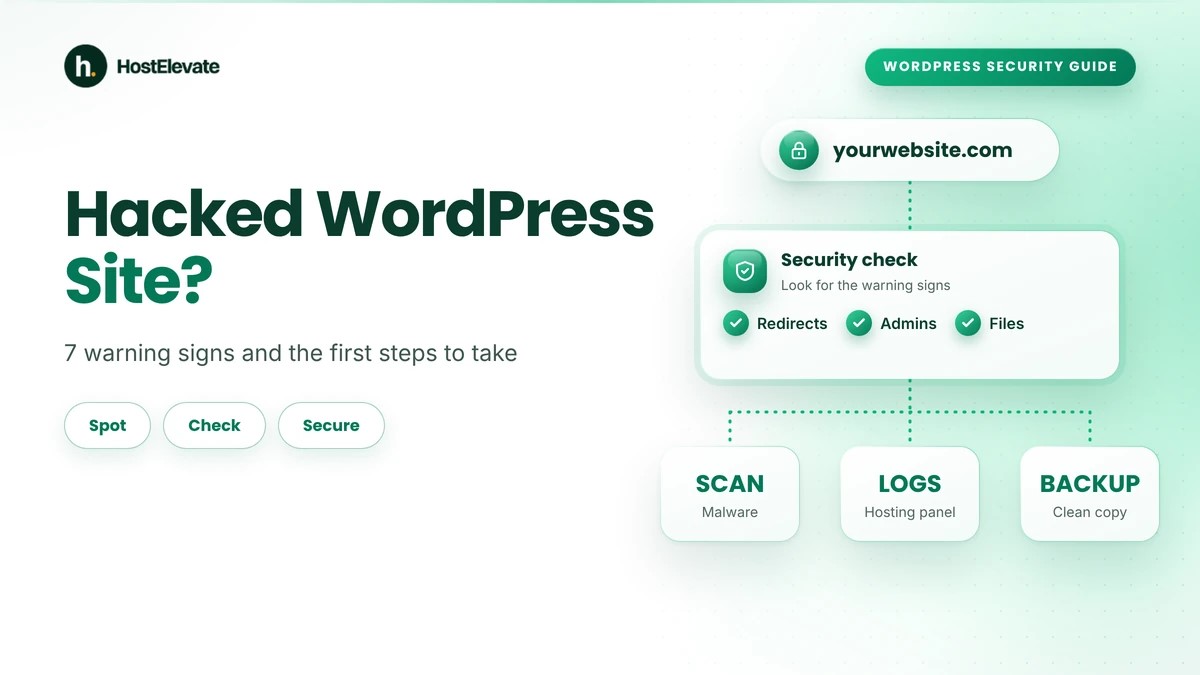
A hacked WordPress site does not always look broken. The homepage may load normally while visitors are quietly sent to other websites, spam pages appear in Google, or a stranger holds an administrator account. Not every error means a hacked WordPress site, so it helps to know the real warning signs before you act, and to act quickly once they are confirmed.
This guide shows how to spot a hacked WordPress site, which areas to check first and what to do if you find suspicious activity. You will also learn when to contact your hosting provider and how to protect the website while the problem is investigated.
Table of Contents
- What Is a Hacked WordPress Site, and Why Are the Warning Signs Important?
- How Does a WordPress Site Get Hacked?
- 7 Warning Signs of a Hacked WordPress Site
- How to Check If You Have a Hacked WordPress Site
- What to Do First With a Hacked WordPress Site
- How to Clean a Hacked WordPress Site Safely
- When Should You Contact Your Hosting Provider?
- How to Prevent a Hacked WordPress Site Again
- Frequently Asked Questions
- Summary:
What Is a Hacked WordPress Site, and Why Are the Warning Signs Important?
A hacked WordPress site is one that has been accessed or changed without the owner’s permission. An attacker may add unwanted content, create unauthorised accounts, inject malicious code, redirect visitors or use the website for something unrelated to its real purpose.
Spotting the signs of a hacked WordPress site early matters because a hacked WordPress site can put visitors at risk, take the website offline, damage your credibility and hurt your search visibility. Some attacks are obvious, while others stay hidden from the owner for weeks. Knowing the symptoms lets you investigate before the damage spreads.
How Does a WordPress Site Get Hacked?
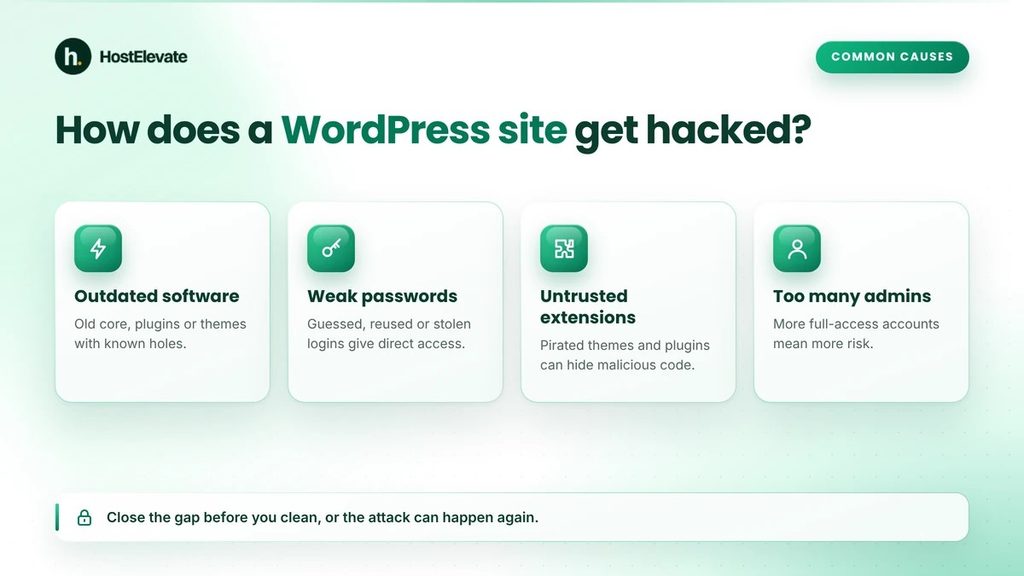
Most attacks use weaknesses that owners could have closed. The usual routes into a hacked WordPress site are:
- Outdated software: Old WordPress core, plugins or themes can contain known vulnerabilities.
- Weak or reused passwords: Stolen or guessed credentials give attackers a direct way in.
- Untrusted extensions: Pirated themes and plugins from unofficial sources often carry hidden malicious code.
- Compromised accounts: Exposed hosting, FTP or email logins can lead to the website.
- Too many administrators: More accounts with full access mean more chances for a mistake.
Knowing these routes also tells you what to fix afterwards, because cleaning a hacked WordPress site without closing the original gap invites a second attack.
7 Warning Signs of a Hacked WordPress Site
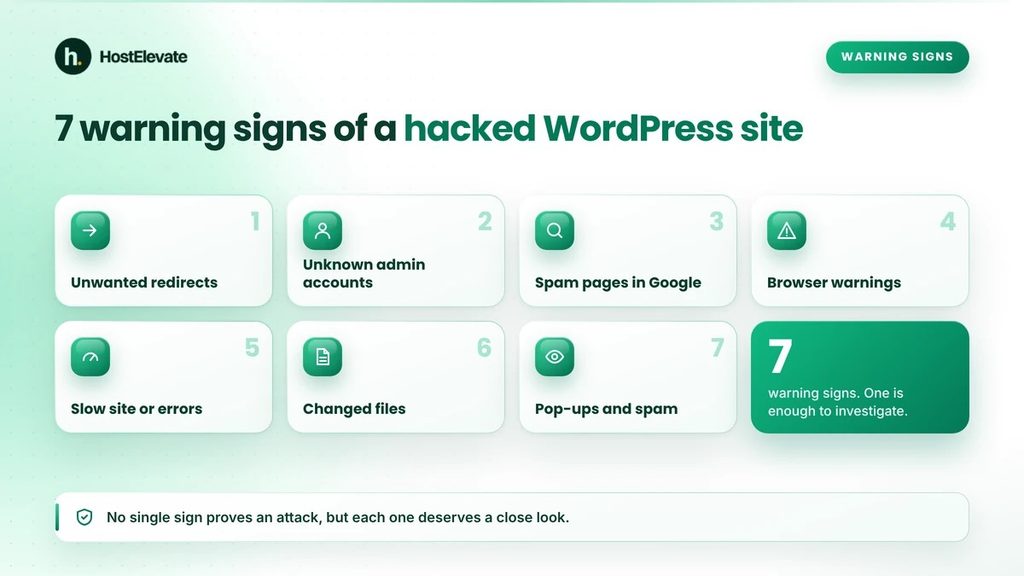
No single symptom proves an attack, but each of these deserves a close look.
Your website redirects visitors to unfamiliar websites
Unexpected redirects are among the most noticeable signs of a hacked WordPress site. A visitor expects to read an article or see a product but lands on an unfamiliar site with suspicious advertising or misleading messages. This can happen when an attacker changes website files, injects malicious JavaScript, alters server configuration or exploits a vulnerable plugin or theme.
Watch for these patterns:
- Your homepage opens a completely different website.
- Visitors report being sent to unfamiliar pages.
- Only certain pages redirect, while others work normally.
- The site redirects visitors who arrive from search engines.
- The site behaves differently for logged-in and logged-out visitors.
Some malicious redirects only trigger under certain conditions, so a site that looks fine while you are logged in is not proven safe. What to do: Record the affected URLs and when the redirects occur, avoid opening suspicious destinations again and ask your hosting provider to check the files and server logs.
Unknown administrator accounts appear in WordPress
Administrator accounts can install plugins, change themes and manage other users. If one appears that nobody on your team recognises, look into it at once, because an attacker may create a second administrator to keep access even after you change the first password. To review your users:
- Sign in to your WordPress administration area.
- Open Users → All Users.
- Review the usernames, email addresses and roles.
- Compare unfamiliar accounts with your authorised users.
- Check whether any roles have changed unexpectedly.
Not every unfamiliar account is malicious, since a developer or former administrator may have legitimate access. If an account is clearly unauthorised, document its details and look at the access history before removing it, and ask your host or a security professional if you are unsure.
Suspicious pages or content appear in Google Search
A hacked WordPress site can contain pages the owner never created. Attackers sometimes publish spam URLs to borrow an established site’s search visibility, so a website about hosting tutorials might suddenly show up for unrelated products. Search Google for your own domain:
site:yourdomain.com
Then look for unfamiliar page titles, URLs you never published, unexpected foreign-language content, unrelated product pages and strange descriptions. This search helps, but it is not a full security scan, because not every indexed page is malicious and not every hacked page appears in search results.
If your website is verified in Google Search Console, open its Security Issues report. Google may report hacked content, malware, unwanted software or phishing, and the report can list example URLs. See Google’s guide to the Security Issues report for the issue types it covers.
Google or your browser shows a security warning
A browser or search engine warning is a serious reason to investigate. You may see messages such as “This site may be hacked”, “Deceptive site ahead” or “The site ahead contains malware”. They can appear when Google Safe Browsing or another service detects harmful content or suspicious behaviour.
A warning does not always mean the whole hosting account is compromised, but it does mean the affected pages need attention. Open the Security Issues report, identify the affected URLs and the type of problem, and fix the cause before you ask for a review. Google needs to be able to confirm that the issue is gone.
Your website becomes unusually slow or shows unexpected errors
Malicious scripts, unauthorised processes or unwanted requests can use extra server resources, which may cause slow loading or server errors on a hacked WordPress site. Slowness alone proves nothing, though. Other common causes include:
- Poorly configured plugins
- Large or unoptimised images
- Database performance problems
- Hosting resource limits
- Traffic increases
- PHP errors or compatibility issues
To judge whether a slow site is a hacked WordPress site, compare today’s behaviour with your normal performance and look at resource usage, error logs and access logs. If you see unexpected processes, suspicious requests or unfamiliar scripts, ask your host to investigate, and avoid deleting files or changing server settings just because the site is slow.
Files, plugins or themes change without your permission
Unexpected file changes can point to a hacked WordPress site. An attacker may modify existing files, add unfamiliar PHP files, change configuration or insert malicious scripts into a theme or plugin. Pay particular attention to:
- Recently modified files that nobody on your team changed
- Unfamiliar PHP files in WordPress folders
- Unexpected changes to .htaccess
- Plugins or themes that nobody installed
- Changes to WordPress configuration files
- Unusual files inside the uploads folder
A recently changed file is not automatically bad, because WordPress updates, plugin installs, scheduled tasks and normal maintenance also modify files. Compare each change with legitimate activity and investigate anything you cannot explain.
Unexpected pop-ups or spam appear on your website
Unwanted pop-ups, adverts or spam content are another warning sign. You might see pop-ups you never configured, adverts inside articles, suspicious links added to existing pages, floods of spam comments or strange content in the header or footer. They can come from compromised plugins, injected scripts or unauthorised administrator access. Before you assume the worst, review your plugins, advertising integrations and theme settings, and if the content has no legitimate explanation, arrange a security investigation.
How to Check If You Have a Hacked WordPress Site
Recognising the symptoms of a hacked WordPress site is the first step. The next is to investigate with reliable tools. You do not need to start deleting files or reinstalling WordPress right away. Begin by collecting evidence and finding the affected areas.
Check the website while logged out
A hacked WordPress site can behave differently for visitors than for an administrator. Scan your public pages with a safe, trusted security scanning service and compare the results with what you expect. Do not open URLs that Google or your security provider has flagged as infected just to look at them in a browser.
Review the WordPress administrator accounts
Open the user management screen and look for unfamiliar accounts or changed roles. Record any suspicious usernames and email addresses and compare them with your authorised users and recent maintenance.
Check Google Search Console
The Security Issues report is one of the best places to see Google’s findings. Review the reported problems, the affected URLs and the recommended actions, and use the URL Inspection tool to see how Google views a particular page. An empty report does not guarantee that the site is free of every security problem.
Review your hosting account and website logs
Your hosting control panel may offer useful information, such as file modification details, access logs, PHP error logs, resource usage, FTP activity and database information. Look for unusual activity around the time you first noticed the problem. If you use cPanel, your host can tell you which logs and account records are available.
Run a reputable malware scan
Use a trusted WordPress security scanner or ask your host for a server-side malware scan. A scan may find suspicious files, known malicious code or vulnerable software. Automated scans can give false positives and can miss some attacks, so a clean result is useful evidence but not a guarantee.
What to Do First With a Hacked WordPress Site
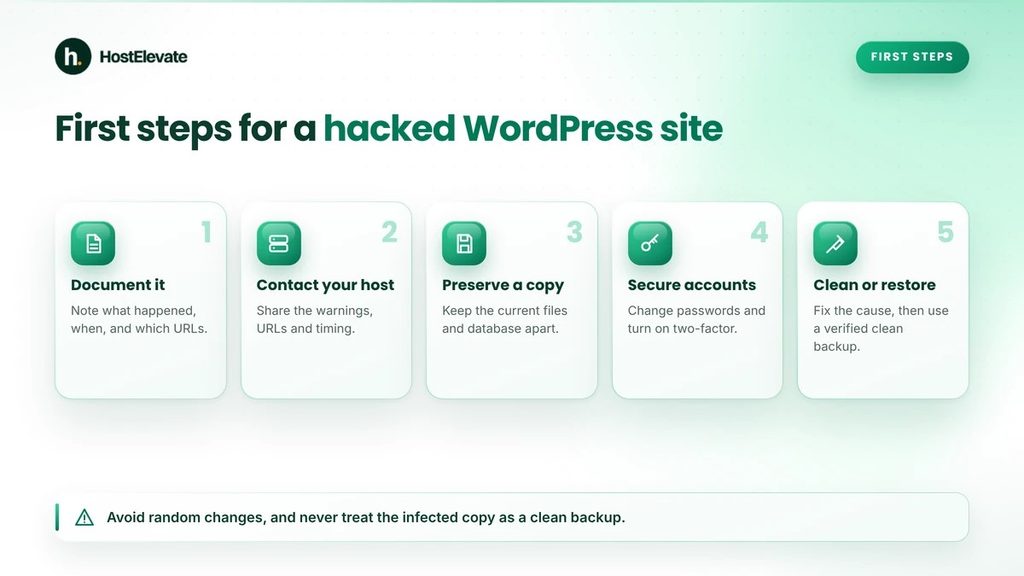
If you find strong evidence of a hacked WordPress site, avoid random changes. A structured response protects the website and keeps the information needed to investigate.
Document the suspicious activity
Write down what happened, when you first noticed it and which parts of the site seem affected. Keep copies of alerts, suspicious URLs, error messages and scan reports, because they help your host or a security specialist understand the incident.
Contact your hosting provider
Your host should be one of your first calls. Explain the symptoms and share the affected URLs, any security warnings and roughly when the problem started. Ask whether the team can review account activity, server logs, suspicious files, malware detections and the available backup points, and confirm exactly what malware support your plan includes.
Preserve a copy of the current website
Before major changes, keep a copy of the affected website where that is practical and safe. A copy of the current files and database helps a specialist see what happened and may preserve recent content that recovery could otherwise lose. Never treat the infected copy as a clean backup, and keep it separate from any backup you plan to restore.
Secure your accounts and credentials
If you suspect credentials have been exposed, change the affected passwords from a trusted, clean device. Depending on the incident, that may cover:
- WordPress administrator accounts
- Hosting control panel accounts
- FTP or SFTP accounts
- Database credentials
- Domain registrar accounts
- Relevant email accounts
Turn on two-factor authentication wherever it is offered. If you cannot tell how the attacker got in, coordinate password changes with your host or a security professional.
How to Clean a Hacked WordPress Site Safely
Cleaning a hacked WordPress site has to fix the actual cause, not only the visible symptoms.
Clean the infection or restore a verified clean backup
A specialist may need to replace modified WordPress core files, reinstall legitimate plugins and themes, remove unauthorised accounts, inspect database content and close the vulnerability. Restoring a backup can work if you hold a verified clean copy from before the incident, but restoring an old backup without fixing the original weakness can lead to another compromise on the same hacked WordPress site. If you need to restore files and a database, HostElevate web hosting includes cPanel on every account, which gives you the standard backup and restore tools.
Ask Google to review the site
If Google reported a security issue, fix every listed problem across the whole site, test your fixes and then use Request Review in the Security Issues report. Explain the issue, the steps you took and the result, and avoid sending another request while one is pending, because it can slow the review.
Monitor the website after recovery
Once the hacked WordPress site is clean and secured, watch for unusual activity. Review scan results, administrator accounts, file changes, availability and Search Console notifications.
When Should You Contact Your Hosting Provider?
Contact your hosting provider as soon as you have strong evidence of a hacked WordPress site, and sooner if any of these apply:
- Several websites on the same account show problems.
- You see unfamiliar files you cannot explain.
- Server resource use jumps without a reason.
- You cannot sign in to WordPress or your hosting panel.
- Google or a browser has flagged your domain.
Give them your domain, the affected URLs, what you noticed and when, and any scan reports, and never send passwords in an ordinary email. If you host with HostElevate, you can reach the team through the contact page. If you decide to move to a clean environment after an incident, the free website migration service can move your verified files, databases and email, and it keeps the old site live until the new one is checked.
How to Prevent a Hacked WordPress Site Again
Recovery from a hacked WordPress site is only part of the job. You also need to remove the weaknesses that let it happen.
Keep WordPress core, plugins and themes updated
Outdated software can contain known vulnerabilities. Install security updates promptly, remove extensions you no longer need and avoid software from untrusted sources.
Use strong passwords and two-factor authentication
Use a unique password for each of WordPress, hosting, email and your domain account, and enable two-factor authentication for administrators. Your domain account matters too, so keep your domain registration login just as protected as the website itself.
Limit administrator access
Give people only the permissions they need and never share administrator logins. Separate accounts let you trace activity to the right person.
Keep regular off-server backups
A backup helps only if it can be restored. Keep copies of your files and database somewhere separate from your main hosting account, test restores from time to time and hold more than one recovery point where you can.
Use website security monitoring
Consider a reputable security plugin or a hosting-level security service that can flag malware, suspicious activity and vulnerable software. Monitoring helps because some compromises show no visible symptoms.
Choose hosting with the right security support
Your hosting environment plays a big part in security. Look for reliable backups, server-level protection, guidance on software maintenance and access to knowledgeable support. HostElevate offers free SSL, cPanel on every account and a 90-day money-back guarantee, and you can start from the HostElevate homepage to see what each plan includes.
Frequently Asked Questions
How can I tell if my WordPress site has been hacked?
Unexpected redirects, unknown administrator accounts, suspicious pages, security warnings and unauthorised file changes are the common signs.
Can a WordPress website be hacked without showing errors?
Yes, some compromises stay hidden and can affect search engines or visitors without changing the homepage.
Does a slow WordPress website mean it has been hacked?
No, slow performance has many possible causes, although unexplained resource use should be investigated.
Can Google tell me if my WordPress website is hacked?
Google Search Console’s Security Issues report can show detected hacked content, malware and other harmful behaviour.
Should I delete suspicious WordPress files immediately?
No, document your findings first and ask a qualified specialist or your host to identify and safely remove malicious files.
Summary:
A hacked WordPress site does not always show obvious signs. Unexpected redirects, unknown administrator accounts, suspicious indexed pages, browser warnings and unexplained file changes can all point to a compromise. The safest approach is to investigate with trusted tools, keep the evidence and contact your hosting provider when needed.
If a hacked WordPress site is confirmed, secure the affected accounts, arrange a professional cleanup, restore only a verified clean backup and close the weakness that allowed access. Regular updates, strong authentication, off-server backups and monitoring all lower the risk of a repeat.