
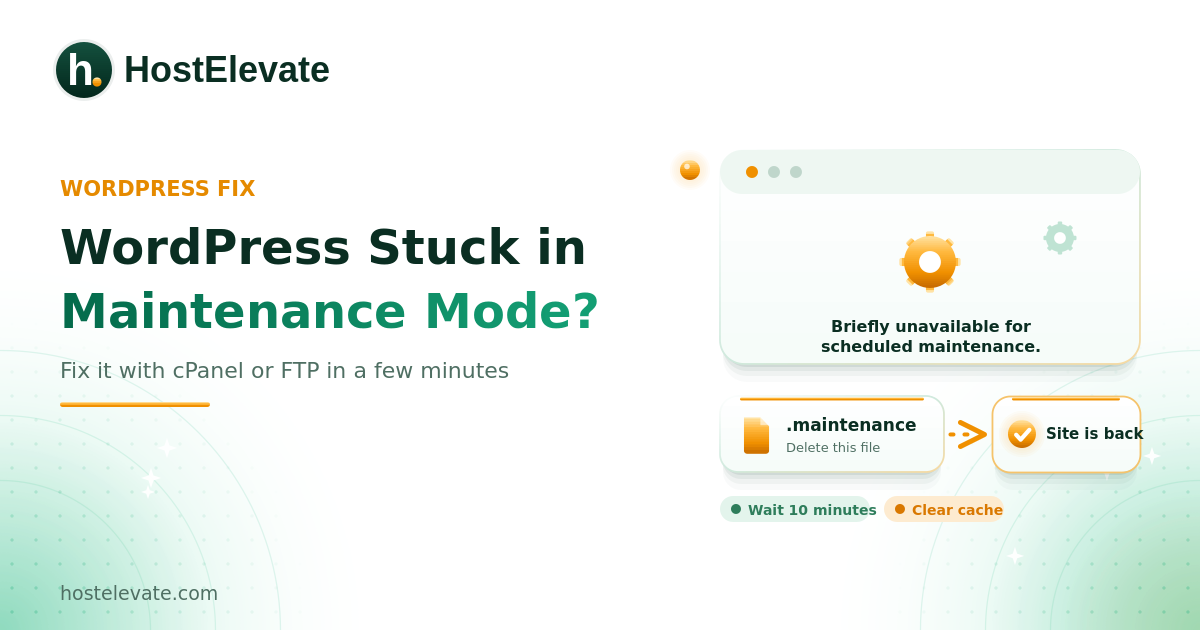
WordPress maintenance mode is the temporary message “Briefly unavailable for scheduled maintenance. Check back in a minute.” that visitors see while WordPress updates itself, a plugin, or a theme. It should disappear on its own, but an interrupted update can leave your website showing it long after the work should be done. That can feel alarming, especially right after you click Update.
This guide explains how to fix WordPress maintenance mode when it is stuck. You will learn how long to wait, how to remove the .maintenance file with cPanel or FTP, how to finish interrupted updates, and how to stop the problem from coming back.
Table of Contents
- What Is WordPress Maintenance Mode, and Why Is It Important?
- Why Does WordPress Maintenance Mode Get Stuck?
- How to Fix WordPress Maintenance Mode When It Is Stuck
- How to Remove the Maintenance File Using cPanel
- How to Fix WordPress Maintenance Mode Using FTP
- What to Do If WordPress Maintenance Mode Is Still Showing
- How to Prevent WordPress Maintenance Mode Problems
- When Should You Contact Your Hosting Provider?
- Frequently Asked Questions
- Summary:
What Is WordPress Maintenance Mode, and Why Is It Important?
WordPress maintenance mode is a temporary state that stops visitors from seeing the normal website while WordPress changes its files. When you update WordPress core, a plugin, or a theme, WordPress may show a maintenance notice so people do not load a half-updated site.
During an update, WordPress creates a temporary file named .maintenance in the main installation folder. When the update finishes, WordPress removes it automatically. If the update is interrupted, the file may stay behind and keep the maintenance message on screen.
This matters because your whole website, including the dashboard, can be unavailable to visitors until the problem is solved, and the message gives no clue about the cause.
How long does the maintenance message last?
Here is a detail many guides miss. The .maintenance file contains a timestamp, and since WordPress 5.5 the function that checks for maintenance mode treats a file older than 10 minutes as finished. You can read the logic in the official wp_is_maintenance_mode() reference. So on a current WordPress version, the message from a stuck update normally clears by itself after about 10 minutes. If it stays longer, something else is usually involved, such as caching, a maintenance plugin, or a repeated failed update.
Why Does WordPress Maintenance Mode Get Stuck?
Several things can leave WordPress maintenance mode stuck by stopping WordPress from finishing an update and cleaning up its temporary file. Knowing the cause matters, because removing the file may restore access without fixing the underlying update problem.
Interrupted WordPress updates
An interrupted update is one of the most common causes of stuck WordPress maintenance mode. If your browser closes, the connection drops, or the request times out while WordPress is replacing files, the process may not finish correctly.
Updating many plugins at once
Updating several plugins or themes together raises the chance that one of them fails or runs too long, especially when the hosting account has limited resources.
Hosting server timeouts
Shared hosting accounts work within allocated resources. If an update needs more processing time than the server allows, PHP may stop it before it finishes. This can happen when:
- The website has many installed plugins.
- The hosting account reaches its resource limits.
- The update package is large.
- The server is under temporary load.
- PHP execution time is too short for the job.
Plugin or theme compatibility problems
An incompatible plugin or theme can interrupt an update or cause errors during installation. Removing the maintenance file may restore access, but the affected extension still needs investigating.
Insufficient file permissions
WordPress needs the right permissions to replace and create files. Wrong permissions or file ownership can stop an update from completing, and if it happens repeatedly your host may need to review them.
How to Fix WordPress Maintenance Mode When It Is Stuck
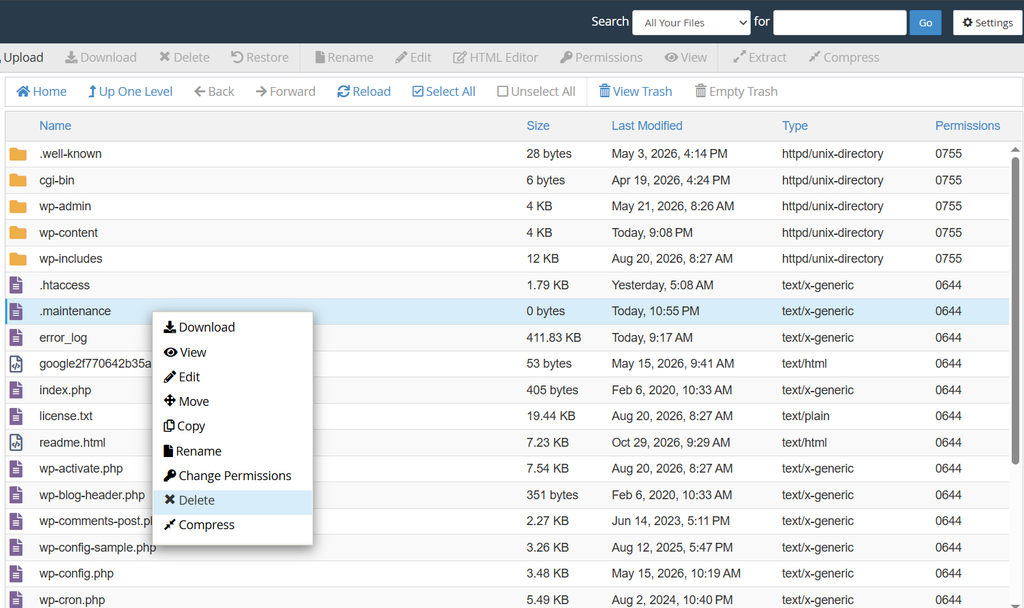
To fix WordPress maintenance mode, give WordPress a few minutes, then remove the .maintenance file if the message remains. Before you do anything, make sure no update is still running. Removing the file mid-update could expose an incomplete installation.
Wait ten minutes and refresh
Wait about 10 minutes, then reload the site in a private browsing window. On a current WordPress version, a stale file is ignored after that time. If the site loads, log in and check that the update finished. If the message remains, continue below.
Locate the WordPress installation folder
Find the folder that holds your WordPress files. On many cPanel accounts, the main site is inside public_html/, but WordPress can also sit in a subfolder or in the document root of an addon domain. Look for these familiar items:
wp-admin/ wp-content/ wp-includes/ wp-config.php index.php
The .maintenance file lives in the same folder as these.
Find the hidden .maintenance file
The file name starts with a dot, so file managers often hide it. If you cannot see it, turn on the option to show hidden files (dotfiles). Make sure you pick the correct file in the WordPress folder and do not delete anything else.
Delete the .maintenance file
After you confirm that no update is running, select .maintenance, choose Delete, confirm, and refresh your website. If the maintenance file was the cause, the site should now load and WordPress maintenance mode should be gone. If you have shell access and WP-CLI installed, you can also run:
wp maintenance-mode deactivate
Important: deleting .maintenance removes only the notice. It does not prove that the interrupted WordPress, plugin, or theme update finished correctly. Check and complete the affected update before you treat the problem as solved.
How to Remove the Maintenance File Using cPanel
If your hosting account includes cPanel, you can end WordPress maintenance mode without extra software.
Open cPanel File Manager
Log in to cPanel and go to Files then File Manager.
Enable hidden files
If you cannot see .maintenance, open Settings in File Manager, tick the option to show hidden files (dotfiles), and save. The file should appear in the WordPress folder if it exists.
Delete the maintenance file
Open your WordPress folder, commonly public_html, find .maintenance, select it, and click Delete. Then open your website in a new browser tab.
Check your WordPress website
Visit the homepage and the dashboard to confirm WordPress maintenance mode is off, and check that:
- The homepage loads correctly.
- The WordPress dashboard is accessible.
- Important pages display correctly.
- The maintenance message no longer appears.
- No new PHP or plugin errors are shown.
If the site loads but an update is still incomplete, continue with the update checks further down.
How to Fix WordPress Maintenance Mode Using FTP
If you cannot use File Manager, an FTP client can also clear WordPress maintenance mode, and it is handy when you manage files remotely.
Connect to your hosting account
Open your FTP application and enter the details from your host: FTP hostname, username, password, and port. Use the secure method your host supports, such as SFTP where available.
Open your WordPress root folder
After connecting, go to the folder that holds your WordPress installation. For a typical primary domain, that is /public_html/. If you cannot see .maintenance, enable the option to show hidden files in your FTP application.
Delete the .maintenance file
Select .maintenance and delete it from the remote server. Reload your site and check whether the message is gone. If it is, log in to WordPress and review the update status. The official WordPress common errors guide also describes removing the file over FTP after an unsuccessful update.
What to Do If WordPress Maintenance Mode Is Still Showing
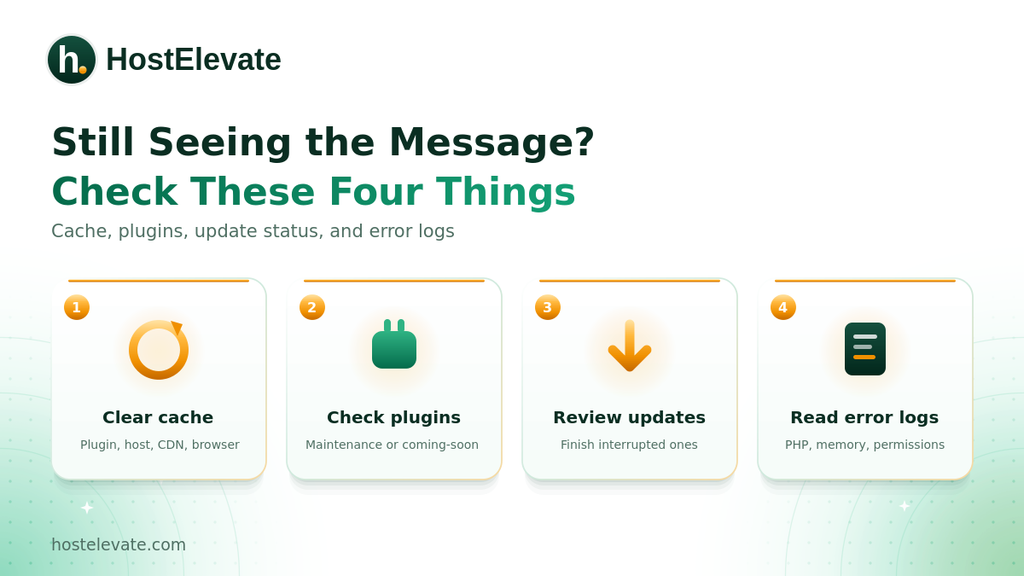
Sometimes removing the file is not enough. If WordPress maintenance mode keeps showing or errors continue, check these areas.
Check for incomplete plugin or theme updates
Log in and open Dashboard then Updates. Review WordPress core, plugins, the active theme, and other themes. If an update was interrupted, run it again once the site is stable, and update plugins and themes in small batches so each one can finish first.
Clear your website cache
A caching plugin, hosting cache, or CDN may keep serving an old maintenance page after the file is gone. This is a very common reason WordPress maintenance mode seems stuck. If the dashboard works but visitors still see the notice, clear the WordPress caching plugin, the hosting-level cache, the CDN cache, and your browser cache, then test in a private window.
Check whether a maintenance plugin is active
Not every maintenance page comes from WordPress core. Some plugins and site builders deliberately put a site into maintenance or coming-soon mode. If you removed .maintenance and the message remains, review those plugin settings in the dashboard. If you cannot reach the dashboard, follow the plugin developer’s recovery steps before changing plugin files.
Check WordPress error logs
If updates keep failing, investigate the PHP errors instead of deleting the file again and again. In cPanel you may find them under Metrics then Errors, or you can ask your host to check the PHP and application logs. Look for errors about plugin or theme updates, PHP execution time, file permissions, memory, or the database. If the error is a blank page instead, see our guide to the WordPress white screen of death.
Review file permissions
WordPress needs permission to create, update, and remove files. On typical Linux hosting, common starting values are 755 for directories and 644 for files, though requirements vary with file ownership. Do not change permissions recursively across a whole account without understanding the effect, because wrong values can cause security problems or break WordPress. If updates keep failing, ask your host to check ownership and permissions.
How to Prevent WordPress Maintenance Mode Problems
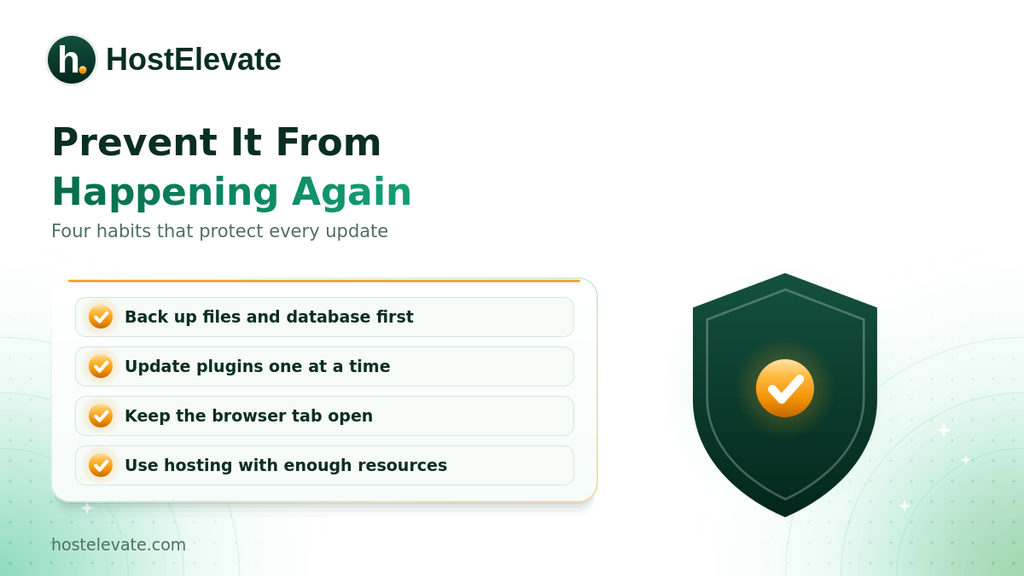
Fixing the current problem is important, but preventing repeat interruptions saves more time. These habits lower the chance of getting stuck in WordPress maintenance mode again.
Create a website backup before updating
Always create a recent backup before a major update. A useful backup includes the WordPress files, the database, themes and plugins, media uploads, and important configuration files, stored away from the live site. Our website backup guide shows how, and HostElevate web hosting keeps off-server backups that you can restore from cPanel.
Update plugins one at a time
Avoid starting too many updates at once. Check what is available, review compatibility, update important plugins individually, wait for each to finish, and check the site before moving on. That also makes it easy to see which update caused a problem.
Keep WordPress and PHP updated
Use supported versions of WordPress, PHP, themes, and plugins, because outdated software causes compatibility and security problems. Before you change the PHP version, confirm that your theme and plugins support it.
Choose reliable hosting resources
A site running close to its CPU, memory, or PHP execution limits can fail during updates. Look for hosting with suitable resources, maintained server software, and real technical support. For example, HostElevate WordPress hosting runs on LiteSpeed with a one-click staging site, so you can test updates before they reach the live website.
Avoid interrupting active updates
While WordPress is updating, keep the browser tab open and let it finish. Do not refresh the update page repeatedly, close the browser, start another update before the first ends, or make unrelated file changes mid-update.
When Should You Contact Your Hosting Provider?
If WordPress maintenance mode keeps returning, your host may need to look at the server environment. Contact support when:
- You cannot find or remove the maintenance file.
- WordPress updates fail again and again.
- File permissions block updates.
- PHP errors appear during updates.
- Your account keeps reaching resource limits.
- The site becomes unreachable after an update.
Give them the affected domain, the exact message, the update you were running, and any error-log lines. Support can investigate resource or server problems far more effectively than repeated file changes. You can contact HostElevate for help, and if your site needs a host that suits its requirements better, the free website migration moves your files, databases, and email for you.
Frequently Asked Questions
Why is my WordPress website stuck in maintenance mode?
Usually an update was interrupted and the temporary .maintenance file was not removed, or a cache is serving an old page.
How do I remove WordPress maintenance mode?
Wait about 10 minutes, then delete the .maintenance file from the WordPress root with cPanel File Manager or FTP.
Where is the .maintenance file located in WordPress?
It sits in the main installation folder, next to wp-admin, wp-content, and wp-includes.
Will deleting the .maintenance file delete my WordPress website?
No, it only removes a temporary notice, but you should still confirm the interrupted update finished.
How can I prevent WordPress from getting stuck in maintenance mode again?
Back up first, update plugins one at a time, never interrupt updates, and use hosting with enough resources.
Summary:
A site usually gets stuck in WordPress maintenance mode when an update does not finish and the temporary .maintenance file stays behind. On current WordPress versions the message often clears by itself after about 10 minutes. If it does not, confirm that no update is running, remove the file with cPanel File Manager or FTP, clear your caches, and check that WordPress core, plugins, and themes finished updating.
If the problem returns, look at hosting resource limits, PHP errors, file permissions, and plugin compatibility. Backups, careful one-at-a-time updates, and suitable hosting resources reduce future interruptions.