
A slow website does not always mean you need a bigger hosting plan. Heavy themes, oversized images, weak caching, and too many plugins cause most delays, even when your account has enough resources. Before paying more, learn how to speed up WordPress on shared hosting through practical fixes you can apply today. Each step is simple, safe, and beginner friendly, so you can test results after each change.
This guide shows you how to speed up WordPress on shared hosting without upgrading. You will learn how to measure performance, configure caching, optimise images, trim plugins, clean your database, and use a CDN, so you get more from your current plan.
Table of Contents
- What Slows WordPress Down on Shared Hosting and Why It Matters
- How to Check Your Speed Before You Speed Up WordPress on Shared Hosting
- Enable Caching to Speed Up WordPress on Shared Hosting
- Optimise Images to Speed Up WordPress on Shared Hosting
- Choose a Lightweight Theme and Fewer Plugins to Speed Up WordPress on Shared Hosting
- Minimise CSS and JavaScript to Speed Up WordPress on Shared Hosting
- Clean Your Database to Speed Up WordPress on Shared Hosting
- Use a CDN to Speed Up WordPress on Shared Hosting
- Update Software and Trim Scripts to Speed Up WordPress on Shared Hosting
- When You Cannot Speed Up WordPress on Shared Hosting Any Further
- Frequently Asked Questions
- Summary:
What Slows WordPress Down on Shared Hosting and Why It Matters
Shared hosting lets many websites use resources on the same physical server. Each account runs within its own limits for CPU, memory, storage, and other resources. That arrangement suits many WordPress sites, but performance depends heavily on how efficiently your website uses what it is given.
A site with a heavy theme, several resource-hungry plugins, and unoptimised images can load slower than a well-configured site on the very same plan. That is why it pays to speed up WordPress on shared hosting before you spend more on a bigger package.
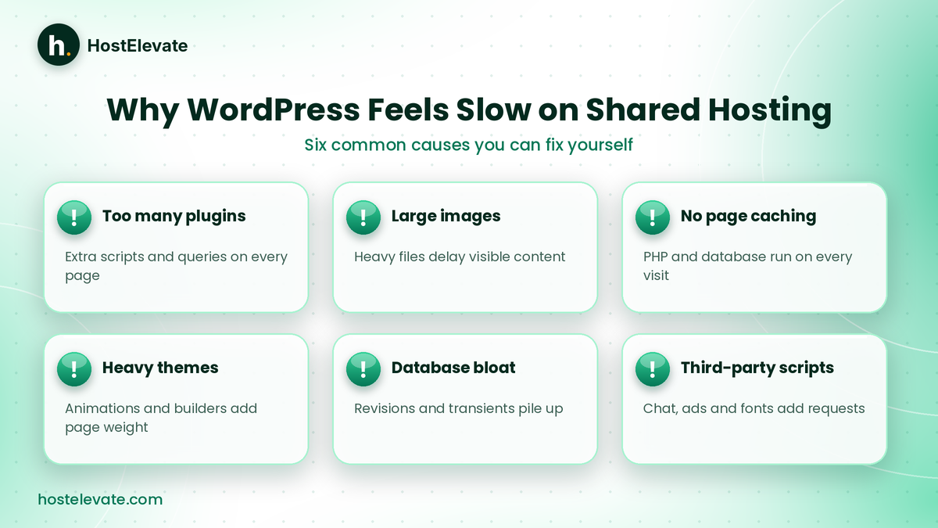
Six common reasons you need to speed up WordPress on shared hosting.
Common reasons you need to speed up WordPress on shared hosting
- Too many plugins: some run extra database queries, load scripts on every page, or run background tasks.
- Unoptimised images: large files increase download size and delay visible content.
- No page caching: WordPress repeats PHP and database work for every request.
- Heavy themes: animations, page builders, and complex layouts add page weight.
- Poor database health: revisions, expired transients, and slow queries add overhead.
- Third-party scripts: analytics, ads, chat widgets, and external fonts add network requests.
- Resource limits: if your site keeps hitting its CPU or memory ceiling, optimisation alone may not be enough.
The WordPress developer documentation on optimization lists hosting configuration, themes, plugins, image sizes, and caching as key performance factors.
How to Check Your Speed Before You Speed Up WordPress on Shared Hosting
Measure first when you want to speed up WordPress on shared hosting. Testing shows the real problems, so you do not install plugins or change settings blindly. Test your homepage and important inner pages such as blog posts, service pages, and product pages.
Use Google PageSpeed Insights
Google PageSpeed Insights is a useful starting point. Enter your URL, then review the mobile and desktop results separately. Pay attention to Largest Contentful Paint (LCP), Interaction to Next Paint (INP), Cumulative Layout Shift (CLS), First Contentful Paint (FCP), Total Blocking Time (TBT), and the listed opportunities.
| Metric | Good target | What it measures |
| LCP | 2.5 seconds or less | Loading performance |
| INP | Less than 200 ms | Interaction responsiveness |
| CLS | 0.1 or less | Visual stability |
These targets reflect real visitor experience. Lab tests give useful diagnostics, while field data in PageSpeed Insights and Google Search Console shows how actual visitors experience your pages. You can read more in web.dev’s Web Vitals guide.
Test your website with GTmetrix
GTmetrix adds waterfall analysis and request details. Use it to find large images, slow server responses, render-blocking CSS and JavaScript, excessive requests, slow external calls, and caching or compression gaps.
Do not chase a score alone. A high score can still hide usability problems, and a lower score does not always mean visitors have a bad experience.
Enable Caching to Speed Up WordPress on Shared Hosting
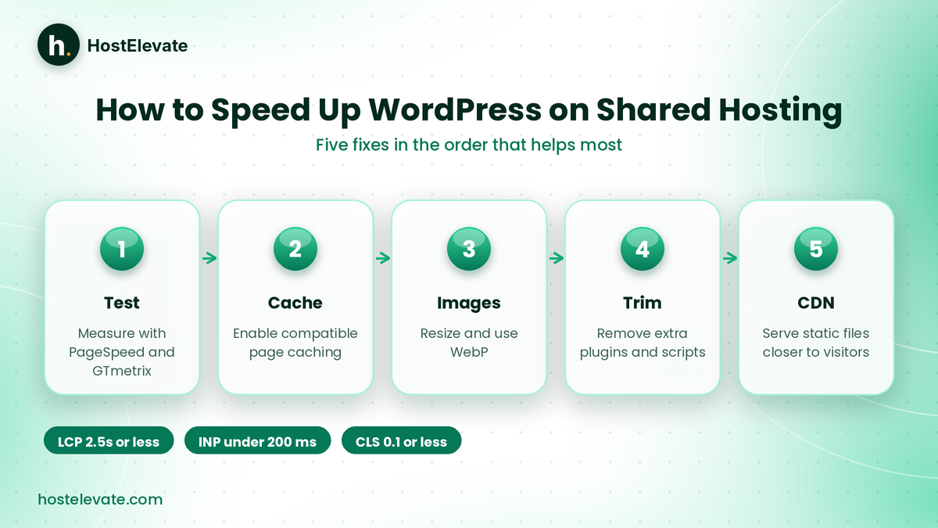
Five fixes that help you speed up WordPress on shared hosting.
Caching is one of the most effective ways to speed up WordPress on shared hosting. Normally, WordPress runs PHP and queries its database for each request. With page caching, a stored copy of an eligible page can be served without repeating that work for every visitor, which also lowers server resource use.
Choose a caching plugin that matches your server
| Caching solution | Best suited for |
| LiteSpeed Cache | Websites hosted on LiteSpeed servers |
| WP Super Cache | Straightforward page caching |
| WP Rocket | A commercial all-in-one optimisation plugin |
| Cache Enabler | A lightweight caching solution |
Never run several full-page caching plugins together. Overlapping caches cause conflicts, stale content, and hard-to-trace problems.
Configure LiteSpeed Cache on a LiteSpeed server
If your host runs LiteSpeed Web Server, install the official plugin. HostElevate’s web hosting runs on LiteSpeed, so this route suits our customers. Follow these steps:
- Log in to your WordPress dashboard.
- Go to Plugins → Add New Plugin and search for LiteSpeed Cache.
- Install and activate the official plugin.
- Open LiteSpeed Cache → Cache and review the settings.
- Enable caching when server-level LiteSpeed support is available.
Then clear the existing cache and test again. Important: full-page caching depends on the LiteSpeed server and its cache configuration, so installing the plugin on a different server does not give the same result. The LiteSpeed Cache for WordPress documentation explains the settings in detail.
Test your website after enabling caching
- The homepage is served from cache.
- Important pages show correct content.
- Logged-in users see the right information.
- Forms and dynamic features still work.
- Carts and checkout pages behave correctly.
Do not cache sensitive or personalised pages without understanding the plugin’s exclusion rules.
Optimise Images to Speed Up WordPress on Shared Hosting
Images often make up a large share of a page’s download size. Uploading a full-size photo straight from a camera slows loading for no benefit, so image optimisation is a quick way to speed up WordPress on shared hosting.
Use WebP or AVIF where suitable
- WebP for photographs and general website images.
- AVIF where your workflow and visitors’ browsers support it.
- PNG when transparency or lossless quality matters.
- SVG for suitable vector graphics and icons.
Choose the format by purpose rather than converting every image to the same type.
Resize images before uploading
Do not upload a 4000-pixel image if your theme displays it at about 800 pixels. Match the size to the display width:
| Image use | Example display width |
| Blog content image | 700–900 px |
| Featured image | 1200 px |
| Small thumbnail | 300–400 px |
| Large hero image | 1400–1800 px |
These are starting points, not fixed WordPress rules. Your theme layout and responsive image settings decide the right dimensions.
Enable lazy loading
Lazy loading delays images outside the visitor’s current view. WordPress supports native lazy loading for suitable images, and an optimisation plugin can manage it too. However, do not lazy-load the main above-the-fold hero image or any likely LCP element, because that can make loading feel slower.
Choose a Lightweight Theme and Fewer Plugins to Speed Up WordPress on Shared Hosting
Your theme decides how much CSS, JavaScript, and other resources every page must load. Excessive animations, large scripts, and complicated layouts increase page weight. When choosing a theme to speed up WordPress on shared hosting, look for:
- Lightweight page templates and responsive layouts.
- Minimal unnecessary scripts and efficient CSS.
- Compatibility with your caching solution.
- Good accessibility and regular updates.
Avoid stacking several page builders or design frameworks unless you truly need them. A simpler theme is often a better base to speed up WordPress on shared hosting than stripping features from a bloated design.
Audit your installed plugins
More plugins do not automatically mean a slower site, but poorly built plugins, background tasks, and overlapping features raise resource use. Open Dashboard → Plugins → Installed Plugins and ask of each one:
- Does the website still need this feature?
- Does another plugin already provide it?
- Does it load scripts on every page?
- Is it regularly maintained?
- Does it add noticeable overhead?
Deactivate and remove plugins you genuinely do not need. First check whether a plugin controls forms, security, backups, or SEO before removing it.
Avoid several plugins for one task
Using multiple image optimisation plugins or multiple page caches adds complexity. Pick one solid solution for each major function and configure it properly.
Minimise CSS and JavaScript to Speed Up WordPress on Shared Hosting
Themes and plugins load CSS and JavaScript files to build layouts and interactive features. Some sites load more than they need, which increases the data browsers must process. Trimming them is another reliable way to speed up WordPress on shared hosting.
Enable CSS and JavaScript minification
Minification removes unnecessary characters from code files without changing how they work, which reduces file size. Many caching and performance plugins include it. Test CSS minification first, then JavaScript separately.
Be careful with JavaScript defer and delay
Deferring scripts lets browsers handle other important resources first. However, delaying scripts indiscriminately can break navigation menus, contact forms, cookie consent tools, search, and shopping carts. Enable one optimisation at a time and test key features after each change.
Also avoid combining CSS or JavaScript files automatically just because a plugin offers it. Modern HTTP protocols and individual site setups can give different results.
Clean Your Database to Speed Up WordPress on Shared Hosting
WordPress stores content, settings, users, and comments in a database. Over time, unused data adds overhead, so database cleanup helps speed up WordPress on shared hosting. Work carefully on a live website.
Remove unnecessary database data
- Old post revisions.
- Spam comments.
- Unused drafts.
- Expired transients.
- Unnecessary plugin data.
- Orphaned metadata from removed plugins.
Always create a complete backup first, and never delete tables just because their names look unfamiliar, since some plugins and themes depend on them.
Use phpMyAdmin carefully
cPanel usually provides phpMyAdmin under cPanel → Databases → phpMyAdmin. Select the correct WordPress database, back it up, and only then optimise tables. Avoid running unfamiliar SQL commands on a production database. For routine maintenance, a reputable optimisation plugin can be easier to manage, as long as you review its options before running it.
Use a CDN to Speed Up WordPress on Shared Hosting
A content delivery network (CDN) distributes eligible resources across many servers. When a visitor requests cached content, the CDN can deliver it from a location closer to them instead of fetching the same static file from your hosting server again. That reduces repeated requests to your account and helps visitors in different regions. Used well, a CDN is a free way to speed up WordPress on shared hosting.
Consider Cloudflare’s free plan
Cloudflare offers DNS, CDN, and security features, and you can connect it to an existing cPanel account without moving your site. A basic setup involves:
- Creating a Cloudflare account and adding your domain.
- Reviewing and importing DNS records.
- Updating your domain’s nameservers.
- Configuring proxy settings and checking SSL/TLS.
- Testing your website and email.
Keep mail-related DNS records correct and set to DNS only, and do not proxy ordinary SMTP, IMAP, or POP3 traffic through Cloudflare’s web proxy. A CDN helps delivery, but it cannot fix slow PHP execution, inefficient queries, or exhausted hosting resources.
Update Software and Trim Scripts to Speed Up WordPress on Shared Hosting
Outdated software causes security, compatibility, and performance problems. Keep WordPress, your theme, and your plugins updated, and check which PHP version your host supports. Regular updates are a simple habit that helps speed up WordPress on shared hosting.
Check the PHP version in cPanel
Depending on your host, look under cPanel → Software → MultiPHP Manager or Select PHP Version. Use a PHP version supported by your WordPress installation, theme, and plugins. Back up and check compatibility before changing it, and do not pick an unsupported version just because it is newer.
Reduce external scripts and third-party requests
External services affect how quickly a page becomes usable. Review whether you need every one of these:
- Live chat widgets.
- Advertising and tracking scripts.
- Social media and video embeds.
- External font services.
- Marketing and popup tools.
For pages with several videos, use a lightweight preview image that loads the player only when a visitor presses play. Use system fonts or a few locally hosted font files where appropriate. The goal is not to remove useful features, only to avoid loading unnecessary resources on every page.
When You Cannot Speed Up WordPress on Shared Hosting Any Further
Optimisation improves performance, but it cannot lift the resource limits of your plan. If your site keeps reaching its CPU, memory, or process limits, ask your host to investigate account usage.
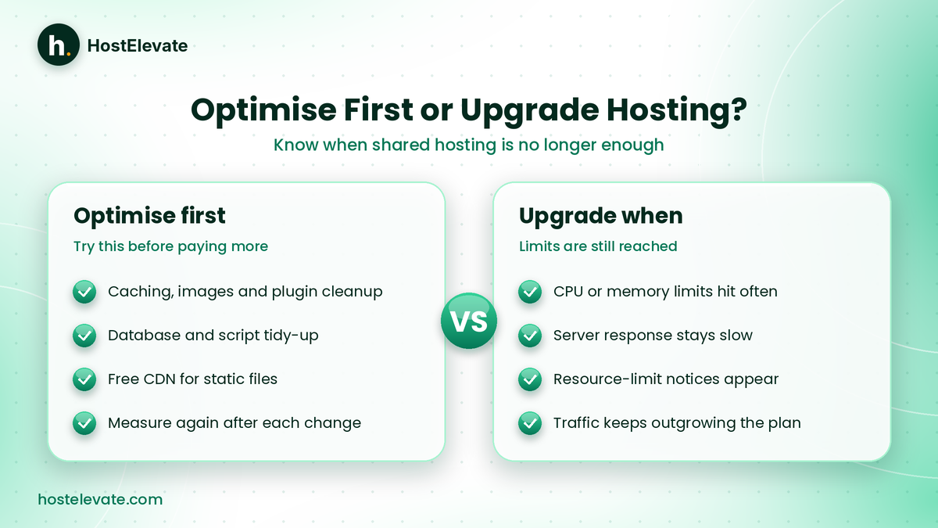
Optimise first, and upgrade only when limits are still reached.
Signs your website needs more resources
- The site frequently reaches CPU or memory limits.
- Server response times stay high after optimisation.
- You regularly receive resource-limit notices.
- Database queries are delayed by server load.
- Traffic growth causes repeated slowdowns.
Before upgrading, ask your host to review server logs, resource usage, and PHP performance. Sometimes a configuration fix works; other times more resources are genuinely needed.
Choose hosting based on your requirements
If you have optimised everything and still hit limits, compare CPU and RAM, storage, caching support, PHP versions, backups, security, support, and renewal pricing. You can explore HostElevate web hosting or WordPress hosting for a WordPress-focused environment. If you need more control, review cPanel VPS hosting. Moving between hosts? Free website migration moves your files, databases, email, and DNS together.
Frequently Asked Questions
Can I speed up WordPress on shared hosting without upgrading?
Yes, caching, image optimisation, a lightweight theme, plugin cleanup, and database maintenance can all help without changing plans.
Which caching plugin is best for WordPress shared hosting?
LiteSpeed Cache is a strong choice on LiteSpeed servers, while other caching plugins suit Apache or different environments.
Does Cloudflare help speed up WordPress on shared hosting?
It can speed up cached content delivery and reduce repeated requests, but it cannot fix every server-side problem.
How can I check why my WordPress website is slow?
Run Google PageSpeed Insights and GTmetrix, then review plugins, images, database health, and hosting resource usage.
When should I upgrade from shared hosting?
Upgrade when your site keeps reaching its resource limits or stays slow because the plan cannot support its workload.
Summary:
You do not always need a bigger plan to speed up WordPress on shared hosting. A carefully optimised site can make better use of the resources already included in shared hosting.
To speed up WordPress on shared hosting, measure your site first, enable compatible page caching, optimise images, remove unnecessary plugins, and use a lightweight theme. Then improve CSS and JavaScript delivery, maintain your database, add a CDN, and keep everything updated. Optimisation has limits, so if your account keeps reaching its server limits, extra capacity may eventually make sense. Find the real bottleneck, fix it, and measure again before you decide to upgrade. For fast LiteSpeed hosting, visit HostElevate.