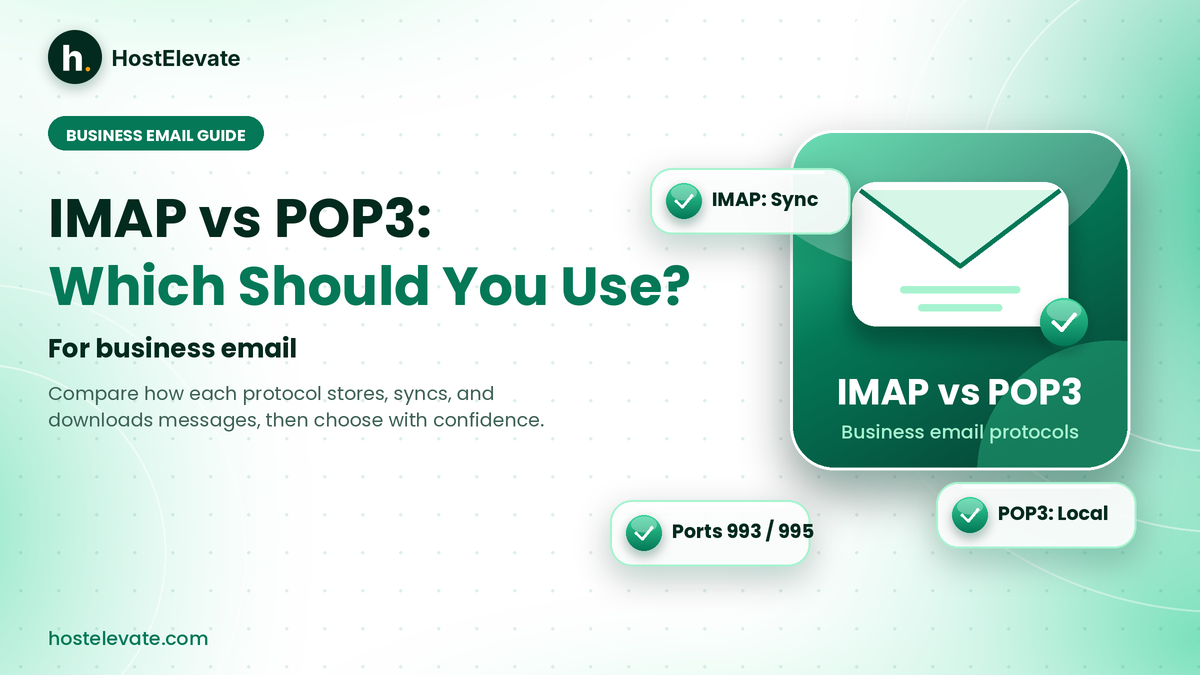
Choosing the right email protocol shapes how your team stores, reads, and syncs messages every day. Whether you use Outlook, Apple Mail, Thunderbird, or a phone, your mailbox behaves differently depending on the setting you pick. The IMAP vs POP3 decision comes down to one idea: IMAP keeps mail on the server and syncs it everywhere, while POP3 mainly downloads it to a single device.
This guide explains IMAP vs POP3 in plain terms, compares their differences, and shows which one suits business email. You will also get secure port numbers and cPanel setup steps. By the end, you will know which choice fits your team and your devices best.
Table of Contents
- What Are IMAP and POP3 and Why Are They Important?
- How Does IMAP Work?
- How Does POP3 Work?
- IMAP vs POP3: Key Differences
- IMAP vs POP3: Which Is Better for Business Email?
- IMAP vs POP3 Server Settings and Ports
- How to Set Up IMAP or POP3 in cPanel
- IMAP vs POP3 for Outlook and Mobile Devices
- Common IMAP vs POP3 Configuration Mistakes
- Frequently Asked Questions
- Summary:
What Are IMAP and POP3 and Why Are They Important?
IMAP and POP3 are email retrieval protocols. They let an email application reach messages stored on a mail server, and they are the two options you will see when you connect a professional address to Outlook, Apple Mail, or Thunderbird. Both give access to incoming email, but they handle storage and synchronisation in very different ways, and that difference is the heart of IMAP vs POP3.
What is IMAP?
IMAP stands for Internet Message Access Protocol. It lets an email application read and manage messages directly on the mail server. When you open a message through an IMAP connection, it stays on the server, and actions such as reading, deleting, or moving it can sync to every other device on the same mailbox.
For example, if you read a message in Outlook on your computer, it can show as read in the mail app on your phone. IMAP suits anyone who needs consistent access to one mailbox from several devices. The protocol is defined in RFC 9051.
What is POP3?
POP3 stands for Post Office Protocol Version 3. It retrieves messages from the server and downloads them to an email application. Unlike IMAP, it does not keep the mailbox in sync across devices. Depending on how the application is set up, downloaded messages may be removed from the server or kept there as copies for a period of time.
Someone who checks business email from one desktop computer may prefer POP3 because it stores and manages mail locally. The key point is that POP3 focuses on retrieving messages, while IMAP gives ongoing access to the mailbox on the server. You can read the original specification in RFC 1939.
Why does IMAP vs POP3 matter for business email?
Business email carries customer enquiries, invoices, account notifications, and team updates. The protocol you choose affects how easily people can reach those messages. Picture an employee who uses one address on a desktop, a laptop, and a phone. With IMAP, the mailbox stays in sync everywhere. With POP3, a message downloaded on one device may never appear on another.
A good choice in the IMAP vs POP3 question helps you:
- Keep consistent access to business messages.
- Manage email across different devices.
- Keep mailbox folders organised.
- Avoid confusion between local and server-stored messages.
- Match the setup to how your team actually works.
For most people who read professional email on more than one device, IMAP is the more practical option.
How Does IMAP Work?
IMAP connects an email application to the mailbox that lives on the mail server. Instead of treating each device as its own store of downloaded messages, it keeps supported mailbox changes in sync with the server. A typical connection works like this:
- An email arrives at the receiving mail server.
- The server stores the message in the user’s mailbox.
- The email application connects to the mailbox through IMAP.
- The application shows the available messages and folders.
- The user reads, moves, deletes, or organises messages.
- Supported changes sync with the server and the other connected devices.
Imagine a customer enquiry arrives at support@example.com. You open it on your laptop and mark it as read. Later, when you open the same mailbox on your phone, the message can show as read there too. That is why IMAP works so well for people who move between devices. In the IMAP vs POP3 debate, this sync-first design is IMAP’s biggest strength.
Main advantages of IMAP
- Access from multiple devices: use the same mailbox on computers, smartphones, and tablets without separate local copies.
- Mailbox synchronisation: reading, deleting, and moving messages can show up across connected devices.
- Server-side folders: your folder structure lives on the server, so supported apps see the same layout.
- Better continuity: if you replace a computer or add a new app, your server-stored messages stay available.
- Useful for shared workflows: several people can reach a common mailbox, although IMAP does not replace a proper shared-mailbox or helpdesk system with permissions.
Disadvantages of IMAP
- Mailbox storage is used on the email server, so large mailboxes need more space.
- The first synchronisation can take time when an account holds many messages.
- Offline access depends on whether the app has cached messages locally.
- Deleting a synced message can affect it on every connected device.
Businesses with large mailboxes should do regular mailbox cleanup and make sure the hosting plan has enough storage. HostElevate’s web hosting plans include email alongside free SSL, so mailboxes and websites can sit in one account.
How Does POP3 Work?
POP3 takes a different approach. The email application connects to the server, retrieves the available messages, and stores them locally. A typical POP3 connection looks like this:
- An email arrives at the mail server.
- The email application connects through POP3.
- The application downloads the available messages.
- The messages are stored on the device.
- The server handles the downloaded messages according to the account and app settings.
An employee who checks business email from one desktop might set up POP3 to download messages and keep a local archive. If that person later opens the account on another device, earlier messages may not appear there, especially if the first application removed them from the server.
Main advantages of POP3
- Local storage: messages are saved directly on the computer.
- Single-device workflows: it suits people who manage email from one machine.
- Less server storage: if downloaded messages are removed from the server, the mailbox uses less space over time.
- Offline access: once downloaded, messages can usually be read without an internet connection.
Disadvantages of POP3
- It does not provide the same mailbox synchronisation as IMAP.
- Messages may not be available across multiple devices.
- Folders and read status do not sync in the same way.
- A local archive can be lost if the device fails and no separate backup exists.
- Using several POP3 clients on one account can cause confusion.
One important point: POP3 does not automatically delete every message from the server. Many email applications let you leave a copy of downloaded messages on the server, so check that setting before you configure an account. Understanding this behaviour is a key part of the IMAP vs POP3 decision.
IMAP vs POP3: Key Differences
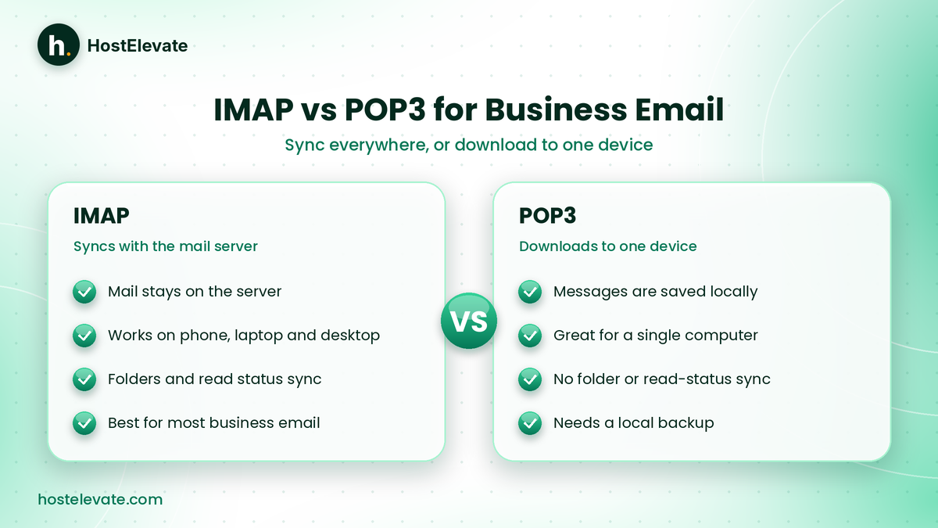
Seeing the technical differences side by side makes the IMAP vs POP3 choice easier.
IMAP vs POP3: sync everywhere, or download to one device.
| Feature | IMAP | POP3 |
| Main purpose | Access and sync server mailboxes | Retrieve and download messages |
| Message storage | Mainly on the mail server | Mainly on the local device |
| Multiple devices | Designed for synced access | Limited synchronisation |
| Folder management | Server-side folders can sync | Mostly local organisation |
| Read status | Can sync across devices | Usually local to the client |
| Offline access | Depends on local caching | Downloaded messages are available locally |
| Server storage | Messages remain on the server | Can shrink if messages are removed |
| Best suited for | Multiple-device email access | Single-device download workflows |
IMAP vs POP3: which is more convenient?
IMAP is usually more convenient when you switch between devices. If you read a customer email on your phone and continue the conversation from your computer later, IMAP keeps the mailbox consistent. POP3 can feel simpler for a person who prefers to download and manage mail on one main device. The better option depends on whether you value synced access or local storage.
IMAP vs POP3: Which Is Better for Business Email?
For most modern business email accounts, the IMAP vs POP3 answer is that IMAP is the recommended choice. Teams read email on desktops, laptops, and phones, and they need steady access to inboxes, sent items, and folders. IMAP supports that because the mailbox stays on the server and syncs with supported applications. Even so, POP3 can still fit certain needs.
IMAP vs POP3: choose IMAP if you
- Access business email from more than one device.
- Use Outlook together with a mobile email app.
- Need consistent mailbox folders.
- Want read and unread status to sync.
- Switch between different computers.
- Prefer server-side mailbox storage.
IMAP vs POP3: choose POP3 if you
- Mainly use one computer for email.
- Prefer to download messages locally.
- Have a specific local archiving requirement.
- Understand how your email client handles server copies.
- Keep a reliable local backup.
IMAP vs POP3 for a shared business email address
If several employees need an address such as support@example.com or sales@example.com, IMAP gives a more consistent view than separate POP3 downloads. However, IMAP alone offers no team assignment, collision prevention, or detailed permissions. A larger support team may be better served by a dedicated shared-mailbox or helpdesk tool.
IMAP vs POP3 Server Settings and Ports
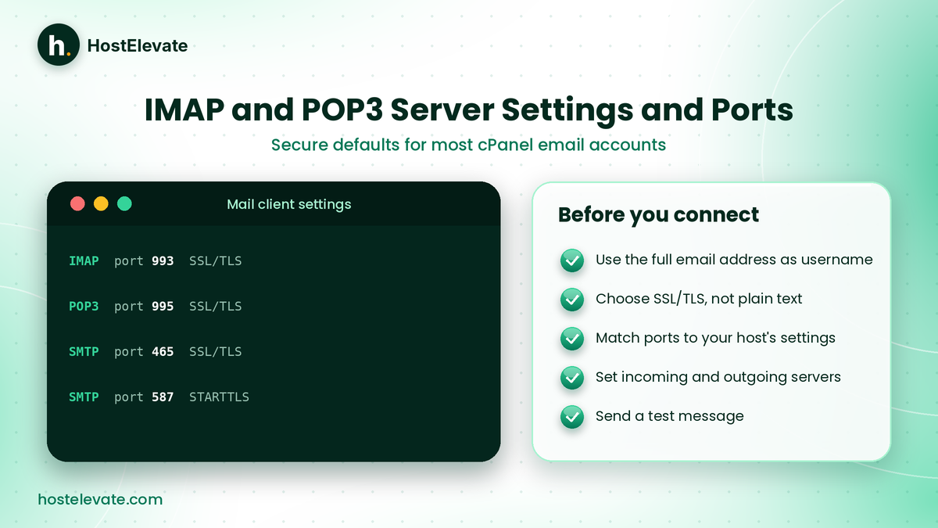
To apply your IMAP vs POP3 choice to a business email account, you need the correct incoming server, protocol, port, and encryption setting. These are the usual secure incoming settings:
| Setting | IMAP | POP3 |
| Secure port | 993 | 995 |
| Non-encrypted port | 143 | 110 |
| Encryption | SSL/TLS | SSL/TLS |
| Purpose | Incoming email access | Incoming email retrieval |
On cPanel hosting, outgoing mail normally uses SMTP. Common secure SMTP settings include:
| Setting | Typical value |
| SMTP SSL/TLS port | 465 |
| SMTP submission port | 587 |
| Encryption | SSL/TLS or STARTTLS, depending on the port and server configuration |
Secure IMAP, POP3, and SMTP ports at a glance.
Important: SMTP sends email, while IMAP and POP3 retrieve incoming messages. They are different protocols and should not be confused. The exact hostname and supported ports depend on your provider, and on cPanel accounts you can usually find them under Email Accounts → Connect Devices. The cPanel documentation on setting up a mail client recommends secure SSL/TLS settings for client connections.
How to Set Up IMAP or POP3 in cPanel
Whichever side of IMAP vs POP3 you choose, if your business email runs on a cPanel server, you can pull the required settings straight from your hosting account. HostElevate’s cPanel VPS page describes that kind of cPanel hosting environment.
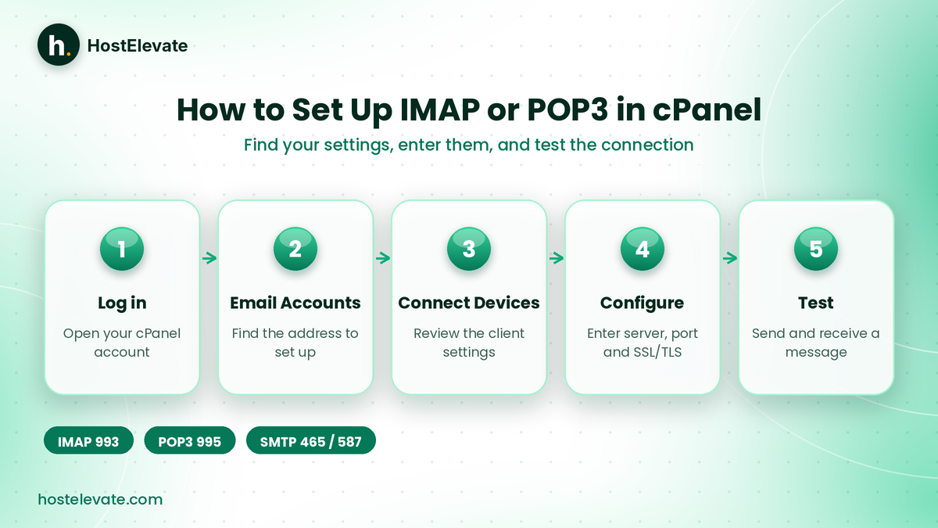
Five steps from cPanel login to a tested email connection.
Find your email account settings
- Log in to your cPanel account.
- Open Email Accounts.
- Find the email address you want to configure.
- Select Connect Devices.
- Review the mail client configuration information.
- Choose the IMAP or POP3 settings.
That page lists the incoming and outgoing server details your hosting environment supports. If you do not have a domain for your email yet, you can register a domain first and create addresses on it.
Configure your email application
With the server details in hand, open your email application and enter the following:
| Field | Example |
| Email address | user@example.com |
| Username | Full email address |
| Password | Email account password |
| Incoming server | mail.example.com |
| Incoming protocol | IMAP or POP3 |
| Incoming port | 993 for IMAP or 995 for POP3 |
| Outgoing server | mail.example.com |
| SMTP port | 465 or 587, depending on configuration |
Replace example.com with your own domain, and use the hostname and settings supplied by your provider. For better security, choose the SSL/TLS configuration instead of an unencrypted connection.
Check authentication and the connection
- Confirm that the email application connects successfully.
- Send a test message to another address.
- Reply to that message.
- Check that incoming and outgoing mail both work.
- If you use IMAP, verify that read status and folders sync across devices.
If the connection fails, check the hostname, password, port, encryption method, and server availability. Stuck on a setting? The HostElevate support team can help with business email setup.
IMAP vs POP3 for Outlook and Mobile Devices
Most people read business email in Outlook on a computer and in a mobile app. In that situation, the IMAP vs POP3 answer is usually IMAP, because Outlook then mirrors the folders and read status you see on your phone. With POP3, Outlook downloads messages to that one computer, so the phone may show a different inbox.
Apple Mail and Thunderbird behave the same way. They sync with the server over IMAP and download locally over POP3. If you are changing an existing account from POP3 to IMAP, first back up the local archive, because messages that were downloaded and removed from the server exist only on that computer.
Planning to switch hosts as well? HostElevate’s free website migration moves files, databases, email, and DNS together, so you can check your IMAP or POP3 settings on the new server before the domain switches over.
Common IMAP vs POP3 Configuration Mistakes
Even after settling IMAP vs POP3, a configuration error can stop a connection. These mistakes appear most often.
Choosing POP3 when you use multiple devices
If your client downloads messages and removes them from the server, your other devices will not receive them. In IMAP vs POP3, choose IMAP when you need consistent access everywhere.
Using incorrect server ports
A wrong port prevents the connection. Check the exact port and encryption method from your hosting provider instead of assuming every email service uses the same settings.
Forgetting SSL/TLS encryption
Unencrypted connections can expose login credentials and message data in transit. Use the secure settings your provider recommends.
Entering an incorrect username
Many cPanel email servers need the full email address as the username. Enter support@example.com, not only support.
Confusing incoming and outgoing mail settings
IMAP and POP3 retrieve messages, while SMTP sends them. Setting up the incoming server does not configure outgoing mail, so check both.
Ignoring authentication requirements
Some providers require OAuth instead of a basic username and password for third-party apps. Google Workspace, for example, has moved away from less secure sign-in methods and recommends clients that support OAuth. Always check your provider’s current rules before you set up Outlook or another external client.
Frequently Asked Questions
In IMAP vs POP3, is IMAP better for business email?
IMAP is usually better because it syncs messages and mailbox changes across all your connected devices.
What is the main difference in IMAP vs POP3?
IMAP keeps the mailbox in sync with the server, while POP3 mainly downloads messages to one email application.
Can I use IMAP on multiple devices?
Yes, IMAP lets supported apps on computers, phones, and tablets use the same server-side mailbox.
Does POP3 delete emails from the server?
It depends on the client settings, and POP3 can be set to leave downloaded messages on the server.
Which ports should I use for IMAP and POP3?
The common secure ports are 993 for IMAP and 995 for POP3, both with SSL/TLS encryption.
Summary:
IMAP and POP3 both retrieve email from a mail server, but they serve different needs. In the IMAP vs POP3 comparison, IMAP keeps messages on the server and syncs supported changes across your devices, which makes it the preferred choice for most modern business email. POP3 downloads messages to a local application and can suit single-device workflows, provided you keep a reliable backup.
Before you apply your IMAP vs POP3 choice, check your host’s incoming and outgoing server settings, use SSL/TLS, and confirm that your email application supports the required authentication. For teams that read email on computers and phones, IMAP is generally the more practical answer. To set up hosting and business email in one place, explore HostElevate.