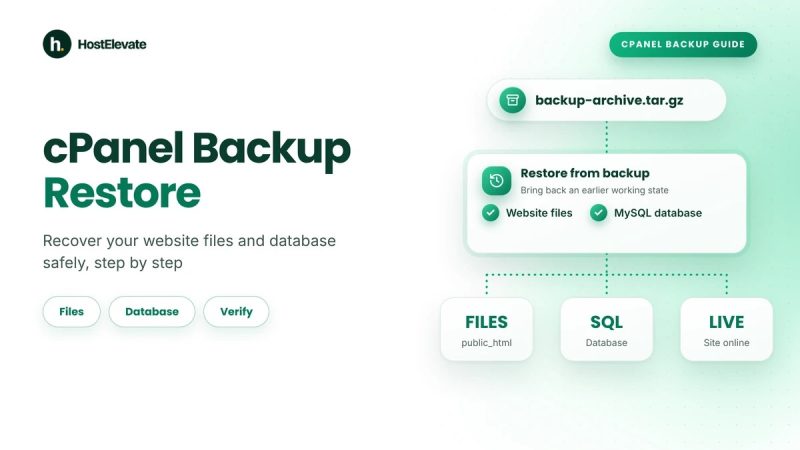

A website backup is a separate copy of your site data that lets you recover from accidental deletion, failed updates, software errors, or security incidents. Knowing how to back up website files, databases, and email protects your content, settings, and customer messages. A reliable plan covers every part you need to restore, not just the files you see in your control panel.
This guide explains the main backup methods, how to create copies in cPanel, where to store them, and how to confirm you can recover your data when it matters. It also covers how often to back up and the mistakes to avoid.
Table of Contents
- What Is a Website Backup, and Why Is It Important?
- What Should You Include in a Website Backup?
- How to Back Up Website Files
- How to Back Up a Website Database
- How to Back Up Website Email
- How to Create a Full cPanel Backup
- Where to Store Your Website Backup
- How Often Should You Create a Website Backup?
- How to Verify and Restore a Website Backup
- Common Website Backup Mistakes
- Frequently Asked Questions
- Summary:
What Is a Website Backup, and Why Is It Important?
A website backup is a saved copy of your website’s files, database, and other required data. It gives you a recovery point if your site becomes unavailable, content is deleted, a database is damaged, or a software update causes problems. A website backup also helps when you move to another hosting provider or need to restore a previous working version.
A complete website backup matters because different types of data are stored separately. Downloading your files does not export a WordPress database, and saving a database does not preserve every uploaded image, theme, plugin, or email message. Identify what your site depends on, back it up consistently, and keep copies somewhere other than the live hosting account.
What Should You Include in a Website Backup?
Before you choose a backup method, list the components you would need to restore your website and its related services.
Website files
Website files include application code, themes, plugins, uploaded images, documents, configuration files, and other assets. For a WordPress installation, important locations include wp-content, wp-config.php, and the rest of the installation directory.
Website database
A database can hold WordPress posts, pages, comments, user records, settings, and other application data. WordPress commonly uses MySQL or MariaDB. Back up the database separately unless your backup tool clearly includes it.
Email accounts and messages
If your hosting account also manages email, find out whether your website backup includes mailbox messages and account details. Forwarders, filters, and other settings may need separate backups.
Configuration and DNS information
Keep a record of database names, application settings, DNS records, and email routing. These details help you reconnect services during recovery or migration. Never store passwords or other sensitive credentials in an unsecured backup archive.
How to Back Up Website Files
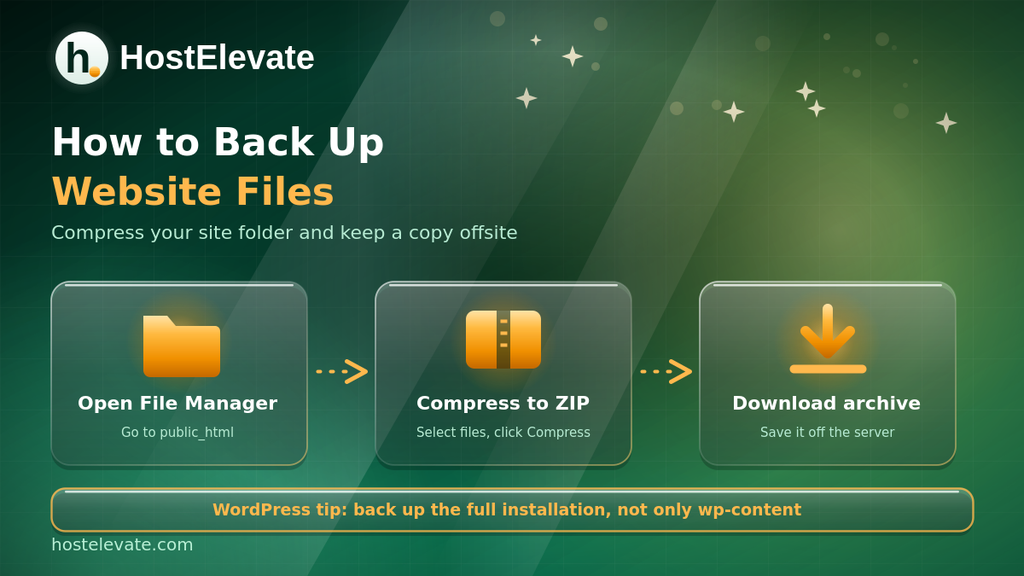
You can copy your website files manually through cPanel File Manager or a secure transfer method such as SFTP. The exact steps depend on where your site is installed.
Back up files through cPanel File Manager
Log in to cPanel and open File Manager. Go to your website’s document root, commonly public_html for a primary domain, although addon domains and other installations may use different folders.
Select the files and folders your website needs, then use the Compress option to create an archive such as a ZIP file. Wait for compression to finish, confirm the archive exists, and download it to your computer or move it to a separate backup destination.
For WordPress, include the full installation and its configuration files, not only the wp-content folder, and export the database separately. If you run WordPress, you can also compare HostElevate WordPress hosting for backup and restore features.
How to Back Up a Website Database
A database backup preserves application data that is not stored in your website folders. For a WordPress site, it typically includes posts, pages, comments, and settings saved in the database. If the database is lost and no valid copy exists, restoring the files alone will not bring that content back.
Export a database through cPanel
Open cPanel and launch phpMyAdmin. Select the database your website uses, open the Export tab, and choose the Quick method with SQL format. Start the export and save the file securely. You will find the database name and connection details for WordPress in wp-config.php, so never publish or share that file.
Use cPanel’s database download option
The cPanel Backup page also lets you download a single database as a partial backup. Partial backups like this can be restored directly through cPanel, which makes them handy before updates.
Handle large databases
phpMyAdmin can struggle with very large databases. In that case, use a command-line tool such as mysqldump, or ask your hosting provider for the recommended method. The WordPress database backup guide explains each option in detail, and it reminds you that a database export does not include your files.
How to Back Up Website Email
Website email can matter as much as website content. Messages may contain support conversations, account notifications, and order information that are hard to recreate after data loss. The right method depends on where your email is hosted.
Back up email through cPanel
Open cPanel and select Backup or Backup Wizard. A home directory backup includes the files you own and the email for the domains in your account. Forwarders and global email filters are downloaded separately, and cPanel notes that the global filter backup does not include user-level filters.
Check external email services
If you use an outside email provider, a cPanel backup will not include messages stored only there. Check that provider’s export and retention options. For critical mailboxes, keep an extra export using a method your mail service supports, and confirm what each backup contains before you rely on it.
How to Create a Full cPanel Backup
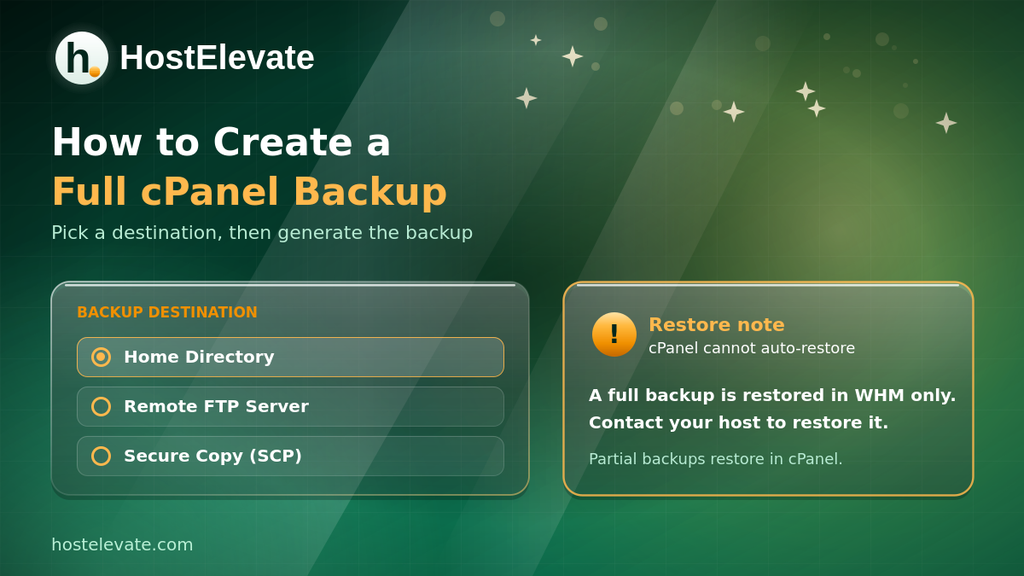
A full cPanel account backup preserves several parts of a hosting account together. Depending on the server setup, it can include website files, databases, email data, and account settings.
To create one, log in to cPanel and open Files then Backup (or Backup Wizard). Choose the full account backup, select a destination such as the home directory, a remote FTP server, or Secure Copy (SCP), and click Generate Backup. If you save it to the home directory, download it or move it to separate storage when it is ready.
Two cautions apply. First, cPanel cannot automatically restore a full backup file. That function exists only in WHM, so you need to contact your hosting provider, or use your own server if you have HostElevate cPanel VPS hosting. Second, a backup can fail if the account is near or over its disk quota, so free some space first. The official cPanel Backup documentation lists the current options.
Where to Store Your Website Backup

Keeping a website backup on the same server as your live site is convenient, but it is not enough. If the account becomes inaccessible or the server fails, both the site and its backup can be affected. Use a separate destination, such as a secured computer or a supported cloud storage service, and keep several recent copies.
Follow these storage practices:
- Keep at least one copy separate from the production hosting account.
- Use secure access controls and encryption where appropriate.
- Label each backup with the website, date, and included components.
- Retain several recovery points instead of only the newest copy.
- Check that uploads finish and that backup files are readable.
- Never leave backup archives in public website folders.
Your host’s backups add another layer. For example, HostElevate web hosting stores backups on a separate server for four weeks and lets you restore a file, a database, or the whole account from cPanel. Still keep your own copy, so you can recover even if the hosting account itself is unavailable.
How Often Should You Create a Website Backup?
Your backup schedule should reflect how often your data changes and how much you can afford to lose. A site that publishes content or takes orders all day may need frequent or continuous backups. A site that rarely changes can use less frequent scheduled copies plus a fresh backup before every major update.
For WordPress, create a new backup before you update core software, themes, or plugins. Review your schedule whenever the site changes significantly, and create a backup before any hosting move, as covered in our website migration checklist.
Two recovery measures help you set the schedule:
- Recovery Point Objective (RPO): how much recent data you could afford to lose.
- Recovery Time Objective (RTO): how long your website or email can stay unavailable.
A website backup schedule is only useful if it matches your real recovery needs.
How to Verify and Restore a Website Backup
Creating a website backup is only half of the job. You also need to verify that it holds the expected data and can be restored. Check that archives are not empty or corrupted, confirm that database exports contain your content, and review backup logs for errors. Where possible, test a restore in a staging environment instead of overwriting the live site.
A typical WordPress recovery restores the website files and imports the matching database. Both should come from the same point in time, especially if the site receives regular updates or customer activity. Partial cPanel backups can be restored through cPanel, while a full-account restore needs WHM or provider help.
Email restoration may follow a different procedure depending on your mail service and backup format, so learn the process before a real incident. If you are moving to a new host, the HostElevate website migration service states that it moves files, databases, email, and DNS while your old site stays live.
Common Website Backup Mistakes
Even a scheduled website backup can fail if important data is missing or restoration has never been tested.
- Backing up only files: The database may hold essential content that cannot be recreated from files.
- Keeping every copy on one server: A server or account failure can affect the site and its backups together.
- Ignoring email: Mailboxes and email settings may need separate backup coverage.
- Never testing restoration: An archive may be incomplete, damaged, or wrong for your recovery method.
- Keeping one version only: The newest copy may already contain corrupted files or unwanted changes.
- Assuming full backups restore automatically: A full cPanel backup needs WHM access or provider assistance.
Review your process regularly and update it when you add websites, databases, mailboxes, or services.
Frequently Asked Questions
What should I include in a website backup?
Include website files, the database, email data where applicable, and the configuration details needed for recovery.
Can I create a website backup using cPanel?
Yes, cPanel offers full and partial backups, though available features depend on your hosting provider.
Does backing up website files include the database?
No, files and databases are separate, so a WordPress restore needs both.
How often should I create a website backup?
Match it to how often your data changes, and always back up before major updates.
Where should I store a website backup?
Keep at least one protected copy in separate storage, not only on your live hosting server.
Summary:
A strong website backup protects more than your visible pages. You need to account for files, databases, email, and the configuration details required to restore your services. cPanel offers full and partial backups, and WordPress users can also export files and the database separately. Keep backup copies away from the production server, choose a schedule based on how often your data changes, and test your recovery process before an emergency. If you need help comparing backup features or moving a site, you can contact the HostElevate team