
You can deploy a site with Git in cPanel by cloning your repository in Git Version Control, adding a .cpanel.yml file and clicking Deploy HEAD Commit. cPanel then copies the files you list to your site folder, usually public_html. You do not need SSH to start, only a repository and a clean working tree.
This guide is for developers, designers and site owners who keep their website code in Git and want a repeatable way to publish it. It covers cPanel Git deployment from first setup to updates, and it explains the errors most people hit, so you can publish with confidence.
Key takeaways
- Open cPanel » Files » Git Version Control to start cPanel Git deployment by creating or cloning a repository.
- A .cpanel.yml file in the top level of the repository tells cPanel what to copy.
- Deployment needs a clean working tree, so commit your changes first.
- Use Update from Remote, then Deploy HEAD Commit, to publish new changes.
- If Git Version Control is missing, your host has not enabled it.
Before You Start
Before you use cPanel Git deployment, check that you have the access and files you need. Your host controls this feature in WHM’s Feature Manager, so it may not show if it is switched off.
You will need:
- A cPanel account with Git Version Control enabled.
- A Git repository, for example on GitHub, GitLab or Bitbucket, with at least one branch.
- The repository’s clone URL, without a username or password in it.
- The path to your site folder, such as public_html for your main domain.
- A backup of your current site, in case you want to roll back.
Clone URLs must use http://, https://, ssh://, git:// or the user@example.com/path format, and local paths are not allowed. Private repositories need extra SSH setup, and that part uses the command line.
Based on: the current cPanel & WHM documentation for Git Version Control and Git deployment. Menu names can differ slightly by cPanel theme and version.
How Does cPanel Git Deployment Work?
cPanel Git deployment works in two steps: cPanel keeps a copy of your repository, and a .cpanel.yml file tells it which files to copy to your live site. The repository copy and the live site are separate folders.
There are two ways to deploy:
- Pull deployment. You click Update from Remote and then Deploy HEAD Commit in cPanel when you want to publish.
- Push deployment. Once the cPanel-managed repository contains .cpanel.yml, changes you push to it deploy automatically.
Pull deployment is the simplest place to start, and the rest of this guide uses it.
How cPanel Git deployment works: remote repository, cPanel clone, .cpanel.yml file and live site
How Do You Open Git Version Control in cPanel?
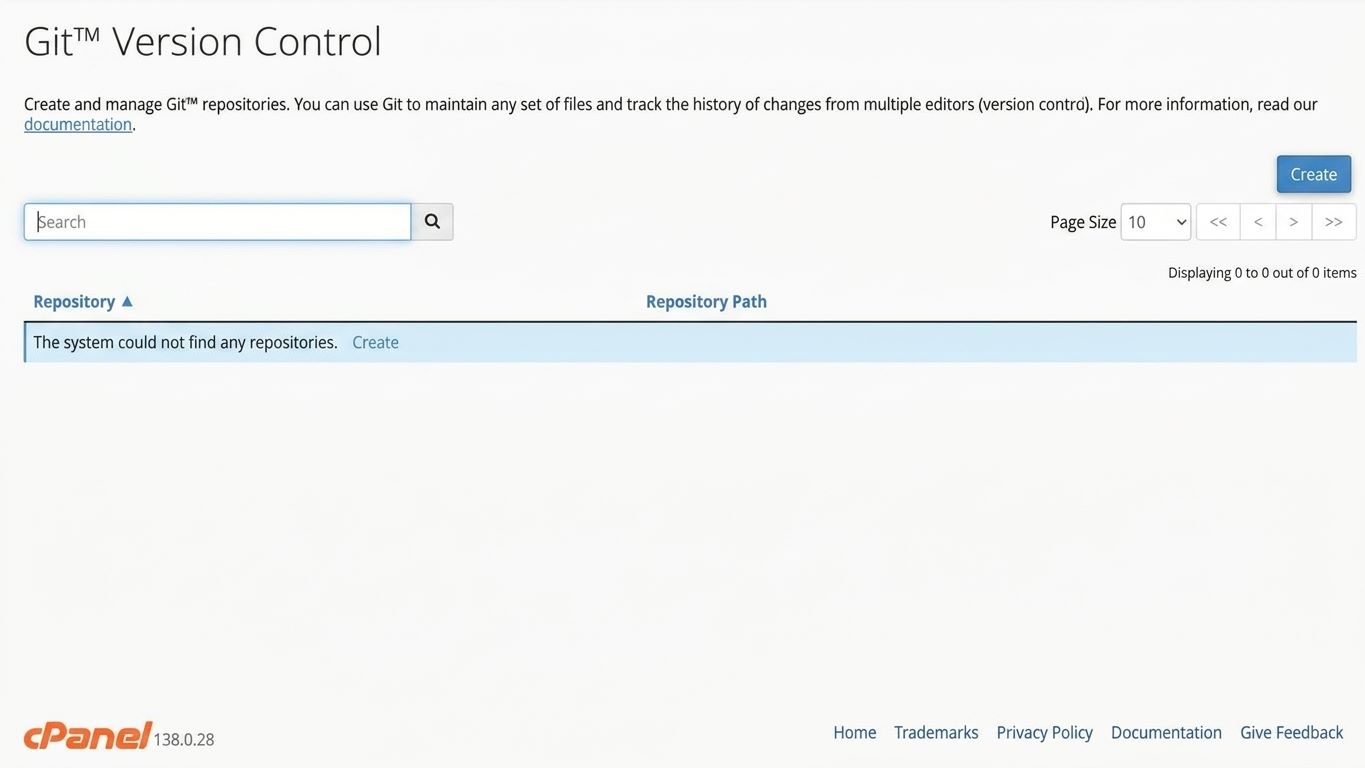
To start cPanel Git deployment, open Git Version Control from the Files section of the cPanel home screen. Follow these steps:
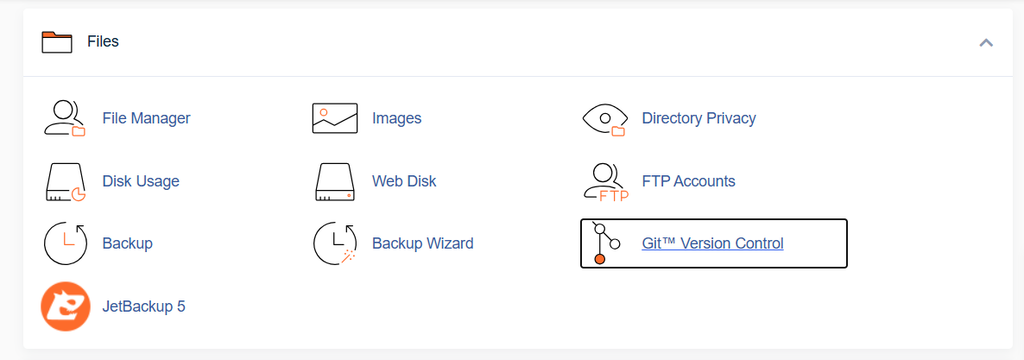
- Log in to cPanel.
- Go to Home » Files » Git Version Control.
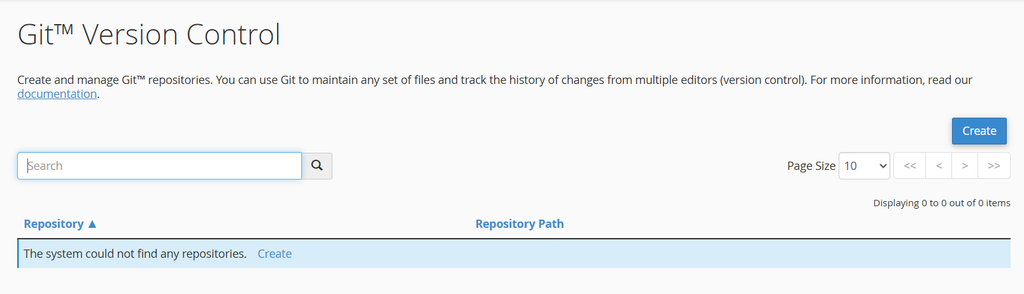
- Click Create in the top-right corner.
If you cannot find the icon, search for “Git” at the top of cPanel. If it does not appear, ask your host to enable it.
How Do You Clone Your Repository in cPanel?
The first step in cPanel Git deployment is to clone your repository from the Create screen, by turning on Clone a Repository and entering your clone URL. This copies your code into a folder in your account.
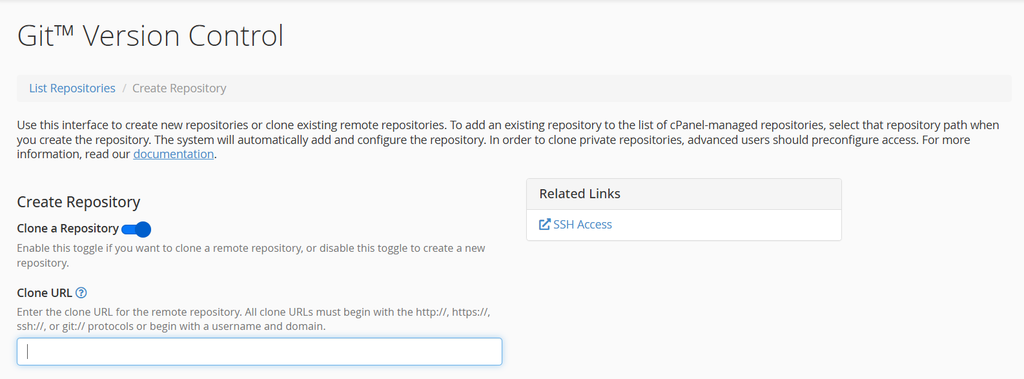
- Turn on the Clone a Repository toggle.
- In Clone URL, paste the repository URL.
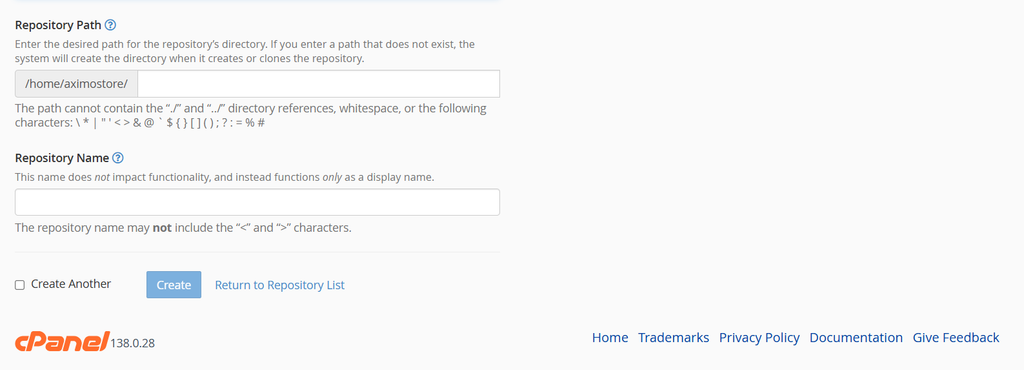
- In Repository Path, enter a new, empty folder, for example repositories/mysite.
- In Repository Name, enter a display name.
- Click Create.
Cloning can take a while for a large repository. The path cannot contain spaces or certain special characters, and you cannot use cPanel-controlled folders such as .ssh, mail or cgi-bin. Keep the repository outside public_html, so your source files are not exposed on the web.
After it finishes, click Manage to check the repository. The Basic Information tab shows the checked-out branch and the latest commit.
Four steps to clone and deploy a repository in cPanel Git Version Control
How Do You Create the .cpanel.yml File?
In cPanel Git deployment, you create it in the top level of your repository and commit it, so that cPanel knows which files to copy. cPanel recommends adding it to your remote repository and not editing the cPanel-managed copy.
Create a file named .cpanel.yml with this content:
—
deployment:
tasks:
- export DEPLOYPATH=/home/user/public_html/
    - /bin/cp index.html $DEPLOYPATH
    - /bin/cp style.css $DEPLOYPATH
Replace /home/user/public_html/ with the full path to your site folder. For an add-on domain or subdomain, use that domain’s folder instead. Each line under tasks is a shell command, so add one cp line for each file you want to publish.

If your site is built into a folder such as dist, copy that folder’s contents instead: /bin/cp -R dist/. $DEPLOYPATH. Copying only adds and replaces files. It does not delete files you removed from the repository.
Then commit and push the file from your computer:
git add .cpanel.yml
git commit -m “Add cPanel deployment file”
git push origin main
Use your own branch name if it is not main.
How Do You Deploy Your Site?
You deploy from the Pull or Deploy tab of the repository. This is the core of cPanel Git deployment.
- Go to Home » Files » Git Version Control.
- Click Manage next to your repository.
- Open the Pull or Deploy tab.
- Click Update from Remote to pull your latest commits.
- Click Deploy HEAD Commit.
The Last Deployment Information section then shows the date, commit ID, author and message of the deployment. Open your site and confirm the changes are live. Update from Remote uses a fast-forward pull, so it works only when the branch is up to date or can be fast-forwarded.
How Do You Deploy Updates Later?
With cPanel Git deployment, for each new version, push your commits to the remote repository, then repeat the pull steps in cPanel. You do not need to create the repository or the .cpanel.yml file again.
The routine is short:
- Commit and push your changes from your computer.
- In cPanel, open Manage » Pull or Deploy.
- Click Update from Remote, then Deploy HEAD Commit.
Do not edit files directly in the cPanel-managed repository. Uncommitted changes there stop deployment. Keep your edits in your own copy and let cPanel pull them.
How Do You Fix Common cPanel Git Deployment Errors?
You fix most errors by matching the message to its cause. Use this table as a starting point.
| Problem | Likely cause | Fix |
| Git Version Control is missing | Your host has not enabled the feature | Ask support to enable it |
| Clone fails with a URL error | The URL has a username and password, or is a local path | Use a valid https:// or ssh:// URL without credentials |
| Repository path is rejected | The folder is not empty, or the path has spaces or special characters | Use a new, empty folder with a simple name |
| Private repository will not clone | SSH access is not set up | Add your SSH key and register the host, then try again |
| Update from Remote fails | The branch cannot be fast-forwarded | Resolve the difference in your own repository, push, then update again |
| Deploy HEAD Commit fails | .cpanel.yml is missing, or the working tree has uncommitted changes | Commit .cpanel.yml to the remote and keep the working tree clean |
| Deployment runs but the site does not change | DEPLOYPATH points to the wrong folder | Set it to your site’s document root, such as public_html |
Common cPanel Git deployment errors with their likely causes and fixes
Match the message to its cause, then apply the fix.
If the host key of your Git provider changes, cPanel shows a warning. Verify the change before you continue, because it could be a security problem.
What Should You Know About cPanel Git Deployment Limits and Security?
cPanel Git deployment has no shell access in the interface, and it only lets you create, clone, delete and view repositories. Advanced tasks, such as SSH key setup, use the command line.
Keep these points in mind:
- Do not modify the .git directory. cPanel blocks public access to it.
- Clicking Remove stops cPanel from managing a repository but does not delete its files.
- Keep secrets such as passwords and API keys out of the repository.
- Take a backup before your first deployment.
HostElevate hosting plans include cPanel, and you can ask the team for help on the contact page. If you plan to host WordPress, see our guide to installing WordPress on cPanel. After you deploy, make sure your domain points to the right server with our guide to pointing a domain to hosting. If you are moving an existing site, HostElevate offers free website migration, described on the website migration page.

The cPanel documentation covers each screen in detail in its Git Version Control guide and its guide to Git deployment.
Frequently Asked Questions
Where is Git Version Control in cPanel?
Go to Home » Files » Git Version Control in cPanel. If you do not see it, your host may have disabled it in WHM’s Feature Manager, so ask support to enable it.
Do I need SSH to deploy a site with Git in cPanel?
Not for a public repository. You can clone with an HTTPS URL and deploy from the cPanel screens. Private repositories usually need SSH keys, which you set up on the command line.
Why does Deploy HEAD Commit fail in cPanel?
The usual causes are a missing .cpanel.yml file or uncommitted changes in the cPanel copy of the repository. Commit the file to your remote, update from remote and try again.
Does cPanel deploy automatically when I push?
Yes. With cPanel Git deployment, once the cPanel-managed repository contains .cpanel.yml, changes you push to that repository deploy automatically. With a remote such as GitHub, you pull and deploy in cPanel manually.
Can I deploy a WordPress theme with Git in cPanel?
Yes. Keep the theme folder in a repository and copy it to wp-content/themes in your .cpanel.yml. Back up your site first, and never commit passwords or configuration secrets.
Summary
To use cPanel Git deployment, open Files » Git Version Control, clone your repository, commit a .cpanel.yml file, then click Update from Remote and Deploy HEAD Commit. Keep the working tree clean, check your DEPLOYPATH and test the site after each deployment.
Make a backup before your first cPanel Git deployment and keep secrets out of your repository. When you are ready to publish, see HostElevate cPanel hosting, or browse more guides on the HostElevate homepage.