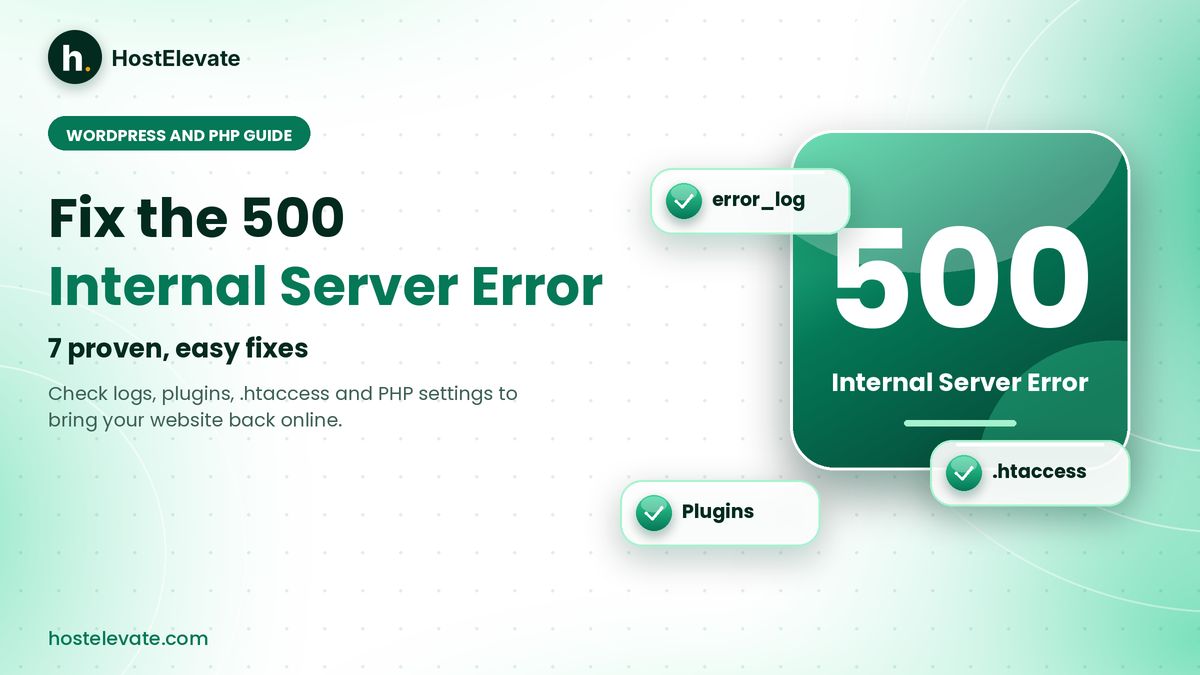
A 500 internal server error means the server hit an unexpected problem and could not finish the request, yet it gives no clue about what actually went wrong. On a WordPress site, it can lock you out of the dashboard, break just one page, or take the whole website offline. Most cases come from a plugin conflict, a damaged .htaccess file, incompatible PHP code, or a resource limit.
This guide shows you how to fix a 500 internal server error in WordPress and PHP, one safe check at a time. You will read the logs, test plugins and themes, review PHP settings, and learn when your host should step in.
Table of Contents
- What Is a 500 Internal Server Error and Why Is It Important?
- What Causes a 500 Internal Server Error?
- Back Up Your Site and Check the Logs for the 500 Internal Server Error
- How to Fix a 500 Internal Server Error in WordPress
- How to Troubleshoot a 500 Internal Server Error in PHP
- How to Fix a 500 Internal Server Error in cPanel Hosting
- Server Limits and File Permissions Behind a 500 Internal Server Error
- How to Prevent a 500 Internal Server Error
- When to Contact Your Host About a 500 Internal Server Error
- Frequently Asked Questions
- Summary:
What Is a 500 Internal Server Error and Why Is It Important?
A 500 internal server error is an HTTP status code. It tells the browser that the server ran into an unexpected condition and could not complete the request. A 404 error says a page cannot be found, but a 500 internal server error means something failed while the server was processing the request.
In WordPress, the HTTP 500 error can appear on the homepage, a single post, the login page, or the /wp-admin/ dashboard. Sometimes the entire website is down, and sometimes only one function breaks. Browsers word it differently, so you may see “HTTP ERROR 500” or “This page isn’t working” instead of the full name.
The message does not mean the physical server is broken. The fault may sit in PHP code, a plugin, a theme, a server rule, file permissions, or a resource limit. While the 500 internal server error lasts, visitors cannot use your site, search engines may fail to crawl it, and orders or sign-ups stop. The quickest way to fix it is to reproduce the problem, read the right log, and test one likely cause at a time.
What Causes a 500 Internal Server Error?
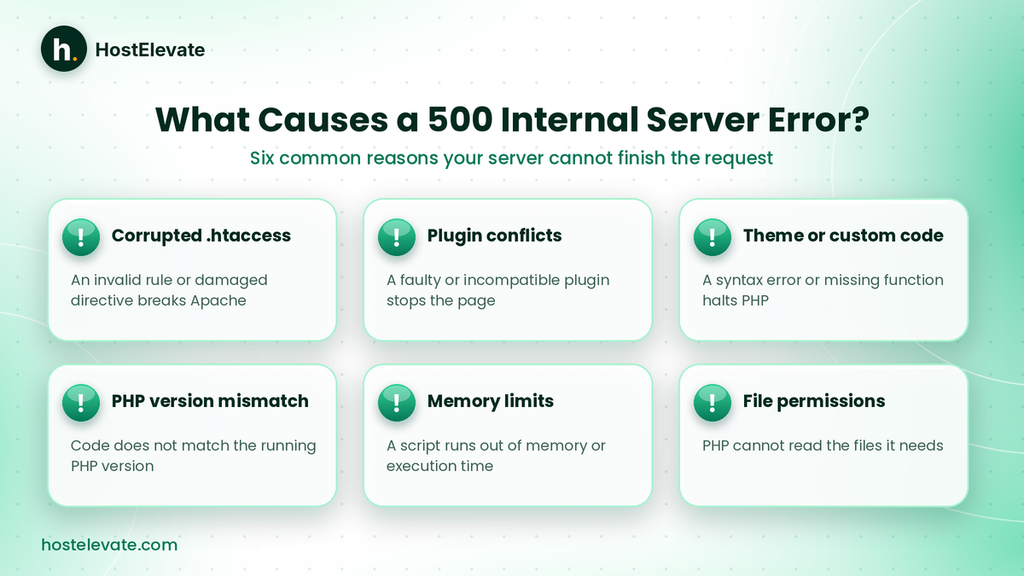
Knowing the likely cause saves you from random changes that make things worse. Six faults account for most cases of this error.
- Corrupted .htaccess file: on Apache hosting, an invalid directive or damaged rule can trigger a 500 internal server error. NGINX does not read .htaccess the same way, so its rules live elsewhere.
- WordPress plugin conflicts: a plugin may contain a PHP error, clash with another plugin, or not support your WordPress or PHP version.
- Theme or custom PHP errors: a missing function, an incompatible method, or a syntax error in a theme or code snippet stops PHP mid-request.
- PHP version incompatibility: code written for another PHP version can fail after an upgrade or downgrade.
- Memory and resource limits: a heavy plugin, a large import, or inefficient code can exhaust memory or execution time.
- File permissions and ownership: if PHP cannot read a file it needs, the request fails.
A server-level fault, such as an invalid web-server directive or a storage problem, can also cause this error. That group usually needs your host’s help. If the error appeared right after moving the site, compare the PHP version and server rules on the old and new hosts. HostElevate’s free website migration is handled by an engineer, and your old site stays live until the new one has been checked, which removes much of that guesswork.
Back Up Your Site and Check the Logs for the 500 Internal Server Error
Before you edit files, change permissions, or disable anything, create a backup of the website files and the database. Many hosts keep off-server backups you can restore from cPanel, but a fresh copy taken right before you start is still the safest recovery point.
Check whether the whole site is affected
Open the homepage, a few inner pages, and the WordPress login page, and note which URLs fail. If only one page fails, look at that page’s template, plugin feature, or code. If every page fails, start with the server logs and configuration. Reload once, or try another browser, to rule out a temporary display glitch. Repeated refreshing will not clear a persistent HTTP 500 error.
Read the error logs
Logs are usually the fastest route to the cause. Depending on your host, you may find them in the cPanel Errors page, a domain error log, a PHP error log, or the web server log. Look for entries recorded at the moment the error occurred. A PHP fatal error, a missing file, a plugin path, a theme path, or an invalid directive often names the component responsible.
Remove passwords, tokens, and private paths before you share any log publicly or send it to a support team.
How to Fix a 500 Internal Server Error in WordPress

Work through these checks in order, and test the website after each one. Change one thing at a time so you know exactly what solved the problem.
Regenerate the .htaccess file
If the logs or the timing point to .htaccess on an Apache site, resetting the file often clears the error.
- Open the website’s document root in cPanel File Manager or FTP.
- Turn on the option to show hidden files if you cannot see .htaccess.
- Download a copy of the current file.
- Rename the file, for example to .htaccess-backup.
- Load the website again.
If the site works, sign in and open Settings → Permalinks, then click save to create a fresh set of WordPress rewrite rules. If it still fails, restore the original file and look elsewhere, because custom redirects and security rules may need to be kept.
Deactivate plugins to find a conflict
With dashboard access, open Plugins → Installed Plugins and deactivate anything you installed or updated recently. Without dashboard access, rename that plugin’s folder inside wp-content/plugins through File Manager or FTP. To test every plugin at once, an administrator can rename the whole plugins folder and restore its name afterward.
Disabling plugins can temporarily switch off caching, security, forms, and checkout features. If the error disappears, turn plugins back on one at a time and test after each. A WordPress plugin conflict is easy to spot this way. Update or replace the guilty plugin only after you confirm it works with your versions and you have a backup.
Switch to a default WordPress theme
If plugins are not the cause, test the active theme. With dashboard access, activate an installed default theme. Without it, a qualified administrator can change the active theme through the database. If the site works again, investigate the original theme and any custom PHP in it, and do not delete it until you understand what the site depends on.
Check the PHP version and compatibility
Open the PHP settings in your hosting control panel and compare the current version with the requirements of WordPress, your theme, and your plugins. If the error began after a PHP change, read the log for compatibility messages. Test a supported version on a staging copy first. Avoid picking an old PHP version only because it keeps an outdated plugin running, and update the incompatible code instead.
Restore the WordPress core files
If the logs suggest damaged or missing core files, make a complete backup and replace the affected files with a clean copy of the same WordPress version from a trusted source. Never overwrite wp-content or wp-config.php. Reinstalling WordPress should not be your first move, because it will not fix a plugin conflict, an invalid server rule, or a resource limit.
How to Troubleshoot a 500 Internal Server Error in PHP
This kind of failure can also hit a custom PHP application where WordPress plays no part. These checks narrow down PHP-related failures.
Enable PHP error logging
PHP can write failures to a log instead of showing them to visitors. Depending on the setup, entries land in a PHP error log, the web server log, or the log viewer in your control panel. Look for fatal errors, undefined functions, missing files, incompatible method calls, and permission problems. Fix the underlying fault rather than hiding the message.
Turn on WordPress debugging
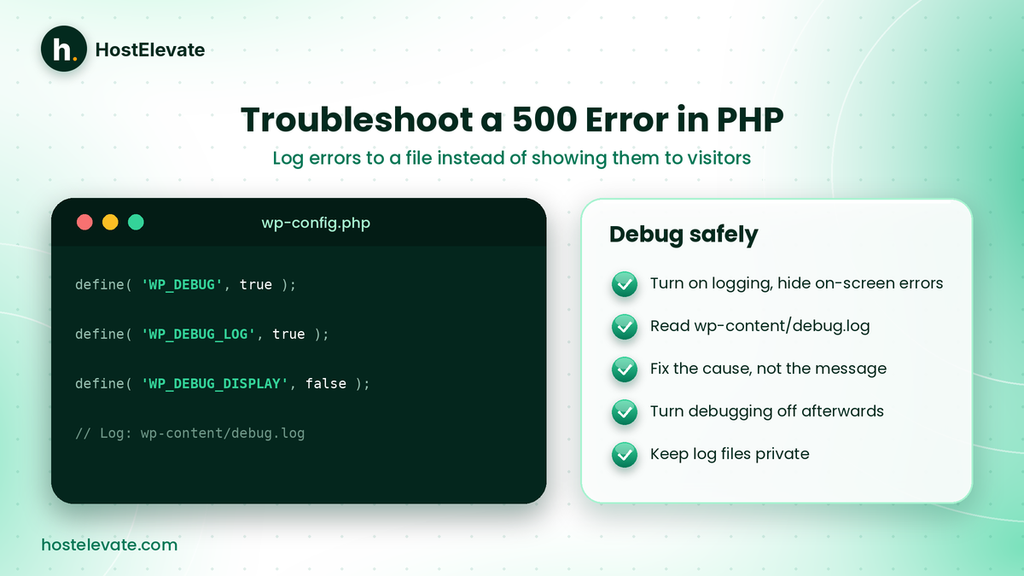
When the host logs do not say enough, the WordPress debugging system records extra detail. On a staging site, or during a controlled session, add these lines to wp-config.php above the comment that says to stop editing:
define( ‘WP_DEBUG’, true );
define( ‘WP_DEBUG_LOG’, true );
define( ‘WP_DEBUG_DISPLAY’, false );
WordPress now writes messages to wp-content/debug.log and keeps them out of the page itself. If WP_DEBUG is already defined, edit the existing line instead of adding a second one. The official debugging guide for WordPress explains each setting.
Security note: do not leave debugging on for a live site. A debug log can reveal sensitive paths and application details, so read it, store it safely, and switch debugging off when you finish.
Review recent code changes
If the error followed a deployment or a code edit, start with the latest change. A syntax error, a missing dependency, a wrong file path, or an incompatible function can stop PHP from running. Restore the last working version from a reliable backup or version control, then test the change on a staging copy before you deploy it again.
How to Fix a 500 Internal Server Error in cPanel Hosting
On cPanel plans, the control panel gives you easy access to files, PHP settings, and error information. The exact tools depend on your provider and account permissions. HostElevate’s web hosting plans, for example, run on cPanel with free SSL, so these tools are available from one dashboard.
Review the Errors page
Sign in to cPanel and look for Metrics → Errors. Read the messages from around the time the site failed. The page does not show every PHP or server error, so if the detail you need is missing, ask your host to check the other logs.
Check MultiPHP Manager
Many cPanel accounts include MultiPHP Manager or a similar tool that shows which PHP version each domain uses. Confirm that the version assigned to the affected domain suits your application. Make one controlled change at a time and test the site afterward.
Server Limits and File Permissions Behind a 500 Internal Server Error
Review PHP memory limits
A PHP script fails when it reaches the memory it was given. Check the real PHP configuration and the log before you change any limit. Where your plan allows it, an administrator can raise the limit to a sensible value, but remember that a memory error can also signal inefficient code or a plugin that uses too many resources. If your provider controls the limit, ask for a review instead of changing settings your account cannot override.
Verify file permissions
Files and folders need permissions and ownership that suit your hosting environment. WordPress sites commonly use 755 for folders and 644 for files, but follow your host’s guidance. Wrong ownership or overly strict settings can stop PHP from reading what it needs.
Do not set everything to 777. It creates serious security risks and is not a general cure for HTTP 500 errors. If ownership or server-level permissions look wrong, ask your host to investigate.
If a site keeps reaching its limits even after you fix the code, it may have outgrown its plan. For more control over the environment, you can review HostElevate’s cPanel VPS page.
How to Prevent a 500 Internal Server Error
No one can stop every server error, but steady maintenance makes this error rarer and easier to fix.
- Keep WordPress, themes, and plugins updated. Install updates from trusted sources, read the compatibility notes, and test major changes on a staging copy first.
- Maintain reliable backups. Keep recent copies of files and the database, store at least one away from the live account, and check now and then that a restore works.
- Monitor the error logs. Recurring warnings, fatal errors, and resource messages often appear long before a larger outage.
- Use compatible PHP versions. Match PHP to what WordPress, your plugins, and your themes require, and plan version changes instead of switching on a live site.
- Watch hosting resources. Check CPU, memory, and storage where your plan shows them, and investigate the code if you keep hitting limits.
- Test before you deploy. Use staging for plugin updates, theme changes, and PHP upgrades so compatibility problems never reach visitors.
Your host matters too. HostElevate’s WordPress hosting comes with LiteSpeed caching, staging, and automatic updates, which supports the safe-testing habit above.
When to Contact Your Host About a 500 Internal Server Error
Ask your host for help when the error remains after the basic application checks, when the logs point to a configuration fault, or when you cannot reach the diagnostic tools. Also contact them if the error shows up on several sites on the same server, if the account hits resource limits unexpectedly, or if the fault seems tied to PHP-FPM, Apache, NGINX, permissions, or another server service.
When you open a ticket, include:
- The affected domain and URLs.
- The approximate time the error started.
- Whether the whole site or only some pages are affected.
- Any recent updates, deployments, or configuration changes.
- Relevant log entries with sensitive details removed.
That detail lets the support team work faster. You can reach HostElevate through its contact page, and every message is read by someone who can log in to your server. To see the full range of plans and tools, visit HostElevate.
Frequently Asked Questions
Plugin or theme conflicts, a corrupted .htaccess file, PHP errors, resource limits, and damaged core files are the usual causes.
What causes a 500 internal server error in WordPress?
Plugin or theme conflicts, a corrupted .htaccess file, PHP errors, resource limits, and damaged core files are the usual causes.
How do I fix a 500 internal server error quickly?
Read the error log first, review recent changes, and test one likely cause at a time.
Can a PHP version cause a 500 internal server error?
Yes, code that does not match the running PHP version can trigger fatal errors that stop the request.
Will deleting .htaccess fix a 500 internal server error?
Only sometimes, because a damaged .htaccess is one common cause on Apache and other causes need other fixes.
Can my hosting provider fix a 500 internal server error?
Yes, a host can check the server logs, PHP settings, limits, and permissions that you cannot reach yourself.
Summary:
A 500 internal server error means the server could not complete a request because of an unexpected condition. In WordPress and PHP, the usual causes are plugin or theme conflicts, invalid .htaccess rules, incompatible PHP code, memory limits, file permissions, and server configuration faults.
Check the error logs first, look at recent changes, and test one possible cause at a time. Back up before you edit files, avoid unsafe permission changes, and keep debug messages away from visitors. If the logs point to the hosting environment, or the error remains, ask your provider to investigate.