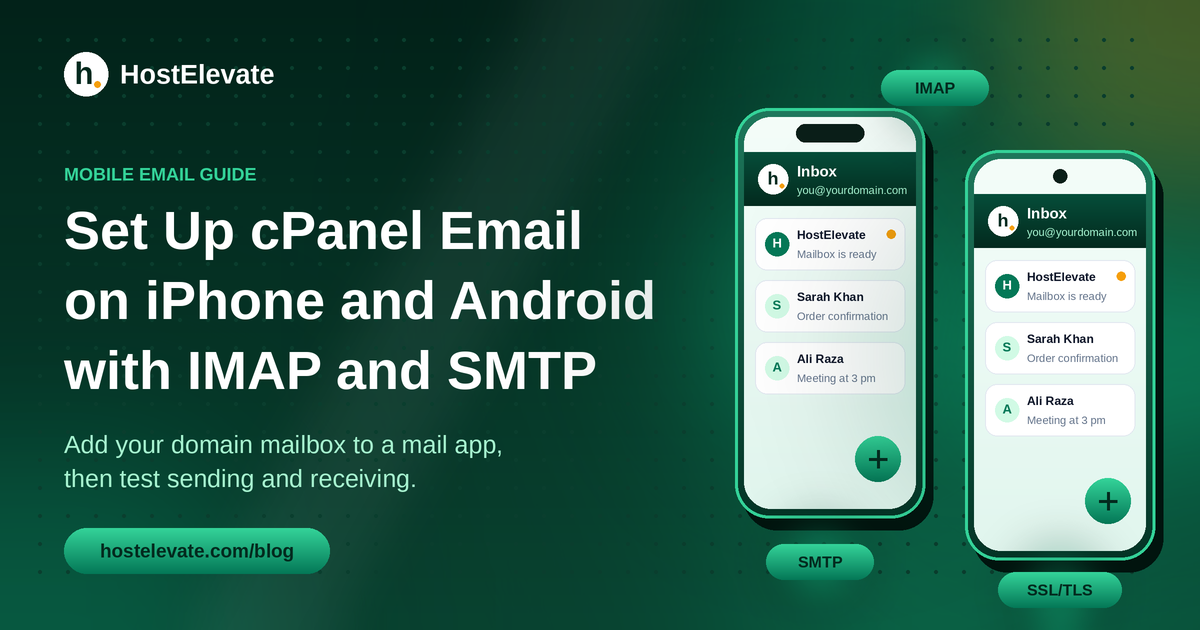
cPanel email setup on an iPhone or Android phone takes only a few minutes once you have your mailbox password and server details. After that, you can read and send messages from your own domain without opening webmail each time.
This guide walks through cPanel email setup on both phones: where to find your settings, how to enter the IMAP and SMTP details, how to test sending and receiving, and how to fix login, outgoing mail and certificate errors. The steps suit most cPanel hosts, though menus differ by device and provider.
Table of Contents:
- What Is cPanel Email Setup, and Why Use IMAP and SMTP?
- What You Need Before Your cPanel Email Setup
- How to Find Your cPanel Email Settings
- How to Set Up cPanel Email on iPhone
- How to Set Up cPanel Email on Android
- IMAP and SMTP Settings for Your cPanel Email Setup
- How to Test Your cPanel Email Setup
- Common cPanel Email Setup Problems and Fixes
- Security Tips for Mobile Email
- Frequently Asked Questions
- Summary:
What Is cPanel Email Setup, and Why Use IMAP and SMTP?
cPanel email lets you create and manage addresses on your own domain through your hosting account. Once an address exists, you can open it in webmail or add it to a mobile mail app. A proper cPanel email setup on your phone means you can answer customers and check notifications from anywhere.
IMAP and SMTP do different jobs. IMAP receives messages and keeps them in sync between the server and your devices, while SMTP sends your outgoing mail. The official cPanel guide recommends IMAP. POP works differently: it downloads messages and removes them from the server, so you cannot reach them from another mail client afterwards.
That is why most people choose IMAP with SSL/TLS for their cPanel email setup. The same mailbox then looks the same on your phone, your tablet and your computer. You can read the cPanel guide for iOS and Android for the vendor’s own steps.
What You Need Before Your cPanel Email Setup
Collect these details before you open your mail app, because the cPanel email setup goes faster when nothing is missing:
- Email address: the complete address, such as you@yourdomain.com.
- Mailbox password: the password for that mailbox. It is not your hosting login unless you chose the same one.
- Incoming server: the mail hostname from your hosting company.
- Outgoing server: the SMTP hostname from your hosting company.
- Secure connection settings: the right ports and encryption methods.
If the mailbox does not exist yet, sign in to cPanel, open Email Accounts and create it first. Not sure how? Read our guide to creating a business email with your own domain.
How to Find Your cPanel Email Settings
Use the details your server provides instead of guessing the hostname. Your mailbox settings appear in three places: cPanel’s Set Up Mail Client page, the Webmail interface and the welcome email sent when the mailbox was created.
In cPanel, open Email Accounts, find the mailbox and choose Connect Devices. On some versions the page is called Set Up Mail Client. Look for the secure SSL/TLS settings and write down the incoming server, outgoing server, ports and encryption rules.
Some servers use mail.yourdomain.com, while others need a different hostname that matches the server’s certificate. Keep these details open while you work on your phone. If you cannot find them, ask your host to confirm the settings for your mailbox.
How to Set Up cPanel Email on iPhone
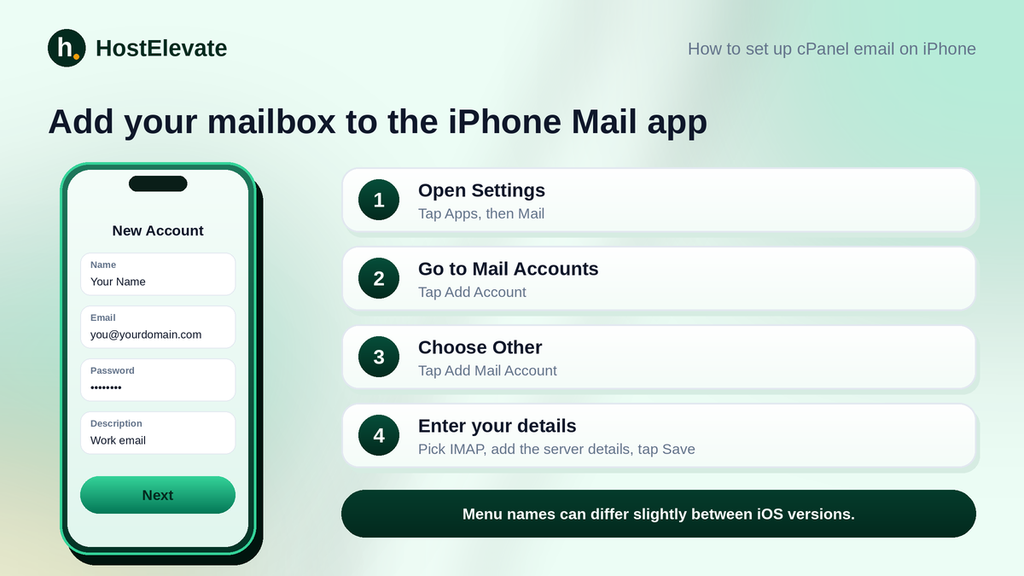
You can add your mailbox to Apple’s built-in Mail app. This cPanel email setup follows the current iOS menus, and older versions may label things slightly differently.
Open the account setup screen
Open Settings, tap Apps, then Mail, then Mail Accounts and Add Account. On older iPhones, go to Settings, then Mail, then Accounts. Choose Other, then Add Mail Account.
Enter your name, full email address, password and a short description, then tap Next.
Enter the incoming and outgoing server details
Pick IMAP at the top of the screen, then fill in both server sections with the details from your host:
- Host Name: the incoming or outgoing mail server.
- User Name: your full email address.
- Password: your mailbox password.
Some apps treat the outgoing username and password as optional. For cPanel mail, the outgoing server normally needs your mailbox sign-in, so fill them in. Tap Next, let Mail check the settings, then tap Save. If the check fails, compare the hostname, password, port and encryption with your host’s instructions.
Verify the iPhone mail account
Open the Mail app, select the new mailbox and check that existing messages appear. Send a test email to an address you can reach, then reply to it. If sending fails but receiving works, review the SMTP settings on their own.
How to Set Up cPanel Email on Android
Android phones accept cPanel email through the built-in account settings or through apps such as Gmail. The exact menus depend on your phone and app, so treat these steps as a guide to your cPanel email setup.
Add your email account
Open Settings, tap Accounts, then Add Account, and choose Personal (IMAP). In an app such as Gmail, open your profile menu, choose Add another account, then Other. Enter your complete email address and your mailbox password.
Some apps try automatic setup and may find the right server by themselves. If the app asks for server details, enter them by hand.
Configure the incoming IMAP server
Type the incoming hostname from your host. Use your full email address as the username and your mailbox password as the password. A typical secure setup uses port 993 with SSL/TLS, but check that your host supports this and that the hostname matches its certificate.
Configure the outgoing SMTP server
Enter the SMTP hostname from your host, then use your full email address and mailbox password for sign-in. Secure setups commonly use port 465 with SSL/TLS or port 587 with STARTTLS, depending on what the server supports.
Save the settings and let the app verify the account. When it connects, check your inbox and send a test message.
IMAP and SMTP Settings for Your cPanel Email Setup
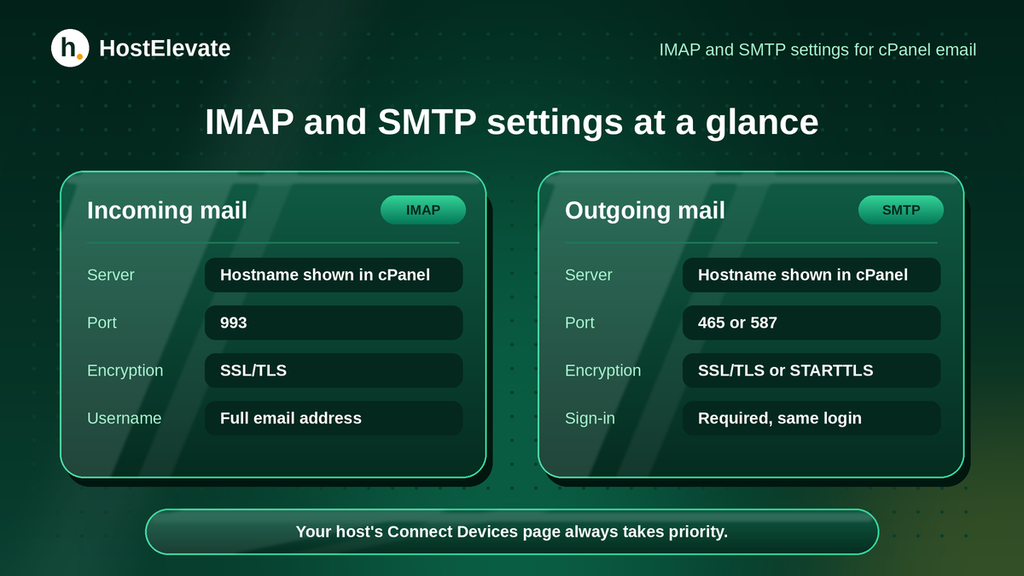
Use this table as a general reference for any cPanel email setup. If your host’s Connect Devices page shows different values, follow that page.
| Setting | Recommended value |
| Account type | IMAP |
| Username | Full email address |
| Password | Mailbox password |
| Incoming server | Hostname shown in cPanel |
| IMAP port and encryption | 993 with SSL/TLS |
| Outgoing server | Hostname shown in cPanel |
| SMTP port and encryption | 465 with SSL/TLS, or 587 with STARTTLS where supported |
| SMTP authentication | On, using the mailbox login |
Do not assume every domain shares the same mail hostname. A server may use mail.yourdomain.com, or it may need its own fully qualified name. If a certificate warning appears, ask your host for the right hostname instead of turning encryption off. The cPanel documentation on the Set Up Mail Client page explains where the values come from. Hosts with a valid certificate on every plan, such as HostElevate’s SSL certificates, make this step easier.
How to Test Your cPanel Email Setup
A success message on screen is useful, but it does not prove that every part works. Test sending and receiving as part of every cPanel email setup:
- Open your inbox and check that existing messages appear.
- Send a test email to another address you can access.
- Reply to the test and confirm it reaches your cPanel mailbox.
- Check that the sender and recipient addresses display correctly.
- If nothing arrives, look in the spam folder, then ask your host to check the mail delivery logs.
If receiving works but sending fails, focus on SMTP: the hostname, port, encryption and sign-in. If neither works, check the password and server details first.
Common cPanel Email Setup Problems and Fixes
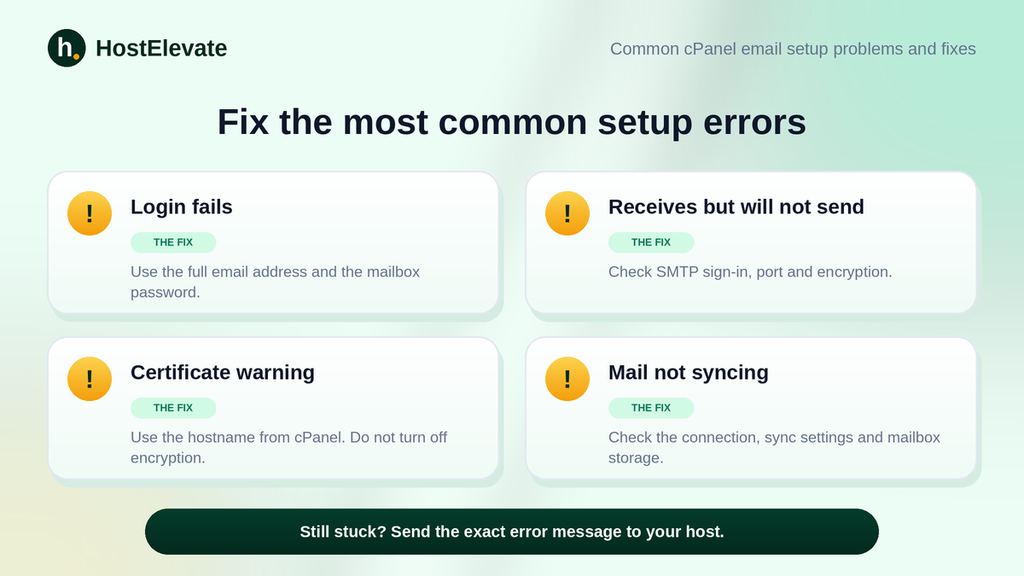
Most cPanel email setup problems come from a wrong username, password or hostname.
Incorrect username or password
Use the complete email address as the username, not only the part before the @ symbol, and use the mailbox password. If needed, reset the password in cPanel and update it in your app.
Incoming mail works but outgoing mail fails
This usually means an SMTP issue. Confirm that sign-in is on and that the server, username, password, port and encryption match your host’s settings.
SSL/TLS certificate warning
A warning can appear when the mail hostname does not match the server certificate, or the certificate is not valid. Check the hostname on cPanel’s mail configuration page, and contact your host if the warning stays. Never switch off certificate checks for good to hide it.
Emails are not syncing
Check your internet connection, the app’s sync settings and the mailbox storage limit. If only one device has the problem, look at that app. If every device fails together, the mail server or account may need attention.
The account cannot connect
Confirm that the mailbox exists and that you can sign in through webmail. Then check the hostname, ports and any network restrictions. If everything looks right, send the exact error message to your host. You can reach the HostElevate team through the contact page. Moving your site and mailboxes from another host? Free website migration moves your email too.
Security Tips for Mobile Email
A mailbox can hold private conversations, account notices and important documents, so protect it from the first day:
- use a strong, unique mailbox password and keep your phone and mail app updated;
- prefer the secure IMAP and SMTP settings your host supplies;
- never type your mailbox password into unfamiliar apps or links;
- lock your phone with a passcode or biometric screen lock;
- if a phone is lost or replaced, remove the mailbox from it and change the password when the account may be exposed;
- protect your hosting control panel separately, because it can change mailboxes and passwords.
Need a hand with your cPanel email setup or a hosting plan with email included? See HostElevate web hosting or start from the HostElevate homepage.
Frequently Asked Questions
Can I use cPanel email on both iPhone and Android?
Yes, you can add the same mailbox to several devices with IMAP and the right server settings.
What is the IMAP port for cPanel email?
The usual secure IMAP port is 993 with SSL/TLS, but your host’s configuration comes first.
Which SMTP port should I use for cPanel email?
Use port 465 with SSL/TLS or port 587 with STARTTLS, whichever your host supports.
Why is my cPanel email not sending from my phone?
Check the SMTP hostname, port, encryption, sign-in setting, username and mailbox password.
Where can I find my cPanel email server settings?
Open Email Accounts in cPanel and choose Connect Devices for your mailbox.
Summary:
A cPanel email setup on iPhone or Android means adding your mailbox to a compatible app, choosing IMAP and entering the right incoming and outgoing server details. Secure IMAP normally uses port 993, while SMTP usually uses port 465 with SSL/TLS or port 587 with STARTTLS where supported.
The most important step is to take the exact hostname, ports and encryption rules from cPanel’s Connect Devices page or from your host. Test sending and receiving once the account is added, and if a connection fails, check the credentials and server settings before touching any security option.