
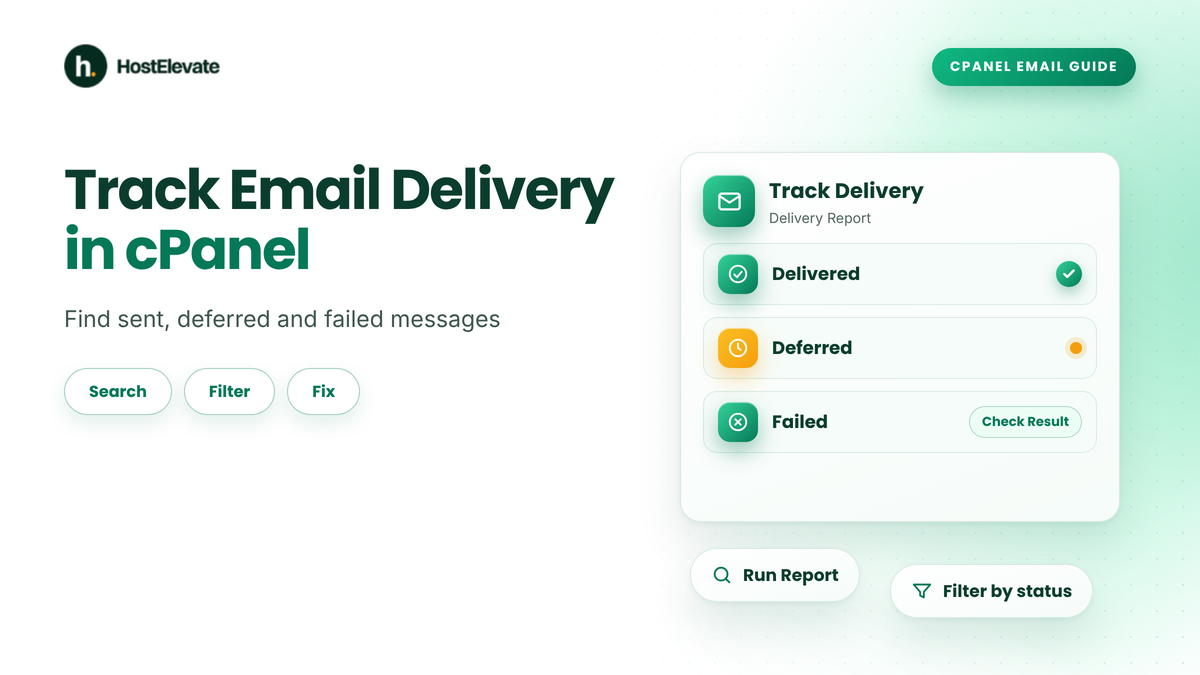
You can track email delivery in cPanel by opening Email » Track Delivery, entering the recipient’s address and clicking Run Report. The report shows whether each message was delivered, deferred, blocked or failed, and the Result column explains why. Use it before you contact anyone, because it tells you if the problem is on your server or the recipient’s.
This guide is for website owners and email users on cPanel hosting who need to find out what happened to a message. You will learn how to track email delivery in cPanel, read the results and fix the most common delivery problems without using the command line.
Key takeaways
- Use cPanel » Email » Track Delivery to track email delivery in cPanel for any message sent from your account.
- Enter the recipient’s address and click Run Report to narrow the results.
- Check the Result column first, because it gives the reason for a deferral or failure.
- Failed and deferred messages usually point to a wrong address, a full mailbox or missing SPF and DKIM records.
- If the feature is missing, your host has not enabled it, so ask support.
Before You Start
Before you track email delivery in cPanel, make sure you can log in to cPanel and that the Track Delivery feature is enabled for your account. Your hosting provider controls this in WHM’s Feature Manager, so you may not see it if it is switched off.
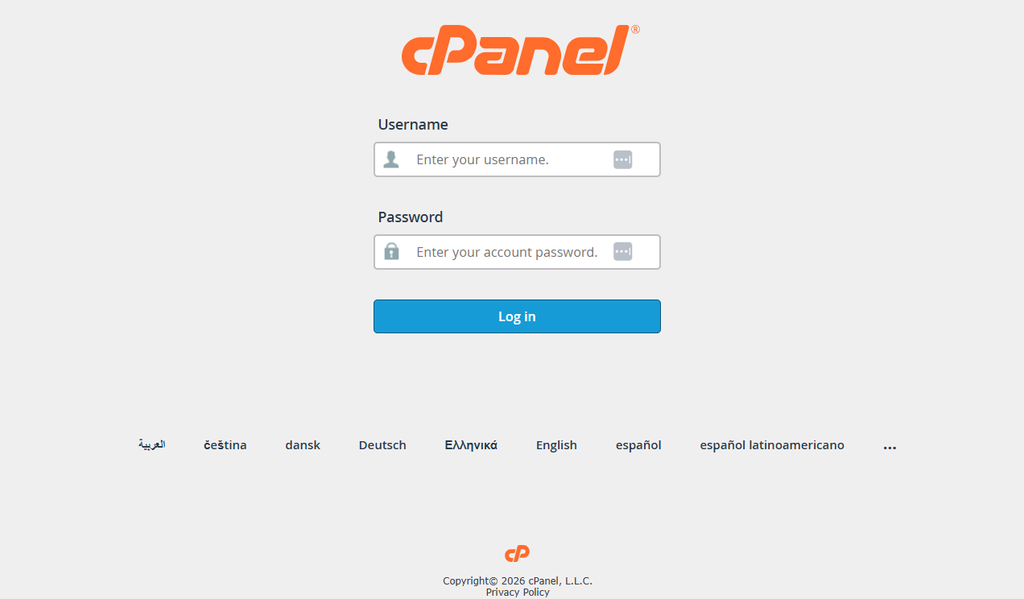
You will need:
- Your cPanel login.
- The exact recipient email address.
- The approximate time you sent the message.
Track Delivery only shows messages that were sent through your server, and only for the period your host keeps the data. If you use a third-party mail service to send email, those messages may not appear in the report.
Based on: the current cPanel & WHM documentation for the Track Delivery interface. Menu names can differ slightly by cPanel theme and version.
What Is Email Delivery Tracking and Why Does It Matter?
Email delivery tracking is the process of checking what happened to a message after you sent it, from the moment your server accepted it to the final result. In cPanel, the Track Delivery tool lets you track email delivery in cPanel without any command line.
It matters because a message can fail without any visible error in your email program. A customer may never receive an invoice, a contact form reply or a password reset, and you will not know why. Being able to track email delivery in cPanel turns a guess into a clear answer, and it shows you where to look next.
How Do You Open Track Delivery in cPanel?
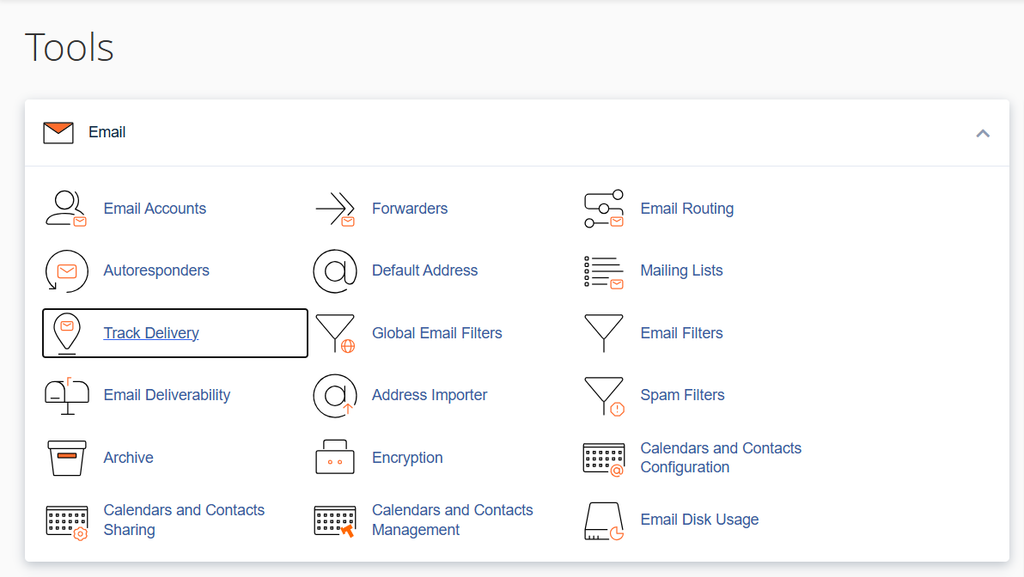
To track email delivery in cPanel, open Track Delivery from the Email section of the cPanel home screen. Follow these steps:
- Log in to cPanel.
- Go to Home » Email » Track Delivery.
- Wait for the Delivery Report table to load. By default it lists recent messages.
If you cannot find the icon, use the search box at the top of cPanel and type “Track Delivery”. If it does not appear, ask your host to enable it.
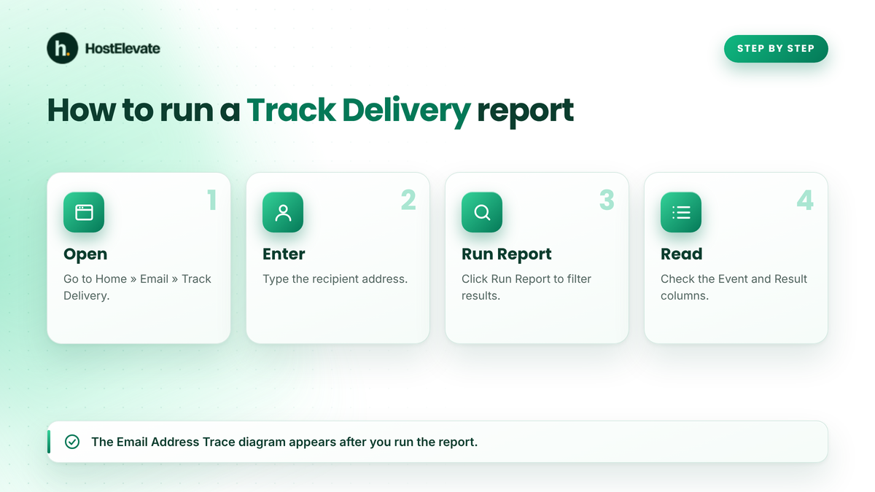
Four steps to run a Track Delivery report in cPanel: open, enter the recipient, run the report and read the results
Open Track Delivery, enter the recipient and read the Result column.
How Do You Search for a Specific Message?
To track email delivery in cPanel for one person, enter the recipient’s address and run the report. This narrows a long list to the messages you care about.
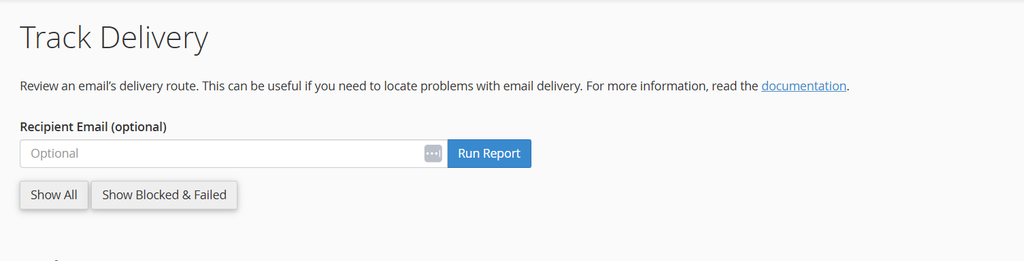
- In the Recipient Email (optional) box, type the full address.
- Click Run Report.
- Read the filtered Delivery Report table. An Email Address Trace diagram also appears.
To go back to the full list, clear the box and click Run Report again. If you are not sure of the exact address, run the report without it and look for the message by time.
How Do You Filter by Delivery Status?
You can track email delivery in cPanel by status with the checkboxes above the table. Choose the types of result you want to see:
- Show Successes for messages that were delivered.
- Show Deferred for messages that could not be delivered yet.
- Show Failures for messages that failed.
- Show In-Progress for messages still being processed.
You can also choose Show Blocked & Failed to see only delivery failures, or Show All to see everything. The Max Results/Type menu sets how many results appear, and by default the table lists the 250 most recent messages.
How Do You Read the Delivery Report?
To track email delivery in cPanel accurately, check each row’s status, recipient and Result column. The Result column is the most useful, because it describes the outcome and includes timeout or connection details.
| Column | What it tells you |
| Event | An icon showing the type of result, with a possible cause and a suggested action |
| Result | A description of what happened to the message |
| Actions | An information icon that opens details such as the sender, recipient and username |
| ID | The message ID, which you can show or hide with the table options icon |
Click the information icon in the Actions column to open the message details. You can print this view and send it to your host if you need help. Hover over the Event icon to read the possible cause and the suggested action.
What Do Deferred, Failed and Blocked Mean?
A deferred message is one the server could not deliver yet and will try again, while a failed or blocked message was not delivered. Use the status to decide what to do.
- Deferred: The server will keep trying for a while. Common causes are a busy or unreachable recipient server. Wait and check again.
- Failed: The message was not delivered. The Result column usually names the reason, such as a wrong address.
- Blocked or rejected: The recipient or the network refused it. The Event icon suggests checking whether your server’s IP address is listed on a blocklist.
If the same recipient fails every time, contact them by another route and confirm the address.
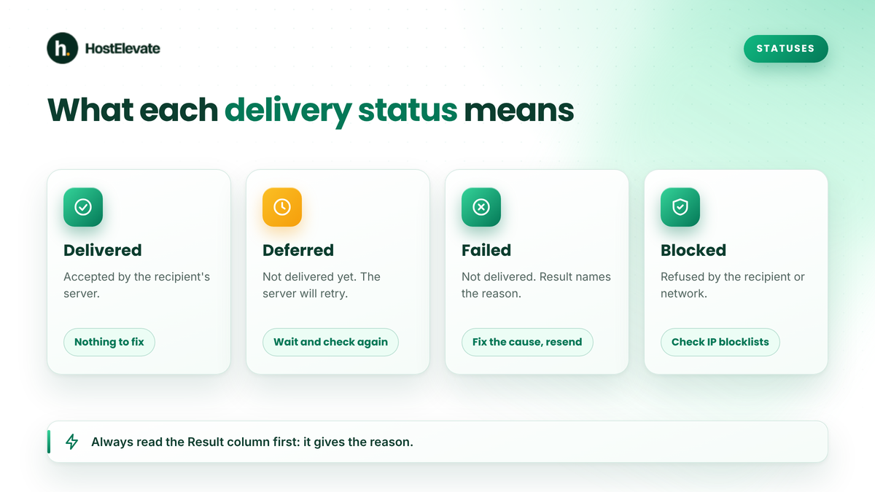
What delivered, deferred, failed and blocked mean in the cPanel Track Delivery report
Each status points to a different next step.
How Do You Fix Problems When You Track Email Delivery in cPanel?
You fix the problems you find by matching the Result text to its likely cause. Use this table as a starting point.
| Problem | Likely cause | What to do |
| Message failed immediately | Wrong or misspelled recipient address | Check the spelling and resend |
| Message deferred repeatedly | Recipient server busy or unreachable | Wait, then check again |
| Message rejected or blocked | Your server’s IP is on a blocklist, or the content was refused | Check your IP against a blocklist and contact support |
| Message stuck in progress | The server is still processing or retrying it | Filter by Show In-Progress and check again later |
| Messages land in spam | Missing or incorrect SPF and DKIM records | Review your email authentication records |
| Same recipient fails every time | The address no longer exists or the mailbox is full | Confirm the address by another route |
| Message not listed at all | Not sent through your server, or older than your host’s retention period | Check your sending settings and the time range |
Email authentication is a common cause of spam folder problems. The cPanel Email Deliverability tool checks your SPF, DKIM and reverse DNS records and reports problems with them, as the cPanel Email Deliverability documentation explains. For a full walkthrough, read our guide to SPF, DKIM and DMARC.
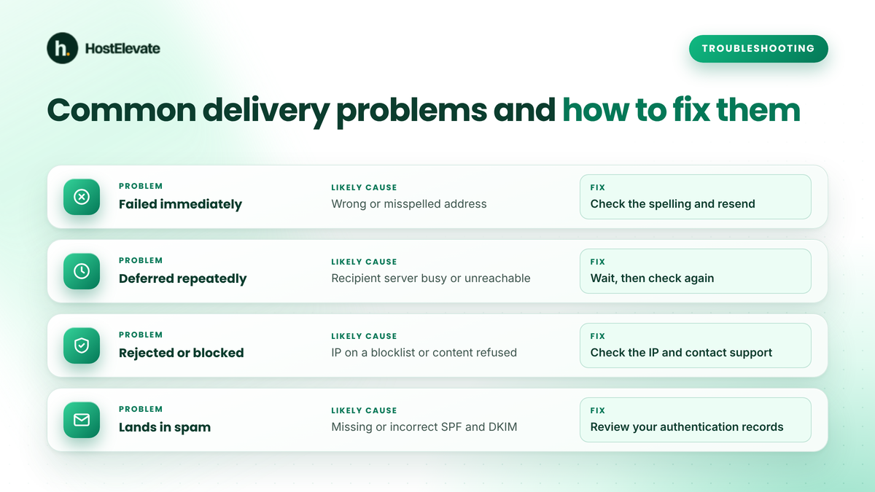
Common email delivery problems in cPanel with their likely causes and fixes
Match the Result text to the likely cause, then apply the fix.
What Are the Limits When You Track Email Delivery in cPanel?
When you track email delivery in cPanel, you see only messages stored in your server’s mail statistics, and your host decides how long that data is kept. It also may not work correctly if your server uses a third-party mail service.
Keep these limits in mind:
- Old messages may no longer appear.
- Results can be invalid when a third-party filtering service handles your mail.
- The page does not provide a separate list of error messages.
The cPanel Track Delivery documentation lists these limitations. If you need to look further back or investigate in depth, contact your host and send the details you printed from the report.

If you want email that is easy to monitor and manage, HostElevate cPanel hosting includes cPanel with every account, and you can ask the team for help on the contact page. After you change your DNS records, you can confirm them with the DNS checker.
Frequently Asked Questions
Where is Track Delivery in cPanel?
Log in to cPanel and go to Home » Email » Track Delivery. If you do not see it, your host may have disabled it in WHM’s Feature Manager, so ask support to enable it.
How do I know if an email was delivered in cPanel?
Track email delivery in cPanel by running a report for the recipient’s address and checking the Event and Result columns. A success event means the recipient’s server accepted the message.
Why is my email deferred in cPanel?
A deferred email means the server could not deliver it yet and will retry. Common causes are a busy or unreachable recipient server. Check the Result column and wait before you resend.
Can I track emails sent from my website forms?
Yes, if the messages were sent through your cPanel server. They appear in the same report. Messages sent through an outside mail service will not appear.
How long does cPanel keep email delivery records?
Your hosting provider decides how long the data is kept, so older messages may not appear. If you need an older record, ask your host whether it is still available.
Summary
To track email delivery in cPanel, open Email » Track Delivery, enter the recipient’s address, click Run Report and read the Result column. Filter by status to find deferred or failed messages, and use the table above to match each problem to a fix.
To track email delivery in cPanel with fewer problems, keep your SPF and DKIM records correct, check the Email Deliverability tool, and ask your host if the feature is missing. When you need reliable email on your own domain, see HostElevate cPanel hosting.