
A domain name on its own does not tell the internet where your website lives or where your email should be delivered. Nameservers fill that gap by pointing to the DNS service that holds those answers, so you need to know how to change nameservers whenever you register a domain, move hosting, or switch DNS providers.
This guide explains what nameservers are, how they work, and how to find the ones your domain currently uses. You will also learn how to change nameservers safely, how long an update takes, and what to check if your website or email stops working afterwards, with clear steps for each stage.
Table of Contents
- What Are Nameservers, and Why Are They Important?
- How Do Nameservers Work?
- What Is the Difference Between Nameservers and DNS Records?
- How to Find Your Domain Nameservers
- How to Change Nameservers for a Domain
- What to Check Before You Change Nameservers
- How Long Does It Take to Change Nameservers?
- Common Nameserver Problems and How to Fix Them
- Frequently Asked Questions
- Summary:
What Are Nameservers, and Why Are They Important?
Nameservers are servers that publish the authoritative DNS information for a domain. DNS, short for Domain Name System, lets computers find internet services by name, so visitors never have to remember an IP address. When someone opens example.com, the domain’s nameservers supply the official answers that tell the browser where to go.
Nameservers usually appear as hostnames, for example:
- ns1.example.net
- ns2.example.net
These are illustrative values, not real nameservers for any particular domain. Your registrar or DNS provider gives you the correct ones. It also helps to know that a registrar manages the domain registration, while a DNS host manages the records. One company can do both, or two different companies can split the work.
Nameservers matter because they decide which DNS service controls the records for your domain. Those records send visitors to your website, route your email, and prove ownership to other online services.
Connecting a domain to web hosting
When you buy hosting, the provider may give you nameservers for your domain. Once the domain points to them and the right records exist, visitors can reach your site by its name. You can compare the options on the HostElevate web hosting page before you decide where to point your domain.
Managing website and email records
DNS records carry different kinds of information. A and AAAA records send a domain to an IPv4 or IPv6 address, while MX records name the servers that receive email. Switching nameservers also changes which provider controls those records. If the new DNS zone is missing a record, the website, email, or another connected service can stop working.
Switching DNS providers
Some owners switch nameservers to hand DNS over to a new host or to a service such as Cloudflare. That can bring DNS management into one place or unlock extra features. It is not always necessary, though. When you only move a website to a new server, updating the right record at your current DNS provider is often enough.
How Do Nameservers Work?

Nameservers take part in the DNS lookup that runs every time someone opens your domain. Cached answers can shorten the process, so the steps below are a simplified version.
- A visitor types example.com into a browser.
- The device, or a recursive resolver acting for it, checks for a stored answer that is still valid.
- If it has none, the resolver follows the DNS hierarchy to find the domain’s authoritative nameservers.
- Those nameservers return the records for the domain.
- The resolver passes the address back, and the browser connects to the server.
Notice that nameservers do not necessarily host your website. They only provide the DNS information that leads visitors to it. A domain can be registered with one company, use DNS from a second, and host its website with a third, and everything still works when the records line up.
What Is the Difference Between Nameservers and DNS Records?
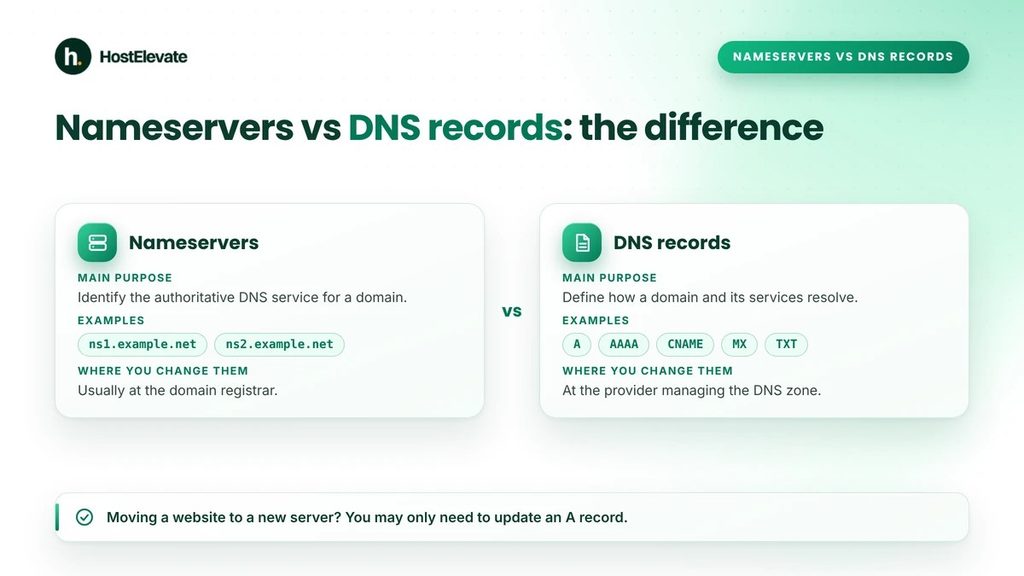
The two terms are closely linked, but they do different jobs. Nameservers identify the DNS service that is authoritative for your domain. DNS records are the individual entries that service publishes.
| Feature | Nameservers | DNS records |
| Main purpose | Identify the authoritative DNS service | Define how a domain and its services resolve |
| Examples | ns1.example.net, ns2.example.net | A, AAAA, CNAME, MX, TXT |
| Where you change them | Usually at the domain registrar | At the provider managing the DNS zone |
| Typical use | Move DNS management to another provider | Change a website IP, email routing, or verification details |
Here is a practical way to choose. If your website moves to a new server and you want to keep your current DNS provider, update the A record and leave the nameservers alone. If you want a different provider to manage the entire DNS zone, you need new nameservers, and the new provider must hold the correct records first.
How to Find Your Domain Nameservers
You can see your current nameservers in your registrar account, in your DNS provider’s dashboard, or with a public lookup tool.
Check your domain registrar
This is usually the quickest route if you can sign in to the account where the domain is registered.
- Sign in to your registrar’s website.
- Open the domain management area.
- Select the domain you want to check.
- Look for a setting called Nameservers, Name Servers, or DNS Settings.
- Write down the current hostnames.
Menu names differ between registrars. If you bought the domain through a reseller, the setting may sit in the reseller’s client area instead. A domain registered through HostElevate domain registration is managed from the same account as your hosting, and the renewal price is shown before you buy, so you can check the domain pricing first.
Use an online DNS lookup tool
A public DNS lookup tool shows the nameservers that resolvers return for your domain. Enter the domain, choose the NS record type, and read the results. During a recent change, caching and differences between resolvers can make the results look inconsistent, so compare more than one source.
Check nameservers on Windows
Windows includes nslookup, which can query DNS without any extra software. Open Command Prompt and run:
nslookup -type=NS example.com
Replace example.com with your own domain. The output lists the nameservers that your resolver returns. It may not always match the delegation published by the domain’s registry, so treat it as a quick check rather than the final word.
Check nameservers on Linux or macOS
Where dig is installed, open a terminal and run:
dig NS example.com +short
The command prints the NS records that the queried resolver can see. If you are troubleshooting a recent update, compare results from different resolvers and confirm them against your registrar’s settings.
How to Change Nameservers for a Domain
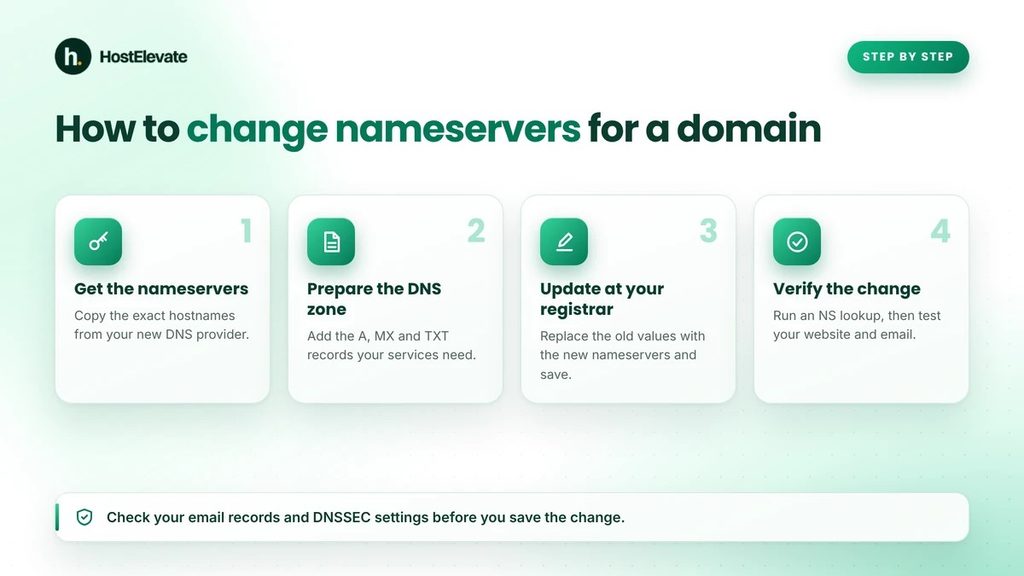
The exact screens depend on your registrar, but the process is much the same everywhere. Work through the four stages below in order.
Get the correct nameservers
Start by collecting the nameservers from the DNS provider you want to use. Your hosting company may supply them, or you may find them in the provider’s dashboard. Do not copy nameservers from another website, and do not assume every customer of a provider gets the same values. Use the exact hostnames assigned to your domain.
Prepare the new DNS zone
Before you switch, make sure the new provider already holds every record your services need. Depending on your setup, that can include:
- A and AAAA records for website addresses
- CNAME records for aliases and some service settings
- MX records for incoming email
- TXT records for domain verification and email authentication
- Records for subdomains and other connected applications
Not every domain needs every type. Copy the records you actually use and confirm their values with the providers behind each service.
Update nameservers at your registrar
When the new zone is ready, follow these steps:
- Sign in to the account that manages your domain registration.
- Open the nameserver settings for the domain.
- Choose the option for custom nameservers, if the registrar asks for it.
- Replace the old nameservers with the exact new values.
- Save the change and confirm it.
If you are moving a domain to Cloudflare, follow its official guide to change your nameservers and use the nameservers it assigns to your domain. DNSSEC settings may need attention during the switch.
Verify the change
After you save, look at the nameserver settings in your registrar account and run an NS lookup. An online DNS checker can also show results from several locations. Then test your website and email. If the answers differ for a while, give cached DNS data time to expire and confirm that the new zone contains every record you need.
What to Check Before You Change Nameservers
It is a routine task, but a little preparation removes most of the risk of downtime.
Back up your existing DNS records
Save or export your current DNS configuration before you touch anything. Include website records, mail records, verification TXT records, and subdomains. If something goes missing in the new zone, this copy tells you exactly what to rebuild.
Check your email configuration
If you use email on your domain, confirm that the new DNS provider has the correct MX records, plus any SPF, DKIM, and DMARC records you rely on. A nameserver change does not move your mailboxes. It only changes where the authoritative records are managed, so the mail service itself must still be set up correctly at its own provider.
Review DNSSEC settings
DNSSEC lets resolvers verify that DNS data has not been altered. If the DNSSEC information at your registrar does not match the new provider’s setup, the domain can fail to resolve. Follow the instructions from both providers whenever DNSSEC is on, and do not remove or change those settings unless you understand what your domain needs.
Confirm access to both providers
Make sure you can sign in to the registrar and to the new DNS provider. You may need both accounts to confirm settings or fix problems mid-change. If the domain supports a busy website or live email, pick a quiet time and keep a recovery plan ready.
How Long Does It Take to Change Nameservers?
Many nameserver updates appear within minutes or a few hours, but consistent results across all resolvers can take longer. The timing depends on registrar processing, registry updates, DNS caching, and the time to live (TTL) of the earlier records. Some registrar changes may take up to 24 hours to show, and cached delegation data can last longer than that.
It helps to separate two steps that people often mix up. First the registrar publishes the new delegation. Then individual resolvers around the world refresh their cached copies. They are related, but they finish at different times.
While this happens, some visitors will see the old DNS setup and others the new one. If both setups are not ready, that can cause uneven website or email behaviour. Resist the urge to keep changing nameservers while you wait. Check that the saved values are right, look at the authoritative configuration, and let the caches expire.
If you are also moving the website, HostElevate’s free website migration moves files, databases, email, and DNS together and keeps your current site running until the new one has been checked, which keeps the DNS part of a move predictable.
Common Nameserver Problems and How to Fix Them
If your domain misbehaves after the update, check these causes first.
The nameservers are incorrect
A typo or the wrong hostname stops the domain from resolving properly. Compare the values in your registrar account with the exact values your DNS provider gave you.
DNS records are missing
The new provider may lack records your website, email, or subdomains depend on. Compare the old zone with the new one and recreate whatever is missing.
DNSSEC configuration is inconsistent
When DNSSEC is on but the delegation and DNSSEC records do not match the new provider, validation fails. Follow both providers’ instructions to bring them back in line.
The change has not fully propagated
A registrar can accept a change before every resolver has refreshed. Check the current NS records, confirm your saved settings, and allow enough time for the update to show.
The domain is managed through a reseller
Some registrars sell through resellers. In that case you may have to make the update in the reseller’s control panel instead of the underlying registrar. If you cannot tell where your domain is managed, check your registration details or ask the company that sold you the domain. If you registered with HostElevate, you can reach the team through the contact page.
Frequently Asked Questions
What are nameservers used for?
They provide the authoritative DNS information that directs a domain to its website, email, and other services.
How do I find my domain nameservers?
Check the nameserver settings in your registrar account, or run nslookup -type=NS example.com on Windows.
Can I change nameservers without transferring my domain?
Yes, you can usually do it at your registrar without moving the registration, and a separate domain transfer is only needed to change registrars.
How long does it take to change nameservers?
Some changes show within minutes or hours, but registrar updates and DNS caching can mean consistent results take longer.
Do I need new nameservers when I move web hosting?
Not always; if you keep your current DNS provider, you may only need to update the website records to point at the new server.
Summary:
Nameservers identify the DNS service that is authoritative for your domain, and they connect your domain name to its website, email, and other services. Knowing the difference between nameservers and DNS records tells you whether you need new nameservers or simply edit a record.
Before you change nameservers, get the exact values from your new provider, build the DNS zone, save your existing records, and review your email and DNSSEC settings. Afterwards, verify the new values and test everything that depends on the domain. Careful preparation keeps downtime low and makes the whole process predictable.