

Creating a professional email with your own domain helps establish a consistent identity for your business. Instead of using a generic email address, you can send messages from addresses such as hello@yourcompany.com, sales@yourcompany.com, or support@yourcompany.com. If your hosting plan includes email services, you can create a business email in cPanel using your own domain without advanced technical knowledge.
This guide explains how to create a business email in cPanel step by step: set up the mailbox, open Webmail, connect the account to an email app, and configure the settings that keep your messages reliable. You will also learn how to fix common email problems and protect your account. The exact steps and features may vary depending on your hosting provider and cPanel configuration.
Table of Contents
- What Is a Business Email With Your Own Domain, and Why Is It Important?
- What Do You Need Before You Create a Business Email?
- How to Create a Business Email in cPanel
- How to Access Your Business Email Through Webmail
- How to Set Up Your Business Email in an Email App
- How to Configure DNS for Reliable Email Delivery
- How to Secure Your Business Email Account
- How to Fix Common cPanel Email Problems
- Frequently Asked Questions
- Summary:
What Is a Business Email With Your Own Domain, and Why Is It Important?
A business email with your own domain is an email address that uses a domain you own or manage. For example, contact@example.com uses the domain example.com. You can create custom addresses whenever your domain and hosting service support email hosting, and it takes only a few minutes to create a business email in cPanel once everything is ready.
A domain-based email address keeps your branding consistent across your website, customer communications, invoices, and business documents. You can also create separate mailboxes for different purposes, such as sales, support, and billing, which makes messages easier to organise. That is why many businesses create a business email in cPanel as one of their first steps after they register a domain.
However, using a custom domain does not automatically guarantee that your messages reach recipients’ inboxes. Reliable delivery also depends on correct DNS records, sender authentication, server reputation, and secure account management. Each of these is covered below.
What Do You Need Before You Create a Business Email?
Before you create a business email in cPanel, make sure you have the following:
- A registered domain: You need a domain such as yourcompany.com that you own or are authorised to manage.
- A hosting plan with email support: Confirm that your plan allows you to create mailboxes, and check its storage limits.
- cPanel access: Get the login address and credentials from your hosting provider.
- Correct DNS configuration: Your domain must point to the service that will handle your email.
- A suitable email address: Decide whether you need hello@yourcompany.com, sales@yourcompany.com, or another address.
If you still need a domain, you can register a domain with HostElevate and check the domain pricing first. If you need hosting as well, compare the features in the HostElevate web hosting plans and confirm the mailbox limits, storage, and email features of the plan you choose. Our guide on how to choose web hosting for your business explains what else to compare.
How to Create a Business Email in cPanel
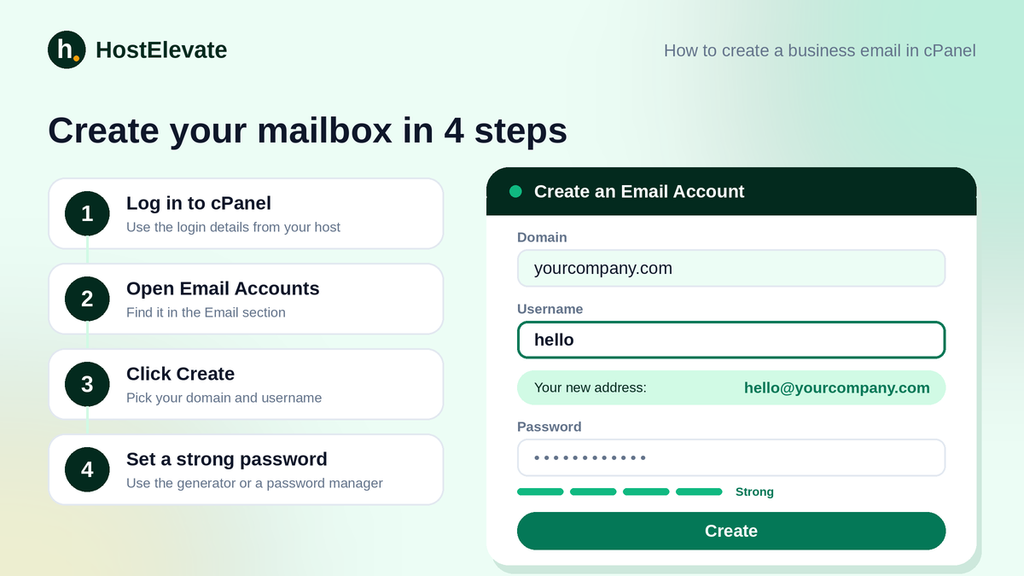
Once your domain and hosting account are ready, follow these seven steps to create a business email in cPanel. Depending on your provider’s configuration, labels and options may look slightly different.
Step 1: Open cPanel and sign in
To create a business email in cPanel, start by visiting the login address supplied by your hosting company. Enter your credentials and make sure you are working in the correct hosting account.
Step 2: Open Email Accounts
Find the Email section on the dashboard and select Email Accounts. This area lets you manage the email addresses linked to your hosting account’s domains.
Step 3: Select Create
Click Create to open the new mailbox form. If your hosting account includes several domains, select the domain for which you want to create the address.
Step 4: Choose an email username
Enter the name that should appear before the @ symbol. For example, choosing hello and selecting yourcompany.com creates hello@yourcompany.com.
Choose an address that clearly shows its purpose. Common options include:
- hello@yourcompany.com for general enquiries
- sales@yourcompany.com for sales questions
- support@yourcompany.com for customer assistance
- billing@yourcompany.com for payment-related messages
Step 5: Create a strong password
Use a unique, hard-to-guess password. A password manager can help you generate and store it securely. Do not reuse passwords from your hosting account or other services.
Step 6: Review the mailbox settings
If cPanel offers a storage quota or other mailbox options, choose settings that suit your needs and stay within your hosting plan’s limits.
Step 7: Create and verify the mailbox
Review the email address and settings, then click Create. Your new address should appear in the Email Accounts list. If it does not, check for an error message or contact your hosting provider. That completes the process to create a business email in cPanel.
For interface-specific instructions, see the official cPanel guide to creating an email account.
How to Access Your Business Email Through Webmail
After you create a business email in cPanel, test the mailbox through Webmail to confirm that you can send and receive messages.
Open the Webmail address provided by your hosting company. Many standard cPanel installations use a secure address that ends in port 2096, such as https://yourcompany.com:2096, but the correct address depends on your server and its configuration.
Enter your complete email address and the password you created. If prompted, choose an available Webmail application, such as Roundcube.
Once your inbox opens, send a test message to another email account you can access. Reply to that message to check both outgoing and incoming email. If you cannot log in, confirm the address and credentials, or ask your provider whether Webmail access is enabled.
For more help, read the cPanel guide to creating and connecting to an email account.
How to Set Up Your Business Email in an Email App
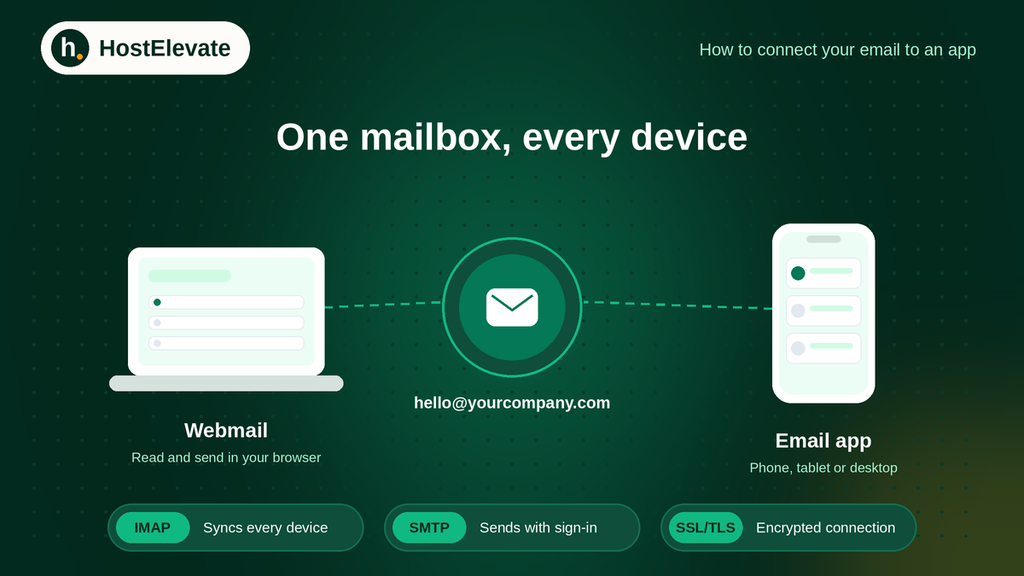
After you create a business email in cPanel, you can also use the mailbox in a compatible desktop or mobile email app. This is useful when you want to manage messages without opening Webmail each time.
In cPanel, open Email Accounts and find the mailbox you created. Select Connect Devices or the equivalent option to view the recommended settings, if available.
You may need the following details:
- Your complete email address and password
- The incoming mail server name
- The outgoing mail server name
- The supported IMAP or POP3 port and encryption method
- The SMTP port and authentication settings
IMAP is generally the better choice when you read the same mailbox on several devices, because it keeps messages in sync with the mail server. POP3 works differently and may download messages to one device, depending on the app’s configuration.
Use the exact server names, ports, and encryption settings supplied by your hosting provider. Turn on SMTP authentication where it is required, and use a secure connection such as SSL/TLS or STARTTLS when supported.
How to Configure DNS for Reliable Email Delivery
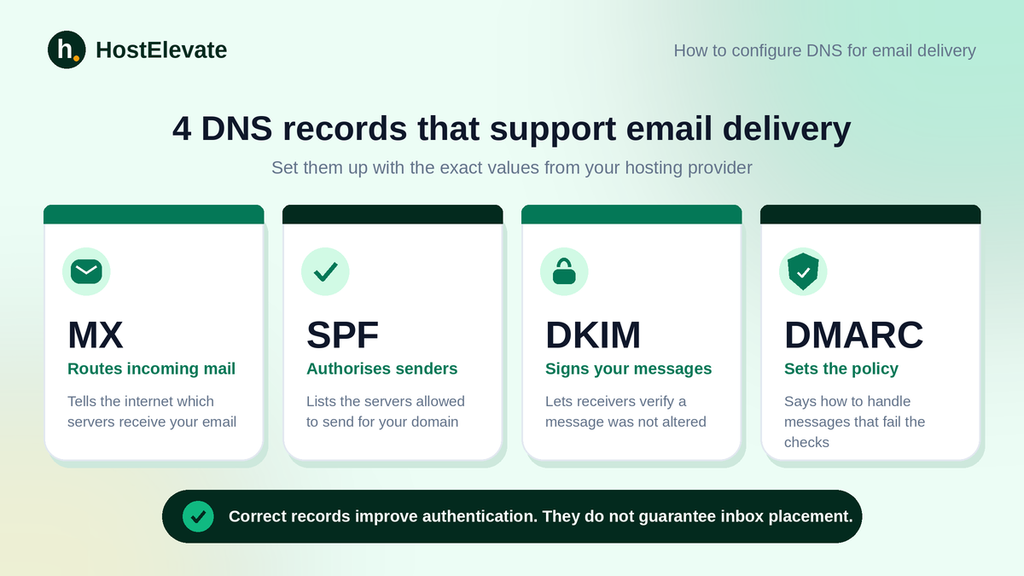
When you create a business email in cPanel, you finish only part of the setup. Your DNS records must send messages to the correct mail service, and email authentication records help receiving systems evaluate messages from your domain.
MX records
Mail Exchange (MX) records identify the servers responsible for receiving email for your domain. Incorrect MX records can stop incoming messages from reaching your mailbox.
SPF
Sender Policy Framework (SPF) lists the sending servers your domain authorises. Your SPF record should reflect the services you actually use. Never publish more than one SPF record for the same domain.
DKIM
DomainKeys Identified Mail (DKIM) uses a cryptographic signature to help receiving systems verify that a message was authorised by the signing domain and was not altered in transit.
DMARC
Domain-based Message Authentication, Reporting, and Conformance (DMARC) builds on SPF and DKIM. It defines how receiving systems should handle messages that fail authentication checks. Configure its policy carefully, especially if you send email through several services.
When you create a business email in cPanel, the Email Deliverability interface, if available, helps you review the supported authentication and DNS settings. If a separate provider manages your DNS, you may need to publish the required records there.
Always use the values supplied for your own email service instead of copying DNS records from another domain. Correct records help authentication, but they cannot guarantee inbox placement.
How to Secure Your Business Email Account
Your mailbox may contain customer messages, invoices, and other confidential information. Secure it as soon as you create a business email in cPanel, because good security practices protect both your communications and your domain’s reputation.
- Use a unique password: Keep your mailbox password separate from your hosting and website passwords.
- Enable additional authentication: Use multi-factor authentication for your hosting control panel and email platform wherever it is available.
- Use encrypted connections: Configure your email apps with the secure settings supplied by your provider.
- Limit account access: Give authorised team members individual accounts instead of sharing one password.
- Keep software updated: Install updates for your devices and email apps.
- Monitor unusual activity: Investigate unexpected sent messages, login notifications, or sudden delivery problems.
- Protect your domain account: Secure the account that controls your domain registration and DNS settings.
If you need advanced collaboration, centralised administration, or extra productivity features, compare your hosting mailbox with a dedicated business email platform such as Google Workspace before you decide. Email included with web hosting and a dedicated email service offer different features and management options.
How to Fix Common cPanel Email Problems
If your mailbox does not work as expected after you create a business email in cPanel, use these checks to narrow down the cause.
| Problem | What to check |
| Cannot log in to Webmail | Verify the full email address, password, and correct Webmail address. |
| Incoming email is missing | Check MX records, DNS settings, spam folders, and mailbox storage. |
| Outgoing email fails | Review SMTP settings, authentication, sending limits, and server restrictions. |
| Messages arrive in spam | Check SPF, DKIM, DMARC, message content, and sending reputation. |
| Email app cannot connect | Confirm the server name, port, encryption, and login details. |
| Mailbox storage is full | Review usage, remove unnecessary messages, or check available quota options. |
If these checks do not solve the issue, contact your hosting provider with the affected address, the approximate time of the problem, and the exact error message. Never send your password in a support ticket.
If you want to create a business email in cPanel alongside your website, review the HostElevate web hosting features. HostElevate includes free SSL and business email on your own domain, and its free website migration moves your email along with your site if you are switching hosts. Confirm that the plan you choose supports your required email setup.
Frequently Asked Questions
Can I create a business email in cPanel with my own domain?
Yes, if your domain is configured correctly and your hosting plan includes cPanel email services.
How long does it take to create a business email in cPanel?
It usually takes a few minutes once your domain and hosting plan are ready. DNS changes for a brand-new domain can take longer to take effect.
What do I need to create a business email in cPanel?
You need a registered domain, a hosting plan that includes email, and your cPanel login details. Once you have them, you can create a business email in cPanel in a few minutes.
Can I create more than one business email address?
Yes. You can create a separate address for each purpose, such as sales or support, up to your hosting plan’s mailbox limits.
Do I need a website to create a custom domain email?
No, but you need a registered domain and an email service configured to handle messages for it.
Can I use my cPanel business email on my phone?
Yes. You can use Webmail in a mobile browser or set up a compatible email app.
Is cPanel email the same as Google Workspace?
No. cPanel email is commonly included with web hosting, while Google Workspace is a separate productivity and business email service.
Summary: Create a Business Email in cPanel With Confidence
You can create a business email in cPanel in a few minutes when your hosting plan includes email services. Register your domain, sign in to cPanel, create your mailbox, and test it through Webmail or your preferred email app.
When you create a business email in cPanel using your own domain, you can manage domain-based communications and keep a consistent professional identity. Whether you create a business email in cPanel for sales, support, or billing, follow the setup steps above so that your mailbox is ready to send and receive messages.
For reliable delivery, check your MX, SPF, DKIM, and DMARC records, use strong passwords, and fix delivery errors early. If you also need a website, explore the HostElevate web hosting plans and compare the available features before choosing a plan.